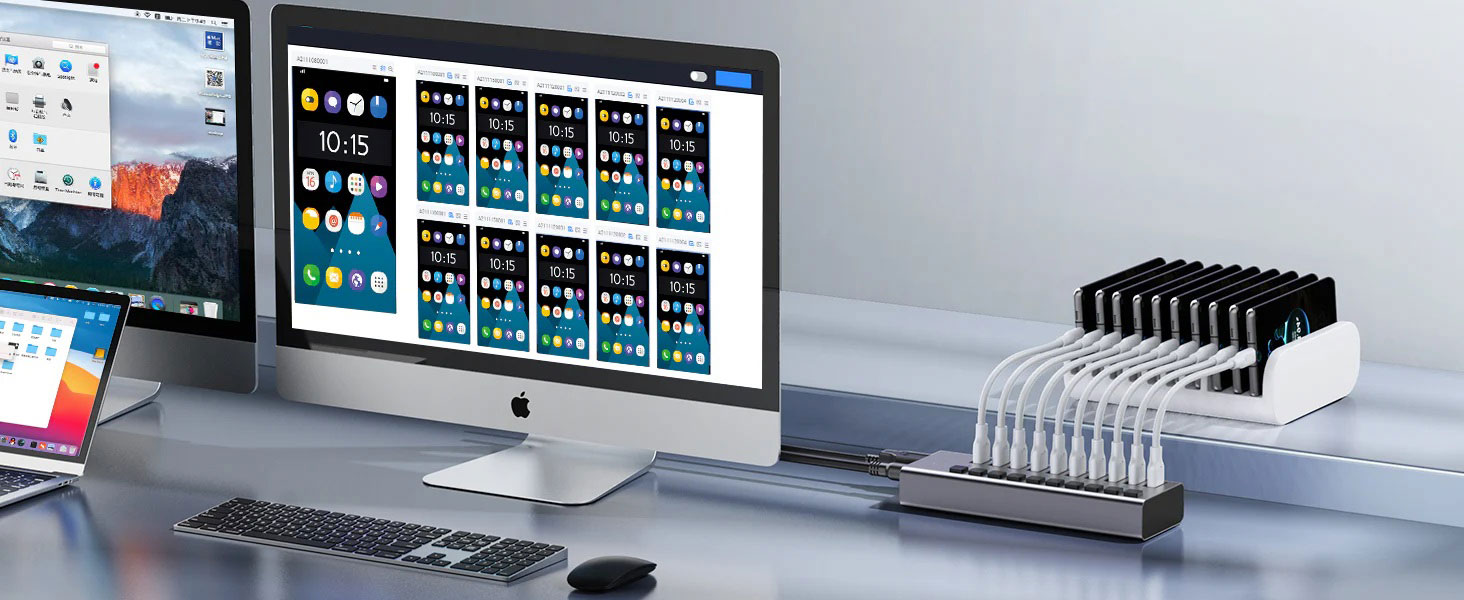
Today, USB hubs have become a must-have accessory for modern computer users, as many devices, such as keyboards, mice, printers, and external drives, need to connect via USB. Given the limited number of USB ports on laptops and desktops, USB hubs expand connectivity possibilities, allowing users to connect multiple devices simultaneously, significantly improving work efficiency. This is especially important for users with high data transfer needs or those working in a device-heavy environment. Whether in home, office, or educational environments, USB hubs are popular for the convenience and flexibility of device management they provide, and their portability makes them a favorite for mobile users.
However, power issues often become a stumbling block that affects the performance of USB hubs. For example, an underpowered hub may cause remote workers to experience slow file transfers or device disconnection when connecting keyboards, mice, and external hard drives. Gamers who rely on hubs to connect headphones and controllers may also experience audio interruptions or input delays due to insufficient power, which ruins the gaming experience.
These examples all show that insufficient power can cause frustrating interruptions and reduced basic device functionality. Therefore, ensuring that the USB hub maintains adequate power is critical to the efficiency of a laptop computer when multiple external devices are connected simultaneously.
Reasons for insufficient power in a USB hub may include:
Using a passive hub that draws power only from the host device limits the energy available to the peripherals.
Poor quality or damaged USB cables impede power delivery, affecting device performance.
An improper power adapter cannot provide enough power, especially when multiple devices are connected.
Connecting too many power-hungry devices simultaneously exceeds the hub's power capabilities.
Inherent limitations of host USB ports, especially laptops, limit power delivery.
To reliably and effectively identify USB hub power issues, take the following steps:
Visual inspection: Inspect the hub, cables, or connectors for physical damage, such as frayed wires or bent connectors.
Observe device behavior: Signs of insufficient power include the device failing to power on, intermittent disconnection, or error messages when accessing an external hard drive.
Power check: Make sure the powered hub is connected to a functioning power adapter and that the adapter meets the required wattage specifications.
Load test: Connect devices one by one. If the hub works fine with fewer devices but fails when fully loaded, it indicates a power limitation.
Use a power meter: Measure voltage and current output to help identify poor power performance.
Flashing LEDs, slow data transfer rates, and devices charging slowly or not at all are all warning signs of USB hub power issues.
To resolve these issues, consider the following options:
Upgrade to a powered hub: Use a powered USB hub with its own power adapter to ensure adequate power for multiple devices.
Check power specifications: Make sure the power adapter meets the recommended wattage for the hub. Consult the manufacturer's documentation to confirm.
Use quality cables: Invest in high-quality USB cables to reduce the risk of power outages.
Limit device connections: Avoid connecting too many power-hungry devices at the same time, and prioritize important devices.
Regular maintenance: Check and clean the hub and cables regularly to prevent dust and debris from causing connection issues.
Test with different ports: If using a laptop, try connecting the hub to different USB ports to check for power limitations.
Update drivers: Ensure your USB hub drivers are up to date to resolve possible power issues.
To prevent USB hub power issues, it is recommended to:
Use a powered hub to ensure adequate power for all connected devices.
Verify that the hub's power adapter meets the wattage required by the devices.
Avoid connecting too many power-hungry devices at the same time to prevent overload.
Invest in high-quality USB cables to ensure reliable power delivery.
Regularly inspect the hub and cables for damage and remove any dust or debris that may affect the connection.
In summary, it is critical to take a proactive approach to effectively resolve and prevent USB hub power issues. Using a powered USB hub like the Purplelec USB Hub with PD3.0 100W Fast Charging Port for Charging and Massive Expansion ensures adequate power for multiple devices to prevent overload. Always check the specifications of the hub and its power adapter to confirm that they meet the needs of the connected devices. Limiting the number of power-hungry devices connected simultaneously, regularly maintaining hubs and cables, and using durable USB cables are key to ensuring stable power and optimal device performance. By following these practices and using reliable hubs, users can improve their overall experience, ensure that all connected devices operate smoothly and efficiently, and extend the life of the hub and devices.