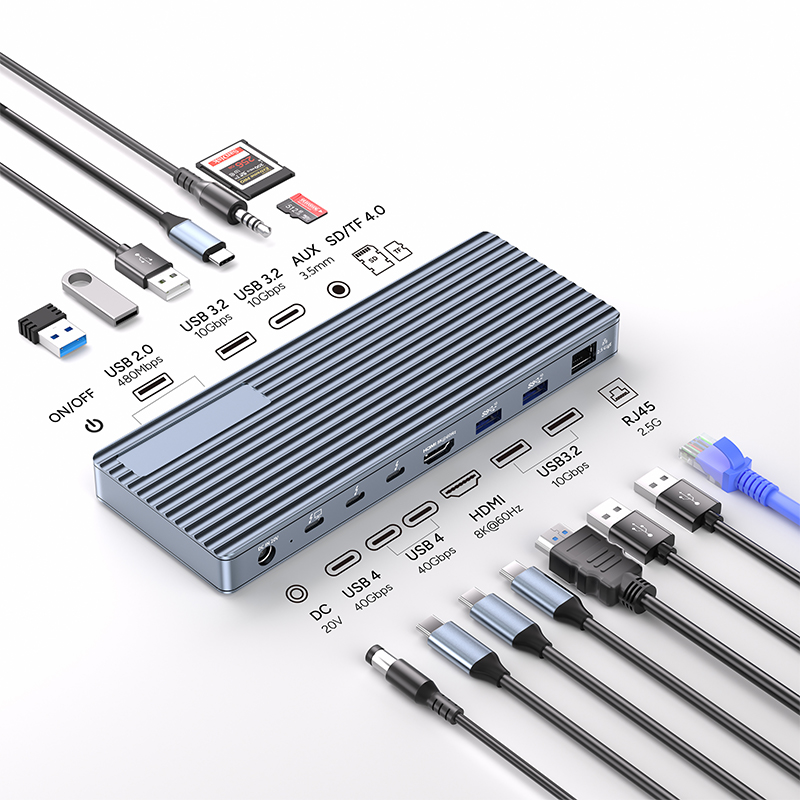
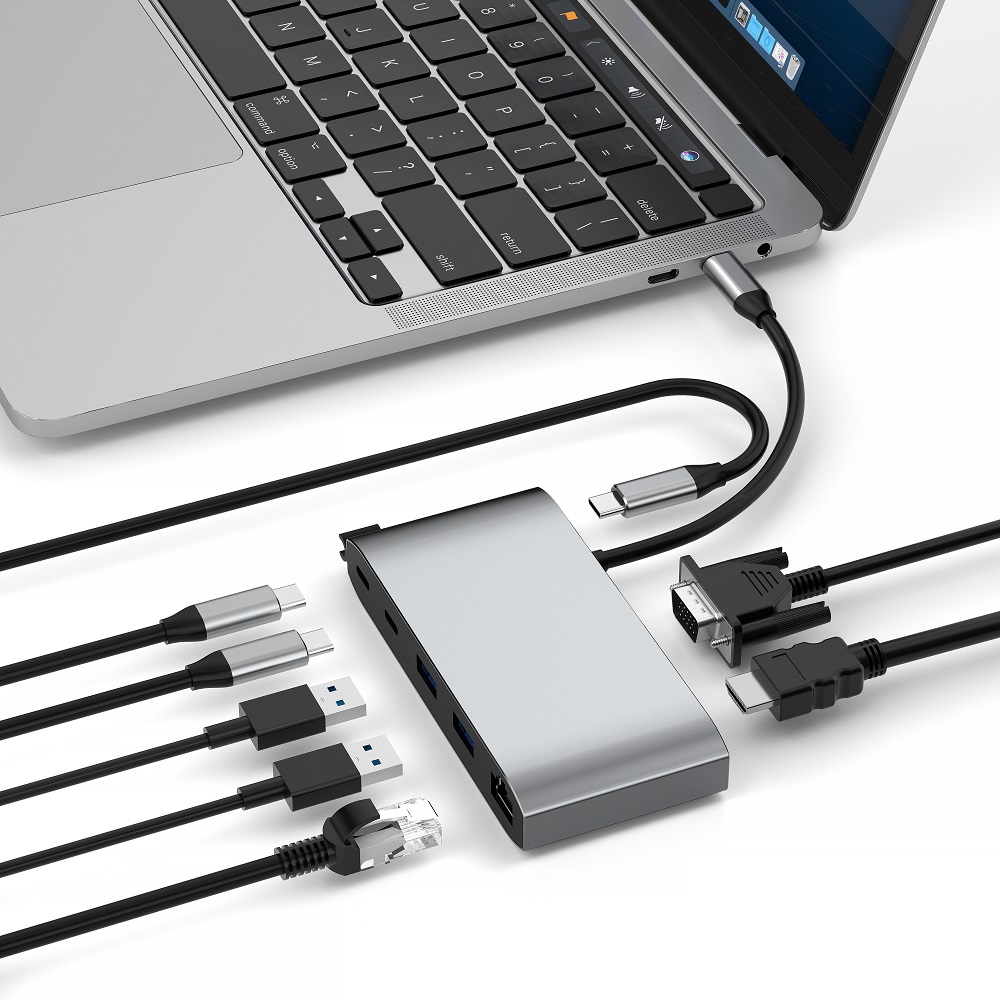
A USB-C hub is a convenient device that expands a single USB-C port on your laptop into multiple available ports to meet your needs for connecting various peripherals. With the hub, all connected devices can share the available bandwidth for efficient data transfer.
A good USB-C hub not only matches your devices perfectly, but is also easy to carry, making it perfect for mobile use. It usually provides more USB-A ports, additional USB-C ports, PD 3.0 charging ports, Gigabit Ethernet ports, SD card readers, Micro SD card slots, HDMI output ports, DisplayPort ports, and VGA ports, covering almost all common connection needs.
Modern laptops are usually equipped with USB ports, but the advantage of a USB-C hub is that it can integrate multiple daily devices such as keyboards, hard drives, mice, printers, etc. into one adapter, thereby simplifying your desktop and removing messy cables.
Connecting a USB-C hub to your laptop or PC is simple, and it really does increase your connectivity options. Whether you're a traveler or an office worker, a versatile USB-C hub makes it easy to work efficiently and use multiple ports.
When choosing a hub, be sure to select one based on your specific needs and verify the functionality of all connected devices. With your new USB-C hub, you can handle any task quickly and efficiently, making your work more efficient.
Troubleshooting Gigabit Ethernet
If you're having issues with your Gigabit Ethernet port not working when using a USB-C hub, here are some troubleshooting steps:
Test with another device and cable:
Verify that the hub's LED lights up when a device is connected.
Try connecting with another device to see if you can get a wired internet connection.
If you can connect to the network through the USB-C port on your USB-C hub using another adapter, there may be a problem with the hub's Ethernet port.
Inspect and clean the Ethernet port, and if the problem isn't resolved, the hub may need repair.
Plug an Ethernet cable directly into the laptop's Ethernet port and see if you can get a stable internet connection.
Replace a new Ethernet cable to test.
Check the physical connection:
Make sure the Ethernet cable is securely connected to the RJ45 port on the hub.
Unplug and replug the Ethernet cable to fix a loose connection.
Verify that the Ethernet cable is properly plugged into the corresponding port on the router.
Restore factory settings:
If the hub has a reset option, perform a factory reset.
Press and hold the RESET button to turn the hub off and then back on.
Check if the LED on the hub starts blinking.
Restart devices:
Remove the hub from the laptop and turn off the power.
Restart the laptop and reconnect the hub.
Restart the modem and wireless router to establish a new connection.
Update drivers:
On Windows, update the driver for the Ethernet adapter associated with the hub through Device Manager.
On macOS, check for software updates in System Preferences.
Enable/Disable Ethernet Adapter:
In Windows' Device Manager, right-click the Ethernet adapter and select Disable Device, then Enable Again.
Network Settings:
On Windows, check the Internet connection through the Troubleshooting feature in Settings.
On macOS, make sure the Ethernet service is set to "Use DHCP" under "Configure IPv4" and renew the DHCP lease.
Check IP Configuration:
On Windows, press "Win + R" to check if the Ethernet adapter has a valid IP address.
Connect to Wi-Fi:
If your router supports Wi-Fi, try connecting to Wi-Fi to get Internet connectivity and narrow down the source of the problem.
Conclusion
The network relies on the RJ45 port on the hub to keep communication and data flowing smoothly. To ensure efficient operation and stable connection of the network, we need to be familiar with common problems and their solutions. Regular maintenance and care of your USB-C hub, as well as knowing its troubleshooting steps, will help you stay in efficient working condition.