In digital office and life scenarios, the connection requirements of electronic devices are becoming increasingly complex, and docking stations have become a powerful assistant for many users. But do you really understand docking stations and know whether you need them? This article will explain in detail the functions and types of docking stations, as well as how to choose and apply them according to your needs.
The core function of docking stations, also known as "Docks" in English, is to expand the connection options of devices. It provides additional ports for displays, external drives, card readers, audio devices, and Ethernet connections. If your Mac device lacks enough ports to meet your workflow, such as the need to connect multiple external devices at the same time for data transmission, display output, etc., the docking station base is undoubtedly a valuable supplement.
Docking Stations and Hubs: Different Functions, Each Takes What It Needs
Docking Stations
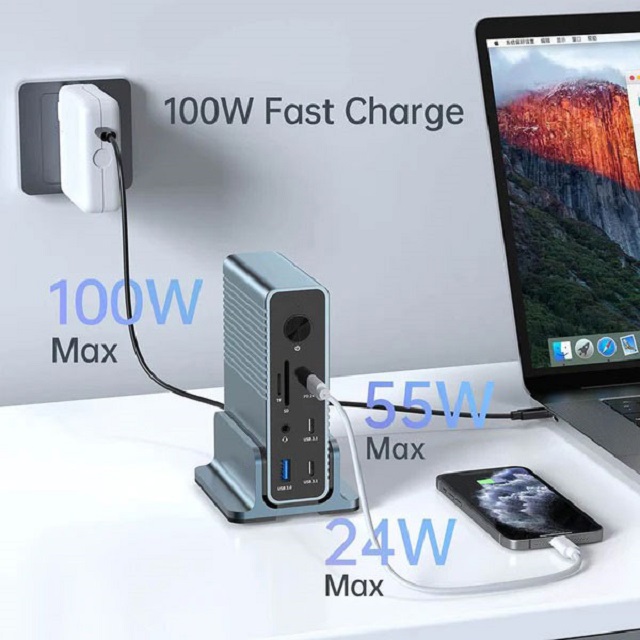
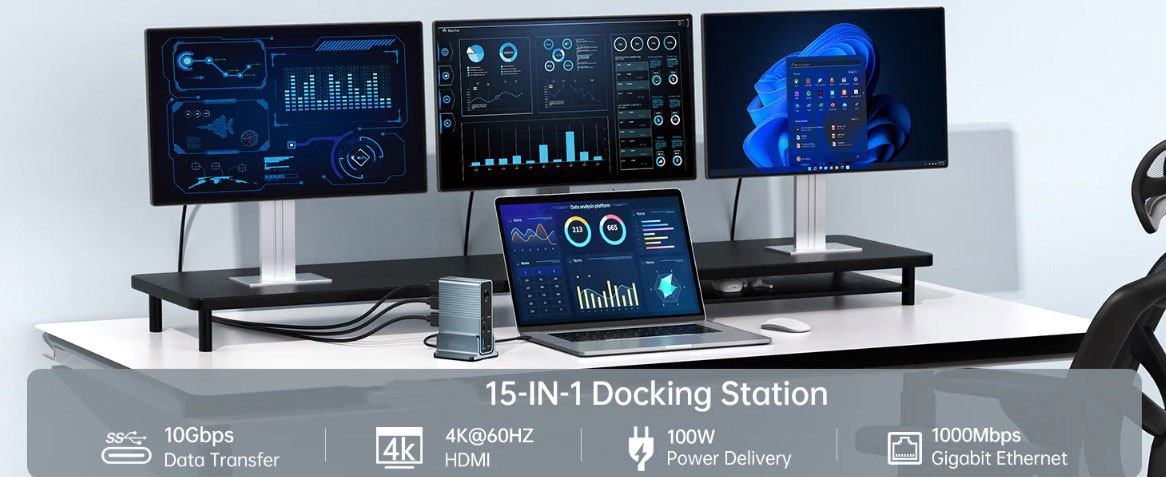
Features: Usually larger in size, with rich port options, and can be powered. Some high-end docking stations can even charge laptops, which is extremely convenient for fixed office scenarios. Users only need to connect their laptops to the docking station to charge, connect to external monitors, connect to various peripherals, and create a simple and efficient desktop working environment.
Applicable scenarios: Suitable for fixed places such as offices and homes, as an alternative to desktop computers or to provide comprehensive expansion functions for laptops.
Hub
Features: Small size and easy to carry, which makes it a good helper for users when they go out. However, hubs are usually not powered and have relatively few ports. They are mainly used to meet basic device expansion needs, such as connecting a mouse, keyboard, or small storage device when you are out.
Applicable scenarios: Suitable for users who travel frequently and work on the go, and can be used when they need to temporarily expand device ports.
Thunderbolt vs. USB-C: Considerations of speed and compatibility
Speed difference
Thunderbolt 3 and 4 have extremely fast data transmission speeds, up to 40Gbps, compared to the 10Gbps transmission speed of standard USB-C. This means that when transferring large files, such as high-definition videos and large database files, the Thunderbolt interface docking station can greatly shorten the transfer time and improve work efficiency.
Compatibility
Although both Thunderbolt and USB-C use the same connector type, compatibility depends on the specific functions of the computer and the docking station. When choosing a docking station, be sure to confirm its compatibility with your Mac device in terms of interface protocol to ensure that you can give full play to its performance advantages.
Charging with a dock: Intelligent power selection
When charging a Mac device using a dock and a separate charger, the Mac will intelligently select a higher-power power source to optimize the charging process. For example, desktop Macs such as iMac and Mac Mini mainly use their dedicated power supply, even when connected to the dock. This intelligent power selection mechanism not only ensures the normal charging of the device, but also avoids charging problems that may be caused by power conflicts.
Display and dock: Number of connections and technical limitations
Number of connections
Different Mac models and docking station combinations support different numbers of connected displays.
Most Intel Macs support connecting two displays through a Thunderbolt dock.
The M1 MacBook Air/Pro only supports connecting one display.
The Mac Mini allows two displays, one each via HDMI and USB-C/Thunderbolt.
The M1 Max/Ultra chips in the MacBook Pro and Mac Studio can directly support more displays, but when connected through a dock, the number of connections may be limited by the dock itself.
DisplayLink technology
DisplayLink technology is used in some docking stations, which can provide additional display connection support for Mac devices, even if the Mac itself does not directly support so many displays. However, it should be noted that using DisplayLink technology may bring certain performance limitations, such as screen freezes when displaying high-resolution videos or performing complex graphics processing.
Daisy chain connection: an advanced way to expand connections
For users with higher connection needs, multiple Thunderbolt docks can be connected together to achieve further connectivity expansion. Each connected dock can obtain full bandwidth to ensure efficient data transmission. However, when implementing daisy-chaining, it is important to fully consider the use of Thunderbolt ports on Mac devices. It is recommended to allocate ports reasonably to avoid overusing the bandwidth of a single port, which may cause device performance degradation. For example, the second Thunderbolt port can be used to connect other important devices, such as high-speed external storage devices.
In summary, docking stations play an important role in modern digital life and work. By understanding their own needs, comparing the differences between docking stations and hubs, and paying attention to information on interface technology, charging functions, display connections, and expansion methods, users can more scientifically choose and use docking stations and create a powerful expansion ecosystem for their Mac devices.