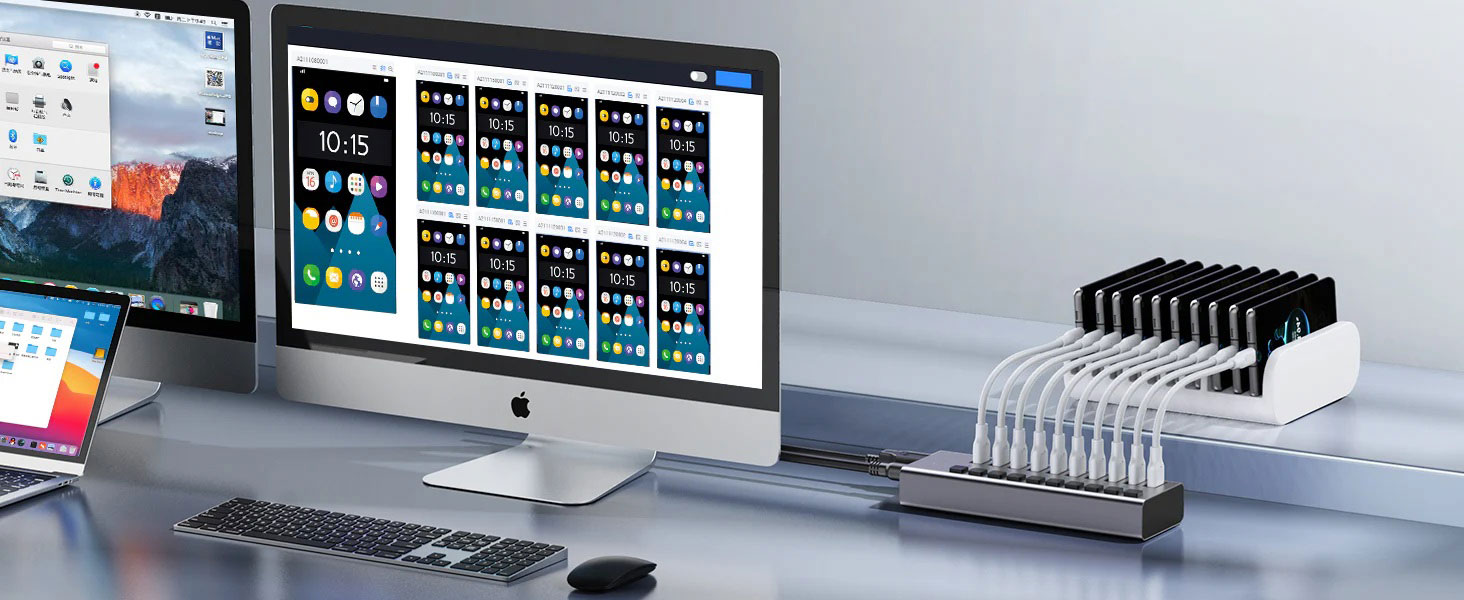
During daily use, have you ever encountered such a trouble: when connecting your Mac to a USB - A hub, it fails to recognize your iPhone, yet directly using the USB - C port of the Mac to connect the iPhone works fine. This situation can be really frustrating. However, don't worry. Next, we will delve into the reasons behind it and provide you with a series of effective troubleshooting steps.
I. Problem Analysis: Why Can't Mac Recognize iPhone on USB - A Hub
(1) USB Hub Compatibility Issues
USB Version Mismatch: There are significant differences in functionality and compatibility between USB - A and USB - C ports. Different iPhone models have specific requirements for the USB version. If the USB version supported by the USB - A port of the USB hub does not match what the iPhone needs, it will lead to recognition failure. For example, newer iPhones may require USB 3.0 and above to achieve high - speed data transfer and stable connection, while some older USB - A hubs may only support USB 2.0.
Insufficient Power Supply: The iPhone may need certain power support when connected. Some USB - A hubs may not be able to provide sufficient power for it, thus affecting recognition. Especially when the hub is connected to multiple devices simultaneously and the total power exceeds its power - supply capacity, the iPhone connected to it may not be recognized normally by the Mac.
(2) Hardware Failures
Damaged USB - A Port: The USB - A port on the hub may experience physical damage after long - term use, such as bent or broken pins inside the port, or debris accumulation in the port. These can all hinder the normal connection and data transfer between the iPhone and the Mac.
USB Cable Problems: USB cables are prone to bending and pulling during daily use, resulting in damage to the internal wires. A damaged USB cable may not be able to transmit data stably, making it impossible for the Mac to recognize the iPhone connected to the USB - A hub via this cable. In addition, if the cable specifications do not meet the standards, it may not be able to meet the data - transfer requirements between the iPhone and the Mac.
Abnormal iPhone Charging Port: If there is damage, deformation, or foreign objects in the iPhone's charging port, it will also affect its connection stability with the USB hub, resulting in the Mac being unable to recognize it.
(3) Software and Driver Issues
Outdated macOS Version: Older versions of macOS may have loopholes or compatibility issues in recognizing certain devices. With the continuous update of iPhone and USB device technologies, Apple will fix relevant problems and enhance compatibility in new system versions. If your Mac has not been updated to the latest macOS system in a timely manner, it may not be able to correctly recognize the iPhone connected to the USB - A hub.
Missing or Incompatible Device Drivers: For some non - Apple - official USB hubs, specific drivers may be required to work properly on the Mac. If these drivers are missing or are not compatible with the current macOS system version, it may cause the hub to malfunction and thus be unable to recognize the iPhone connected to it.
Software Conflicts or Damaged Files: Some third - party software installed on the Mac may conflict with the iPhone recognition function, interfering with the normal communication between devices. In addition, if system files or related configuration files are damaged, it may also affect the recognition of the iPhone.
II. Troubleshooting: Step - by - Step to Solve the Problem
(1) Verify Compatibility
Check USB Hub Specifications: Carefully check the product manual or official website of the USB hub to confirm the USB version it supports and whether it is compatible with your Mac operating system. At the same time, clarify whether the hub is suitable for connecting mobile devices such as the iPhone.
Confirm the USB Version Required by iPhone: Refer to the official technical documentation or product description of the iPhone to understand the USB version required by your iPhone model. For example, iPhone 11 and subsequent models generally support USB 3.0 and above. If the USB - A port of the hub only supports USB 2.0, you may need to consider replacing the hub.
(2) Check Hardware
Examine the Condition of the USB - A Port: Carefully check the USB - A port on the hub and observe whether there are obvious signs of damage, such as a cracked port shell, bent or missing pins. At the same time, use a compressed air can or a small brush to clean the dust and debris that may be present inside the port.
Replace the USB Cable: Try using another high - quality USB cable that meets the specifications to connect the iPhone and the USB - A hub. It is recommended to choose an Apple - certified cable to ensure the stability and compatibility of data transfer.
Test iPhone Functionality: Connect the iPhone to another computer or a different USB port (such as the USB - C port of the Mac) to check whether the iPhone can be recognized normally. If it can be recognized on other devices, it means that the iPhone's hardware is normal, and the problem lies in the USB - A hub or the related connection.
(3) Update Software and Drivers
Update macOS System: Click the "Apple" menu in the upper - left corner of the Mac screen, select "Software Update", and update the Mac system to the latest version as prompted. New system versions usually fix known device - recognition problems and compatibility loopholes.
Update USB Hub Drivers: Visit the official website of the USB hub manufacturer, search for and download the latest driver suitable for your current Mac system version. When installing the driver, be sure to follow the steps provided by the official.
Update iTunes or Finder: If you are using an older version of the macOS system, iTunes is a commonly used software for managing the iPhone, and it needs to be ensured that it is the latest version. In newer macOS systems, Finder undertakes the function of managing the iPhone. Similarly, ensure that Finder is in the latest state to ensure the correct recognition of the iPhone.
(4) Reset SMC and PRAM/NVRAM
Reset System Management Controller (SMC): The methods for resetting SMC vary slightly for different Mac models. For most Mac laptops, you can first turn off the computer, then connect the power adapter, and simultaneously press the Shift + Control + Option keys and the power button. Keep these keys pressed for 10 seconds, then release all keys and press the power button to turn on the computer. For desktop Macs such as iMac, you can refer to the SMC reset method for specific models in Apple's official support documentation.
Reset Parameter RAM/Non - Volatile RAM (PRAM/NVRAM): During the Mac startup process, immediately press the Command + Option + P + R keys until you hear the Mac startup sound twice and then release. This operation can reset some system settings of the Mac and help solve some hardware and software problems.
III. Solutions and Suggestions
(1) Contact Manufacturer Support
If the problem still persists after the above series of troubleshooting steps, it is recommended to contact the technical support team of the USB hub manufacturer in a timely manner. Describe in detail the situation of the problem, such as the device model used, the system version, and the fault performance. They may provide more professional solutions or suggestions. If it is determined that the problem is due to the quality of the USB hub itself, you can apply for a replacement or refund according to the product warranty policy.
(2) Consider Replacing the USB Hub
If the USB hub has been used for a long time or its compatibility and performance are indeed found to have problems after testing, you may consider replacing it with a better - quality and more compatible USB hub. When choosing a new hub, give priority to products that support USB 3.0 and above, have a good reputation, and have a high power output to meet the connection needs of devices such as the iPhone.
(3) Adopt a Direct Connection Method
As a temporary or long - term solution, you can directly connect the iPhone to the USB - C port of the Mac for data transfer and charging. This method can avoid compatibility and hardware problems caused by the USB - A hub, ensuring the stability of the connection and the efficiency of data transfer. Although it may occupy one USB - C port of the Mac, in the case where the problem of the USB - A hub's recognition cannot be solved, it is still a reliable alternative.
In conclusion, when the Mac cannot recognize the iPhone via the USB - A hub, by systematically troubleshooting problems in compatibility, hardware, software, etc., and taking corresponding solutions, most of the time this trouble can be resolved. I hope the above content can help you solve the problem smoothly and restore the normal connection and use between devices.