When using a USB-C hub to connect an HDMI device, you may encounter various problems. Don't worry, these common problems such as "no signal", incorrect resolution or black screen are often caused by some easy-to-check reasons. With the following methods, you can quickly locate and solve the problem and enjoy a smooth HDMI connection experience again.
I. "No Signal" Problem Troubleshooting
(I) USB-C Port Function Check
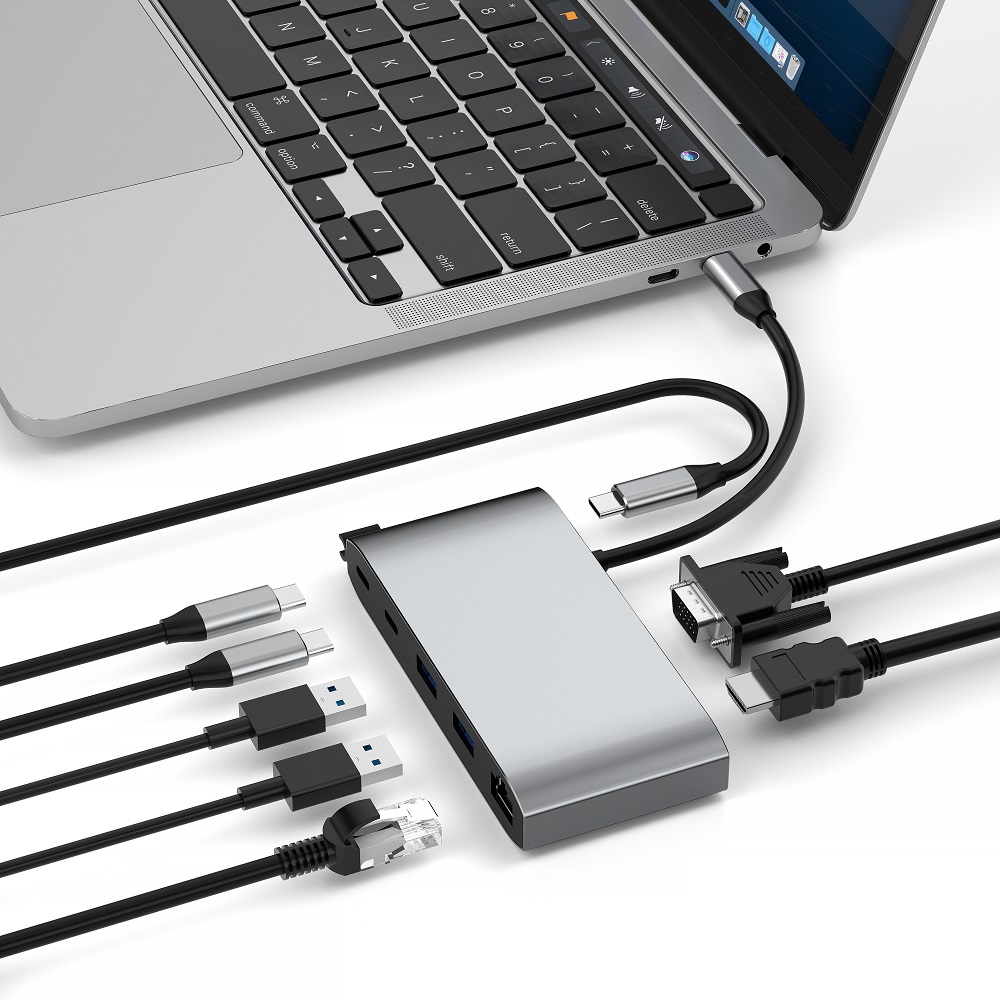
Make sure your computer's USB port supports DP Alt mode, which is essential for video output. If the USB-C port does not support DP Alt mode, a black screen with "no signal" will appear even if a USB-C hub and HDMI device are connected. Check your computer manual or specifications to confirm whether the USB-C port has this function. If your computer has an HDMI port, or another USB-C port with DP Alt mode, try connecting using those ports to see if this solves the problem. If your computer's USB-C port does not support DP Alt mode, you may want to consider investing in a docking station with DP Alt mode, which can effectively expand your connection options and solve the problem of video signal transmission. For example, Purplelec's 8-in-1 USB-C Hub Multi-Port Adapter Laptop Docking Station not only has multiple multi-function ports, including HDMI and VGA video outputs, but also supports DP Alt mode, which can be seamlessly integrated with a variety of devices to achieve stable transmission of video signals.
(II) Connection status confirmation
Carefully check whether the USB-C hub is firmly connected to the device's USB-C port, and whether the HDMI cable is firmly connected to the hub's HDMI port and the monitor/TV. For detachable connections, re-plug and re-plug to ensure that the connection is tight and correct. If conditions permit, try to connect the device with a different HDMI cable to rule out the "no signal" problem caused by a damaged HDMI cable.
(III) Device compatibility troubleshooting
Confirm that the USB-C hub is compatible with the connected device. Some hubs have specific requirements or restrictions on supported devices. If the devices do not match, the HDMI port may not work properly. The functions and compatibility of the USB-C interface of different brands and models of devices vary. Before use, be sure to check the product manual or consult the manufacturer to ensure that the two are compatible.
II. Resolution or refresh rate mismatch problem resolution
When the display is recognized, but the display resolution or refresh rate is not as expected, it is usually caused by the mismatch between the computer, HDMI cable and display.
(I) Device specification verification
Check the specifications of the computer, HDMI cable and display separately to ensure that they all support the required resolution and refresh rate. For example, if the maximum resolution of the display is 4K (3840×2160), but the HDMI cable only supports 1080P (1920×1080) transmission, the actual display resolution will be limited. Similarly, the performance of the computer's graphics card will also affect the supported resolution and refresh rate.
(II) Display settings adjustment
In the computer's display settings, manually select the correct resolution and refresh rate for the display. The display settings path for different operating systems is slightly different. Generally, you can right-click on a blank area on the desktop and select "Display Settings" to enter the relevant interface. In the display settings, find the connected monitor, click "Advanced Display Settings" or a similar option, and then select the appropriate parameters in the resolution and refresh rate drop-down menus.
(III) Hardware upgrade considerations
If you are using an older HDMI cable or adapter, it may not meet the transmission requirements of high resolution and refresh rate. At this time, you can consider upgrading to a cable or adapter that can support higher specifications. For example, for display requirements of 4K resolution and 60Hz and above refresh rates, you need to use a high-speed HDMI cable. This type of cable can provide more stable and efficient data transmission to ensure picture quality.
III. Black screen problem handling
Even if the computer recognizes the monitor, the screen is black. This problem is usually caused by outdated drivers or software errors, especially after a system update.
(I) System and driver updates
Check and make sure that the operating system has been updated to the latest version, which can help solve the black screen problem caused by system vulnerabilities. At the same time, visit the official website of the computer and USB-C hub manufacturer to download and install the latest drivers. Outdated drivers may not be perfectly compatible with new systems or devices, causing various display problems. Taking Purplelec's USB-C hub as an example, regularly check its official website for driver updates for the product, and download and install them in time to improve product performance and stability.
(II) Connection and device inspection
Confirm that the HDMI cable is firmly connected again, and try to replug the HDMI cable and USB-C hub to rule out poor contact caused by looseness. If the USB-C hub has multiple ports, try to connect the device to other ports to see if the black screen problem can be solved. In addition, disconnect the USB-C hub and connect the device directly to the monitor to determine whether the problem lies with the hub. If the direct connection is normal, but a black screen appears when connected through the hub, it may be a hub failure.
(III) Hardware damage inspection
Carefully check whether the HDMI port and cable have obvious signs of damage, such as port deformation, cable sheath damage, etc. If the hardware is found to be damaged, the corresponding parts need to be repaired or replaced in time. For the HDMI port, you can use other devices to connect to the port for testing to determine whether the port itself is faulty. For the HDMI cable, you can try to use another cable to connect and compare the results.
If the HDMI connection problem still cannot be solved through the above steps, it is recommended to contact the device or adapter manufacturer in time for professional technical support. They can provide more targeted solutions based on the specific product model and problem manifestation, helping you quickly restore the normal HDMI connection.









