Contents:
.Convenient Reversible Connector
.Power Delivery (PD)
.Video Output
.Faster Data Transfer
.Multi-function Adapter
.Compatibility Issues Across Devices
.Lack of Standardization Leads to Misunderstandings
.USB-C Cables and Ports Have Differences in Quality and Properties
.Troubleshooting HDMI Connections with USB-C Adapters
.Specific Challenges for Windows and iOS Systems
.USB-C Adapter Maintenance Tips
.Identify Early Signs of Adapter Failure
.Understand USB-C Versions and Compatibility
.Compatibility Explained
1. Introduction
With the rapid development of technology, people are always committed to exploring ways to quickly improve productivity and seize market advantages, which has led to the emergence of various tools to improve work and life efficiency. At the same time, with the advent of USB-C, a new standard for data transmission and charging, the demand for USB-C adapters has also risen. USB-C adapters can achieve perfect compatibility between different interface devices, and provide users with a seamless experience with its powerful expansibility, thereby improving productivity and efficiency.
2. Overview of USB-C Adapter Technology
2.1 Convenient Reversible Connector
The connector of the USB-C adapter adopts a reversible design. Users do not need to carefully distinguish the positive and reverse directions when inserting it like the old USB standard, which greatly improves the convenience of use.
2.2 Power Delivery (PD)
With the power delivery standard, the USB-C adapter can achieve faster charging speeds and provide higher power. This makes it not only suitable for charging smartphones, but also for devices with high power consumption such as laptops.
2.3 Video Output
The USB-C interface supports video and audio signal transmission. With a USB-C adapter, users can use USB-C alternate mode to allow devices to output HDMI, DisplayPort, or VGA signals through the USB-C port, making it easy to connect to an external display.
2.4 Faster Data Transfer
The USB-C interface supports high-speed data transfer, with common specifications being USB 3.1 Gen 1 and Gen 2. Gen 1 has a data transfer rate of up to 5Gbps, while Gen 2 can reach 10Gbps. In addition, the USB4 standard also uses a USB-C connector for faster data transfer speeds.
2.5 Multi-function Adapters
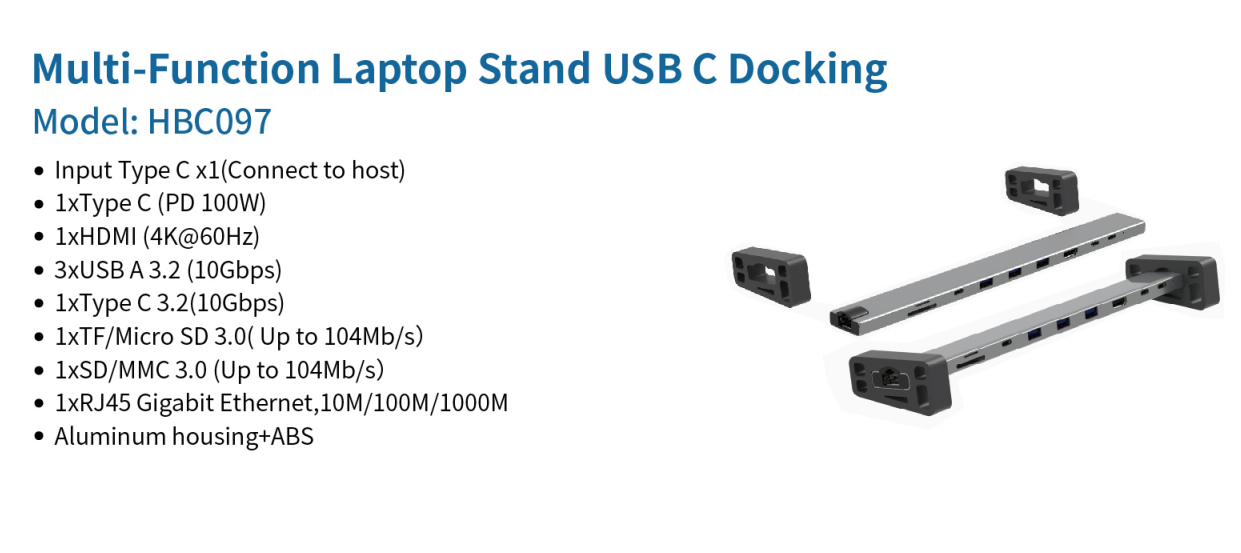
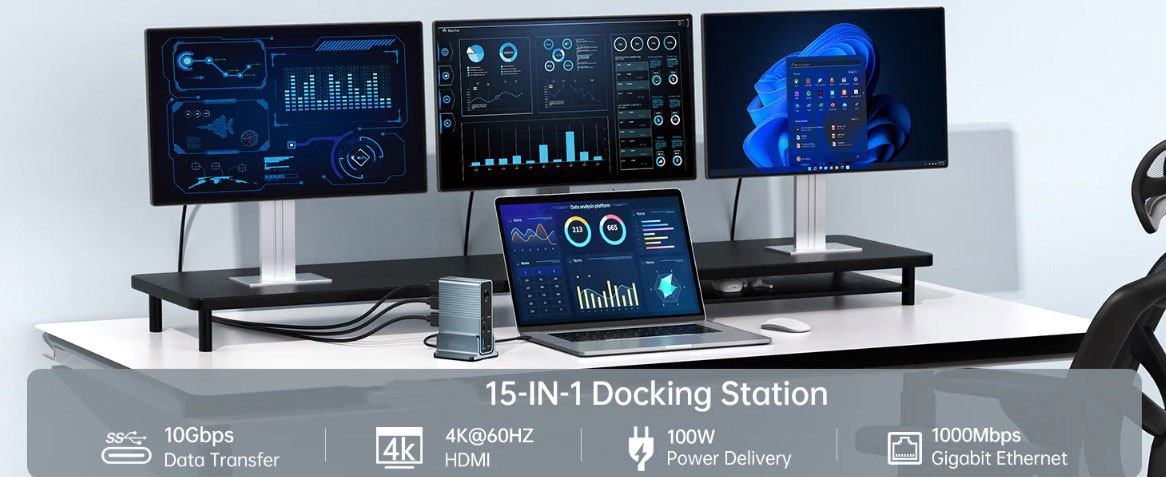
Some USB-C adapters are designed as multi-function styles, integrating multiple ports into one adapter. For example, a USB-C hub may include a USB-A port, a USB-C port, HDMI, DisplayPort, and VGA outputs, an SD/Micro SD card slot, an Ethernet port, and a 3.5 mm audio/microphone jack.
3. Purpose of USB-C Adapters
USB-C adapters are designed to provide compatibility and expand the functionality of USB-C devices. Whether you need to connect your laptop to a projector for a presentation at work or transfer large files from a USB flash drive to a smartphone, USB-C adapters can play a role and meet user needs.
4. Identify common USB-C adapter issues
4.1 Compatibility issues with different devices
Although USB-C adapters are designed to provide a universal and versatile solution for connecting a variety of devices, compatibility issues may still occur due to differences in device specifications, standards, and manufacturer implementations.
Power Delivery (PD) Mismatch: Different devices have different power requirements, and not all USB-C adapters support the same power delivery profile. Using an unmatched adapter may result in slow charging or even no charging.
USB-C Alternate Mode Compatibility: USB-C alternate modes can transmit video signals, such as HDMI, DisplayPort, or Thunderbolt. However, not all USB-C ports or adapters support these alternate modes, and compatibility issues may occur when connecting external displays or devices that require specific alternate modes.
Data Transfer Speeds: USB-C supports different data transfer speeds, such as USB 2.0, USB 3.1 Gen 1, USB 3.1 Gen 2, USB4, etc. Using an inappropriate adapter may limit the data transfer rate.
Device Specific Compatibility: Some devices may have specific requirements or limitations for USB-C functionality. For example, different USB-C ports on a laptop may have different capabilities, and not all ports support the same operations.
Operating System Compatibility: Although USB-C is a universal standard, different operating systems may have different implementations of its drivers and support. Therefore, you need to ensure that your device and adapter are compatible with the operating system you are using.
Firmware/Driver Issues: Firmware or driver updates for your device and adapter may be critical for optimal compatibility. Outdated firmware or drivers may cause problems with certain features.
4.2 Lack of standardization leads to misunderstandings
The lack of uniformity in the USB-C standard in practical applications poses many challenges to both consumers and manufacturers, so it is important to carefully consider its specifications when choosing USB-C devices and adapters. Here are some misunderstandings caused by the lack of standardization:
Power Delivery (PD) Profile: USB-C supports power delivery, which enables devices to negotiate and obtain higher power for fast charging. However, not all USB-C devices and chargers support the same PD profile.
USB-C Alternate Mode: USB-C can support alternate modes that transmit non-USB signals, such as HDMI, DisplayPort, or Thunderbolt. Users may encounter difficulties when connecting external displays or using specialized peripherals that rely on these alternate modes.
Data transfer speed: The lack of uniform labeling or identification on devices and cables makes it difficult for users to determine the maximum data transfer speed supported by their setup.
Device-specific implementation: Different device manufacturers may implement USB-C technology differently, which may lead to compatibility issues and uncertainty about the features supported by the device.
Inconsistent labeling: Devices and cables may not clearly indicate the specifications and capabilities of the USB-C interface. The lack of standardized labeling makes it difficult for consumers to understand the capabilities and limitations of devices and accessories. As USB-C technology continues to develop, greater standardization and clearer description of device capabilities are critical to creating a more seamless and user-friendly experience.
4.3 USB-C Cables and Ports Have Differences in Quality and Properties
USB-C cables and ports have differences in quality and properties that can affect performance and user experience. Factors include manufacturing quality, cable thickness, data transfer speeds, power delivery support, anti-interference shielding, connector integrity, certification standards, device compatibility, and brand reputation. Users should choose cables from reputable manufacturers, prioritize products that are USB-IF certified, and understand the specific requirements of their devices to ensure reliable connections, efficient charging, and safe operation.
5. HDMI screen mirroring issues on Windows and iOS laptops
5.1 Troubleshoot HDMI connection problems with a USB-C adapter
To troubleshoot HDMI connection problems with a USB-C adapter, follow these steps:
Check that the HDMI cable and USB-C adapter are intact.
Confirm that the USB-C adapter supports HDMI output.
Check that the video port on the external monitor or TV is working properly.
Check whether the adapter needs to be powered separately or whether the USB-C port can provide enough power.
Make sure the driver and firmware of the USB-C adapter are the latest version.
5.2 Specific challenges for Windows and iOS systems
For Windows systems, compatibility issues may occur if the driver is not automatically installed or is outdated. In addition, if the power settings restrict the operation of USB devices and some hubs have problems identifying devices connected through them, it may cause peripherals to not be recognized or the connection to be unstable. At the same time, the performance of high-bandwidth peripherals (such as external hard drives) may degrade when multiple devices are connected at the same time.
For iOS systems, there are limited supported external devices, power restrictions, file system restrictions, specific application compatibility issues, firmware updates, and system security restrictions, which may bring challenges to Windows and iOS systems when using USB-C adapters.
6.1 USB-C adapter maintenance tips
Users can maintain USB-C adapters by following the following suggestions to ensure a smooth and trouble-free experience with devices and peripherals:
Avoid excessive bending of the adapter.
Use cables that meet high-quality standards.
Regularly check the USB-C adapter for signs of physical damage, such as bent pins or deformed connectors.
Avoid exposing the adapter to extreme temperature, humidity, or pressure when in use or storage.
Use the correct procedure to disconnect the USB-C adapter from the device.
Evenly distribute the load to prevent the adapter from overheating and ensure stable performance.
Make sure the USB-C adapter is compatible with the device and its specifications.
Update the adapter's firmware and related software in a timely manner.
6.2 Identify early signs of adapter failure
If the following problems occur, it is recommended to repair or replace the USB-C Hub as soon as possible:
Unstable connection.
Slow data transfer speed.
Overheating during operation.
Unstable power delivery.
Abnormal device recognition.
Abnormal noise.
Firmware/software update failure, etc.
7. Solve USB-C adapter compatibility issues
7.1 Understand USB-C versions and their compatibility
To understand USB-C versions and their compatibility, you need to be familiar with the different specifications and features of each version. The following is a brief introduction:
USB 2.0: This is the basic version with a data transfer rate of up to 480Mbps. Although it uses a USB-C connector, it cannot fully utilize the high-speed performance of higher versions.
USB 3.1 Gen 1: Also known as USB 3.0, this version has a maximum transfer speed of 5Gbps, which is 10 times faster than USB 2.0 and is more common in various devices.
USB 3.1 Gen 2: This version has a higher data transfer speed of up to 10Gbps. Devices equipped with USB 3.1 Gen 2 ports have faster data transfer speeds than devices with USB 3.1 Gen 1 ports.
USB4: USB4 is the latest and most advanced version. It is backward compatible with USB 2.0, USB 3.2 and Thunderbolt 3, with a data transfer rate of up to 40Gbps, providing greater versatility and performance.
Thunderbolt 3: Thunderbolt 3 is a high-performance interface that uses a USB-C connector and supports data transfer rates of up to 40Gbps, 5K display output, and power delivery. Note that Thunderbolt 3 is not equivalent to USB-C. Although Thunderbolt 3 ports use USB-C connectors, not all USB-C ports support Thunderbolt 3.
7.2 Compatibility Details
First, USB-C is designed to be backward compatible, which means that USB-C cables or adapters can be used with older USB-A or USB-B devices, but data transfer speeds will be limited to the lower standard. Second, Power Delivery is an independent specification that USB-C can support. Devices with USB-C ports may or may not support Power Delivery, and the amount of power they transmit or receive may vary. Finally, USB-C supports alternate modes for transmitting non-USB signals, such as DisplayPort, HDMI, or Thunderbolt, but not all USB-C ports or cables support these alternate modes, so compatibility varies.