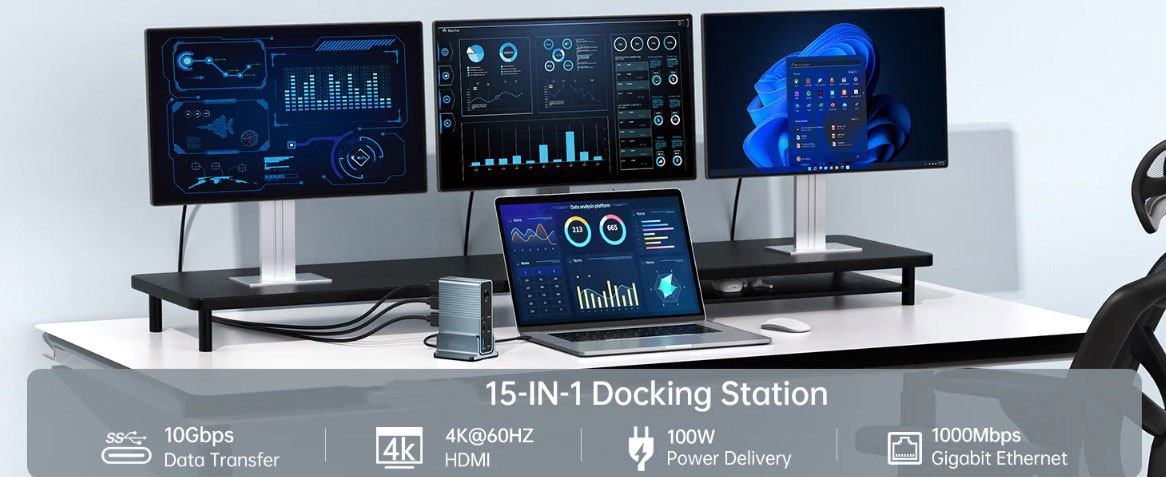
DisplayPort Multi-Stream Transport (MST) technology is an innovative feature that significantly simplifies the complexity of connecting multiple external displays to a single system. This technology can be implemented through an MST hub or daisy-chained displays, supporting both traditional DisplayPort cables and DisplayPort Alternate Mode over USB-C.
The Origin and Development of MST Technology
MST technology was developed in 2009 and first implemented in the DisplayPort 1.2 standard in 2010. Since then, it has been an integral part of every DisplayPort generation and will continue to be included in the new DisplayPort 2.0 standard. MST is compatible with traditional DisplayPort cables as well as USB-C cables utilizing DisplayPort Alternate Mode, offering great convenience for multi-display connections.
How MST Technology Works and Its Advantages
MST technology works by splitting a video signal into multiple digital signals at the source, which are then transmitted to corresponding displays via connected cables. Unlike Single-Stream Transport (SST) technology, which can only transmit a single data stream to one connected display, MST supports multiple displays independently displaying different content, greatly enhancing productivity.
For users requiring multiple displays for complex workflows and multitasking, MST technology is crucial. It is particularly useful in environments requiring large screen spaces, such as trading floors, control rooms, or digital signage. MST allows users to connect multiple displays using a single DisplayPort output port on a computer or docking station, with the system recognizing each display as an independent unit. Each display in the daisy chain can show unique content and operate independently, as if connected to its own output port.
Additionally, MST reduces the amount of cabling required for multi-display setups, simplifying the connection process. It supports signal sources equipped with DisplayPort technology and any port, transmitting video to multiple displays through a single cable. Users can transmit video to an MST-compatible hub, which then distributes the video to connected displays, or transmit video to a single display, which then daisy-chains it to the next display via another cable.
Differences Between MST and SST
MST (Multi-Stream Transport) and SST (Single-Stream Transport) are two key modes in DisplayPort technology that involve the transmission of video signals. Each has its unique uses and can meet different user needs.
Connectivity: MST allows multiple displays to be connected through a single port, while SST requires a dedicated port for each display.
Independence: MST supports independent screens with different content, whereas SST can mirror the same content or extend the desktop across multiple displays.
Bandwidth: MST shares available bandwidth among multiple displays, while SST allocates full bandwidth to each display.
Setup Examples and Application Scenarios of MST Technology
MST technology has two primary use cases: daisy-chained displays or hub-connected displays.
In a daisy-chain setup, a PC or laptop outputs to a DisplayPort-compatible display using a DisplayPort, Mini DisplayPort, or USB-C cable (utilizing DisplayPort Alternate Mode). This display is then connected to another DisplayPort-compatible display using the same type of cable, and in some cases, a third display is connected to the second one using the same technology. This setup minimizes cabling while still allowing each display to show unique content.
In an MST system using a hub, the original host system connects to a Multi-Stream Transport hub via a DisplayPort, Mini DisplayPort, or USB-C cable. Up to three displays are then connected to the hub's outputs via the same cable. Using a hub makes it easier to replace displays without disconnecting the daisy chain. Additionally, MST hubs can offer other connectivity options, such as HDMI, and do not rely on displays that support correct video output for daisy-chaining.
MST technology has a wide range of applications in various scenarios, such as stadiums, restaurants, or hotel lobbies. In these places, multiple displays may need to show different information in different locations of the building. Using a hub makes it easier to replace displays or change their configurations without shutting down all displays at once.
Limitations of MST Technology
Despite its benefits in enhancing productivity and efficiency, MST technology has some limitations, primarily in terms of operating system compatibility, hardware requirements, and the use of third-party adapters.
Operating System and Hardware Compatibility: The compatibility of MST largely depends on the operating system used. Windows fully supports MST starting from Windows 10, allowing users to seamlessly enjoy the convenience of multi-display setups. The operating system has built-in support for configuring and managing MST hub or daisy-chain setups, enabling Windows users to relatively easily extend their desktops across multiple screens or use them independently.
However, macOS has compatibility issues. Apple's operating system does not natively support MST and cannot extend the desktop across multiple displays via a single connection. Instead, macOS treats MST hubs as a single display, limiting their utility by mirroring content across all connected displays rather than extending it. This is a significant drawback for Mac users hoping to leverage MST for enhanced productivity.
Linux users may find varying levels of support for MST, depending on the distribution, kernel version, and specific hardware drivers. While progress has been made in MST support, ensuring seamless compatibility may require additional configuration or updates.
Hardware Requirements: Implementing MST also requires specific hardware features, including a DisplayPort 1.2 (or higher) output on the video source and support from the graphics card. Connected displays do not need to support DisplayPort 1.2, but if daisy-chaining is used, the first display in the chain needs to support it. This requirement may limit the use of older devices or necessitate upgrades for users wishing to adopt MST setups.
Third-Party Adapters: To bridge compatibility gaps or enhance connectivity options, third-party adapters are crucial. However, not all third-party MST hubs and adapters are created equal. Differences in manufacturing quality, support for different resolutions and refresh rates, and compatibility with specific operating systems or hardware can significantly impact the user experience. Choosing reputable adapters that guarantee compatibility with target devices and support necessary resolutions and refresh rates is essential.
How to Set Up Three 4K Screens Using an MST Hub
To set up three 4K screens using an MST hub, first, purchase a high-quality MST hub capable of handling three 4K displays simultaneously. You will also need at least three DisplayPort 1.2 or higher cables to support 4K resolutions, as well as a host system that supports MST and is equipped with a modern GPU featuring a DisplayPort interface capable of handling the content you wish to display on these displays. 4K gaming is the most extreme example, requiring a very powerful GPU to display content simultaneously on three different screens, but even running three 4K video streams can place a considerable burden on the system.
Specifications:
·Input Type Cx1(Connect to host)
·1xType C(PD3.0 with max 100W)
·1xHDMI(Max4K@30Hz)
·1xHDMI(Max4K@60Hz)
·1xDP(Max4K@60Hz
·1xRJ45 Gigabit Ethernet,10M/100M/1000M
·1xTF/Micro SD 3.0(Up to 104Mb/s)
·1xSD/MMC 3.0 (Up to 104Mb/s)
·1xAudio (3.5mm Audio&Mic
·2xType C 3.2(Max 10Gbps data transmission)
·3xUSB A 3.0(Max 5Gbps data transmission)
Once you have all the necessary hardware, setting up most MST hubs is relatively straightforward. Plug the MST hub into the DisplayPort port of your host system. If it requires external power, plug in the external power supply and turn it on at the outlet.
Next, connect your MST-compatible displays to the MST hub. You can use DisplayPort, Mini DisplayPort, USB-C, or Thunderbolt cables, depending on the video inputs available on the hub and the displays themselves. Additionally, you will need to plug in the corresponding power cords for the displays and turn on all power switches.
Once everything is ready, turn on your host system. The displays other than the first one may not show anything until you enter Windows, but once you do, they should be recognized and display the content you have sele-cted for them. If this is your first time using this setup, they may default to mirroring the original display, so if you want them to extend the original display or show unique content, you will need to manually set this up in Windows.
If the displays still do not work properly, consider updating your graphics card drivers to the latest version to see if that resolves the issue. Updating your Windows system wouldn't hurt either.
In conclusion, MST technology is a highly innovative and practical feature that significantly simplifies the complexity of multi-display connections and enhances productivity. However, when using MST technology, it is also important to be aware of its limitations and choose the appropriate hardware and adapters to ensure compatibility and performance.