In today's fast-paced world, the internet has evolved from a luxury to a necessity in both homes and offices. With the surge in remote work, online gaming, and streaming services, a reliable network connection has become more crucial than ever. Amidst the growing demand for stable and fast internet, USB-to-network adapters have emerged as a vital tool for enhancing network experiences. These compact yet powerful devices are particularly essential for users who lack direct access to Ethernet ports, offering a simple and effective solution for achieving a more stable and efficient internet connection.
USB-to-network adapters, often referred to as USB-to-Ethernet adapters, are devices that convert a USB port into a LAN (Local Area Network) port, enabling computers or other hardware equipped with USB interfaces to connect to the network via wired means. These devices seamlessly bridge the gap between newer, often thinner devices lacking Ethernet ports and the need for high-speed wired network connections. By simply plugging the adapter into a USB port, users can enjoy the increased reliability and speed of a wired network, making it an ideal choice for bandwidth-intensive activities such as video conferencing, gaming, or large file transfers.
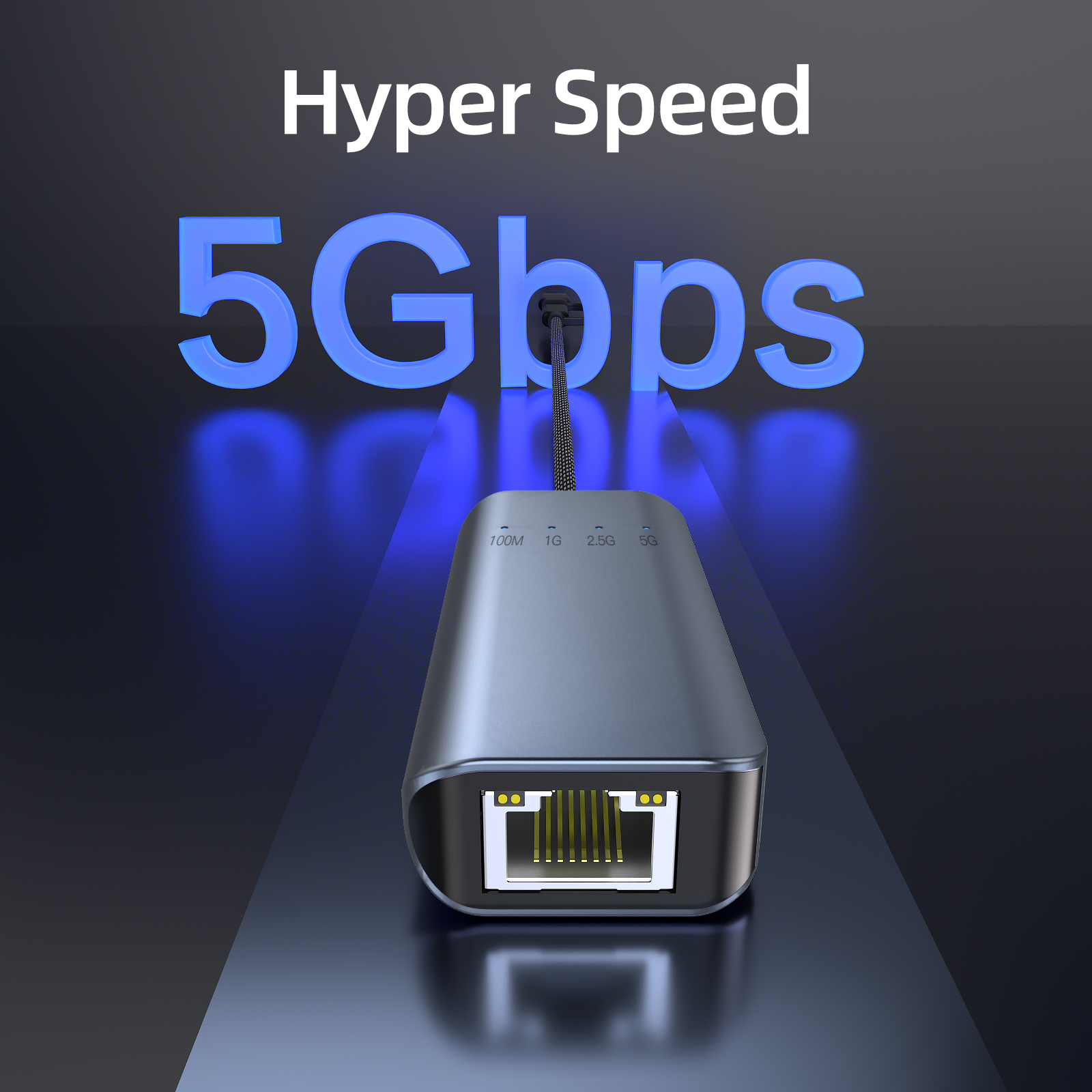
The significance of connecting USB to Ethernet cannot be overstated, especially in environments where Wi-Fi is unavailable, has a weak signal, or is overly congested. For instance, in office settings with a large number of wireless devices, using a wired connection can significantly boost network speed and security. Similarly, in older buildings or areas with electromagnetic interference, Wi-Fi signals may be disrupted, at which point USB-to-Ethernet adapters can make a notable difference. This connection method not only maintains a stable online presence but also represents a strategic decision aimed at achieving peak network performance where it's most needed.
The Evolution and Features of USB-to-Network Adapters
USB-to-network adapters represent an intriguing chapter in the history of network technology development. Initially, computers were equipped with dedicated Ethernet ports, but as laptops and ultrabooks became increasingly thin and portable, these ports were often sacrificed to accommodate sleeker designs. USB-to-network adapters filled this void, enabling devices without built-in Ethernet capabilities to connect to wired networks.
These ingenious devices have undergone multiple iterations and have improved with each new USB standard. They have transitioned from the USB 1.1 and 2.0 eras to the current significantly faster USB 3.0 and USB-C versions, offering gigabit Ethernet speeds for bandwidth-intensive tasks of modern tech users.
Over time, the compatibility and functionality of these adapters have expanded significantly. Today, they support various operating systems, including Windows, macOS, and Linux, ensuring wired network connectivity for a wide range of devices. USB 3.0 compatibility is a notable feature, offering data transfer speeds of up to 2.5 Gbps, far surpassing the 480Mbps of its USB 2.0 predecessor. Additionally, features such as Wake-on-LAN further enhance their practicality, allowing devices to be awakened remotely over the network, a benefit particularly useful for network administrators and remote workers. PXE boot support enables computers to boot via network interfaces without relying on local storage media, providing a simplified method for efficiently deploying and updating software across multiple systems.
Compelling Reasons to Choose USB-to-Network Adapters Over Wireless Connections
There are ample reasons to opt for USB-to-network adapters over wireless connections. Firstly, these adapters can provide faster and more stable internet speeds, free from the fluctuations common in Wi-Fi signals. Secondly, since wired networks are harder to intercept than wireless ones, they offer an added layer of security. Moreover, users often report reduced latency—a critical factor for online gaming or VoIP calls where timing is of the essence. Direct connections eliminate potential interference from other wireless devices and obstacles that may hinder Wi-Fi signals. Consequently, you can achieve a stable and reliable network connection that is less likely to drop at inconvenient moments.
Understanding How Drivers and Chipsets Work in USB-to-Network Adapters
It's crucial to understand how drivers and chipsets function in USB-to-network adapters. Drivers are software components that allow the operating system and the adapter to communicate effectively. Manufacturers typically provide these drivers, which must be installed for the adapter to function properly. The chipset within the adapter plays a pivotal role in determining its compatibility with different devices and operating systems, as well as the overall performance and reliability of the network connection. These chipsets handle the data transmitted between the USB port and the Ethernet connection, ensuring efficient and seamless network communication.
Which Devices Utilize USB-to-Network Adapters?
In an era where Wi-Fi is ubiquitous, the reliability of wired network connections remains crucial for many devices. USB-to-network adapters bridge the gap between this reliability requirement and modern design trends that omit Ethernet ports in compact devices.
Laptops and tablets are typical examples of portable devices that often lack Ethernet connectivity due to their slim form factors. Users requiring stable and fast internet connections can use USB-to-Ethernet adapters to expand their device's capabilities. This is particularly useful in scenarios where Wi-Fi signals are weak or unstable, such as in crowded offices, conference venues, or areas with significant electronic interference. For professionals handling large files or participating in video conferences, these adapters can ensure a more stable and secure connection, thereby enhancing productivity and efficiency.
Gaming consoles and smart TVs can also benefit from USB-to-network adapters. Online gaming is highly sensitive to latency, and wired Ethernet connections can provide the low-latency environment players need, significantly improving the gaming experience. For smart TVs, using an Ethernet adapter ensures stable video streaming, reducing buffering and enabling higher-quality video playback, which is crucial for movie enthusiasts and binge-watchers.
Most Ethernet adapters are primarily designed for computers running Windows, Linux, or macOS platforms, as these platforms require specific chipset drivers for optimal functionality. Unfortunately, most TVs cannot directly integrate the drivers provided by chipset manufacturers, making adapters incompatible without manual installation options.
Nevertheless, some users have successfully connected their TVs to Cable Matters adapters. This compatibility is likely due to certain TVs being pre-installed with drivers compatible with our adapter's chipset. In such cases, even if the connection indicator shows abnormalities, the adapter can still connect seamlessly to the internet. If you find that the adapter isn't working properly, it may be that your TV isn't equipped with the necessary Realtek chipset drivers. This means the adapter isn't compatible, and we recommend contacting your TV's technical support team. They may offer solutions or alternative methods for downloading and installing the required drivers.
In industrial and commercial settings, USB-to-network adapters are crucial in environments where wireless connections are impractical or unreliable. Industrial computers used in manufacturing and production lines often require secure and fast network connections to efficiently manage and control processes. In commercial use cases, point-of-sale (POS) systems, kiosks, and digital signage stations typically rely on wired connections to process transactions smoothly and display content without interruption.
The application scope of USB-to-network adapters extends even further. In fields like healthcare, where data security and transmission reliability are paramount, these adapters provide secure connections for transmitting sensitive patient information. Similarly, in surveillance systems, wired connections via Ethernet adapters enable more consistent and real-time access to video feeds, which is crucial for security monitoring.
Overall, USB-to-network adapters serve as versatile solutions for a wide range of devices and industries, enhancing connectivity in situations where high speed, low latency, and network stability are indispensable.
How to Use USB-to-Network Adapters
Using a USB-to-network adapter is a straightforward method for connecting devices without Ethernet ports to a wired network. This guide will walk you through the entire process, including driver setup and troubleshooting any issues you may encounter.
Check Your Equipment: First, ensure that your USB-to-Ethernet adapter and network cable are in good condition.
Connect the Adapter: Plug the USB end of the adapter into an available USB port on your computer or device. Then, insert one end of the Ethernet cable into the adapter and the other end into your router or switch.
Install Drivers: Most USB-to-network adapters are plug-and-play, so your operating system should automatically recognize the adapter and install the necessary drivers upon connection. If it doesn't, you can manually download the latest drivers from the manufacturer's website and follow the provided instructions for installation.
Configure Network Settings: After installing all necessary drivers, you'll need to configure your network settings. For Windows users, you can find these settings under "Network and Sharing Center" in the "Control Panel." macOS users can navigate to "System Preferences" and then select "Network" for necessary adjustments. Linux users typically manage network connections through the network manager.
Test Your Connection: Once your device is connected and configured, open a web browser and visit any website to test your internet connection and confirm successful setup.
If you encounter any issues, such as no network connection, slow speeds, or the adapter not being recognized, you can take the following steps. Ensure all connections, including the cable to the router and the adapter to the USB port, are secure. Try using a different USB port or network cable to rule out hardware issues. If the adapter isn't recognized, try it on another computer to see if the problem lies with the adapter itself. If speeds are slow, compare them with other devices on the same network. If the issue persists, you may need to reinstall the drivers or adjust your network settings.









