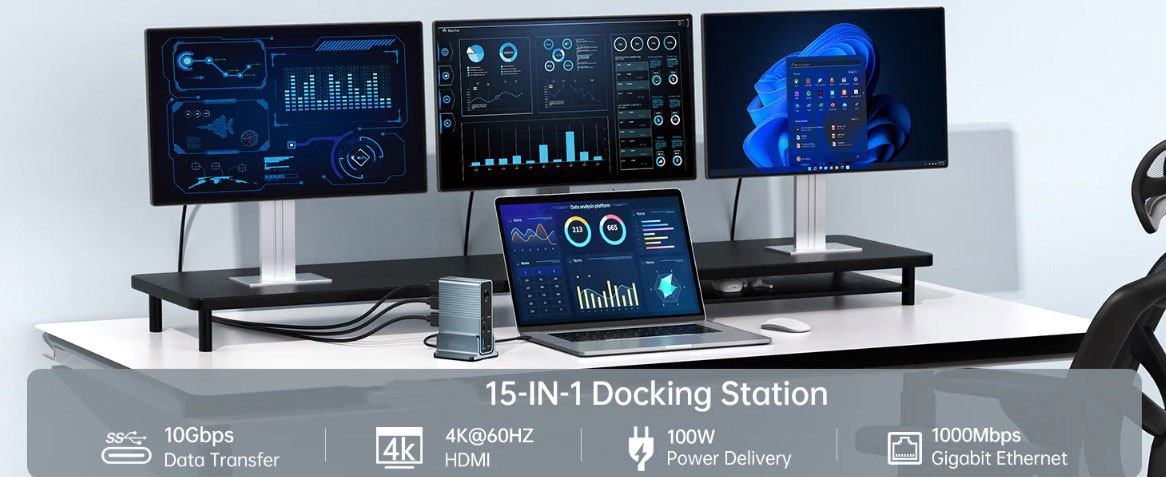
Daisy chaining is a great way to connect multiple monitors on a laptop or device with limited output options. This method connects multiple monitors into a single cable chain, eliminating the need to connect multiple cables directly to the source device, which can significantly reduce cable clutter and keep your desktop tidy.
In some scenarios, daisy chaining is even the only way to achieve a multi-monitor setup. Whether the laptop has sufficient output ports or the cable length is long enough to connect each monitor, a daisy chain connection system makes it easier and more efficient to complete the connection.
What is daisy chaining?
Daisy chaining, formally known as multi-stream transport (MST, in DisplayPort technology), refers to connecting one monitor to another instead of directly to the system's video output port.
This method can effectively reduce cable clutter and extend the display connection range of the source system. However, it has certain limitations because the maximum bandwidth of a single cable between the first monitor and the host system must handle the video streams of all daisy-chained monitors. Fortunately, there are a number of high-end cables on the market that can help daisy-chain monitors and maximize their display resolution and refresh rate.
There’s nothing special about daisy-chaining monitors per se; it’s all about cable management, which Cable Matters can help with.
Note that daisy-chaining extended monitors via USB-C is only supported on Windows. On macOS, extended monitors require Thunderbolt 3, and daisy-chaining via USB-C alone will result in mirrored monitors.
Benefits of daisy-chaining monitors
Simplified multi-monitor setup: All cables can be placed between monitors, without having to run them across the table to connect a laptop or desktop.
Increased productivity: A clean, tidy work area helps you focus, further enhancing the productivity gains from multiple monitors.
Flexible monitor placement: Monitors only need to be close to each other and a power source, not to the computer, and are not limited by the length of a single cable. For example, the third monitor in the daisy chain can be three cables away from the computer. It’s also useful for monitors in special orientations, such as mounted vertically or used in portrait mode.
Easy to connect accessories: For creative professionals, use USB-C cables (such as USB4, Thunderbolt 3 and 4) for daisy chain connection, and other accessories can be plugged into it, making one monitor a USB hub for devices, reducing cable clutter and simplifying device network connection.
How to daisy chain monitors
1. Required equipment
Monitors: Two or more monitors that support DisplayPort 1.2 or higher are required, and the monitor as the middle link of the cable must include DisplayPort output and input ports.
Cables: DisplayPort cables are required, preferably high-quality, 1.2, 1.3 or 1.4 generations are interchangeable, and newer DisplayPort 2.0/2.1 cables can also be used (but fewer devices and graphics cards support this standard). In addition, USB-C cables can also be used, but HDMI cables do not support daisy chain monitors.
2. Connection steps
Connect the first monitor
Make sure your PC is compatible: Your PC needs to have a DisplayPort (DP) or USB-C video output and support Multi-Stream Transport (MST).
Select a cable: Use a DP to DP cable, a Mini DisplayPort to DisplayPort cable, or a USB-C to DisplayPort cable, depending on the port type on your PC.
Make the connection: Plug one end of the cable into your PC and the other end into the DP input of the first monitor.
Power on settings: Turn on the monitor and PC, right-click on the desktop, select Display Settings, and make sure the first monitor is detected.
Add subsequent monitors
Connect monitors: Connect the DP output of the first monitor to the DP input of the second monitor using a suitable cable.
Duplicate connections: If adding more monitors, daisy-chain them in sequence (monitor 1 to monitor 2, monitor 2 to monitor 3, and so on), as long as the hardware supports the number of monitors you need to connect.
Power on: After turning on all monitors, they should sync and display a copy of the primary screen.
Adjust PC settings
Access settings: Right-click on the desktop again and select "Display settings".
Arrange displays: Once you see multiple numbered displays, drag and drop them to arrange them according to their physical location on the desktop.
Set customization: Click on each display to customize its resolution, orientation, and scaling, and set the "Multiple displays" setting to "Extend these displays".
Apply changes: Click "Apply" after adjustment, and select "Keep changes" after confirmation.
Test function: Move the cursor or drag the window to ensure that the settings are working properly.
How to connect a display via USB-C
USB-C connection provides a multi-display solution similar to DisplayPort daisy chain technology, which can extend and duplicate displays for different scenarios, reduce wiring, and extend the display range of the source system. This is due to the USB-C alternate mode function, which allows video signals to be sent over USB connection, using the DisplayPort 1.4 protocol, but through USB-C instead of DisplayPort connector.
In addition to using a high-quality USB-C cable, you will also need to use a converter, such as a cable, adapter, or multi-port hub with a DisplayPort connector. The USB-C output on the master monitor must be connected to the DisplayPort connector on the first or subsequent slave monitor.
It is important to note that DisplayPort cannot power subsequent monitors in the daisy chain, and they must be provided with a separate power cable. This means that the monitor can charge the laptop, eliminating the laptop charging cable.
Once set up, there will be little difference in daisy-chaining monitors using USB-C instead of DisplayPort, perhaps in the maximum resolution or number of monitors supported when using the USB-C connection, as it does not have the same bandwidth as DisplayPort 1.4, so you may need to run the daisy-chained monitors at a slightly lower resolution or refresh rate.
However, the newer USB4 and Thunderbolt 4 connections have higher bandwidth and are comparable to HDMI 2.1. Newer Thunderbolt 4 and USB4 cables can even achieve data rates up to 80 Gbps, which will allow for the highest resolutions and refresh rates when daisy-chaining monitors over USB-C in the future.
Required cables
For daisy-chaining monitors, you'll need a DisplayPort cable to connect the monitors, and a DisplayPort cable to connect the first monitor to the console, either via DisplayPort or USB-C. Cable Matters recommends using a high-quality DisplayPort 1.4 cable, though DisplayPort 2.1 cables are also available. To add to the sleek look of your gaming setup and ensure cable longevity, Cable Matters recommends using a braided cable, which has a braided outer jacket that provides extra flexibility, prevents the cable from kinking, and adds protection from accidental knocks that damage the cable core.