Why Is My USB 3.0 Hub Running at USB 2.0 Speed?
A USB 3.0 hub can connect at USB 2.0 speed if part of the connection path supports only USB 2.0, or if the SuperSpeed connection fails to establish. Start by checking the device's current operating speed. The hub's label describes its capability; the computer can tell you how the device is connected right now.
A slow file copy alone cannot settle the question. Before replacing the hub, separate two problems: a device connected through USB 2.0, and a device connected through USB 3.x that is transferring files slowly.
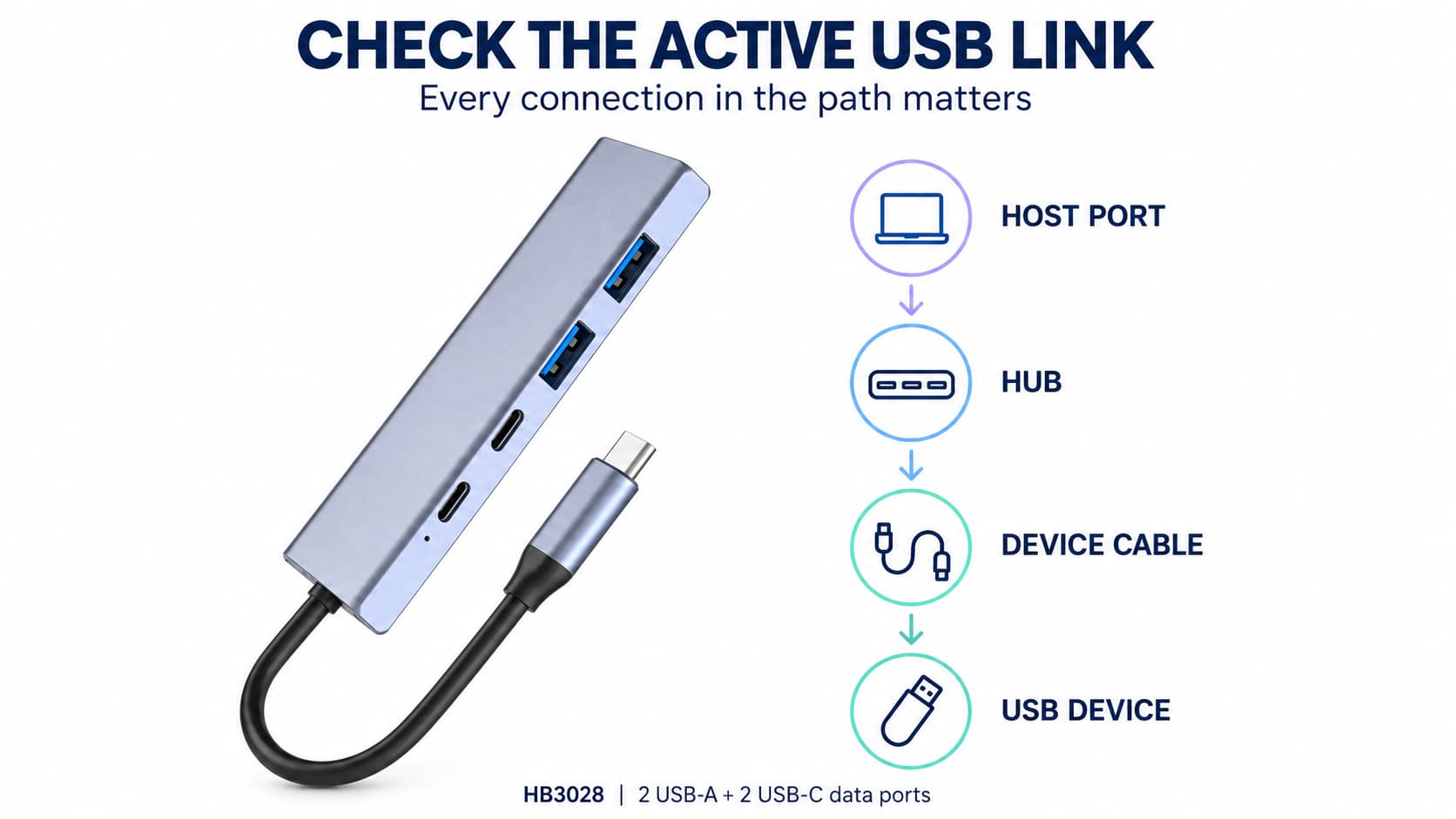
Check the full connection path, including the cable between the hub and the peripheral.
Read the current connection speed
On Windows, Microsoft's USBView utility shows USB controllers, hubs and attached devices in a connection tree. It is available through the Windows SDK's Debugging Tools for Windows component. Select the peripheral you are troubleshooting, then inspect its connection information. USBView may not display every detail of newer USB standards, but it can help distinguish the USB 2.0 path from the SuperSpeed path.
Pay attention to the wording. In USB terminology, High-Speed means USB 2.0; SuperSpeed refers to USB 3.0. “High-Speed” is not confirmation that the device has reached a USB 3.x connection. Microsoft documents these as separate USB device speed categories.
Capability and operating status are also separate. In connection details that expose these fields, DeviceIsSuperSpeedCapableOrHigher describes what the device supports, while DeviceIsOperatingAtSuperSpeedOrHigher describes its current connection. A capability value of true does not establish that the operating value is also true. The distinction is defined in Microsoft's connection-speed flags.
Save a screenshot with the selected device and its parent hub visible. That gives you a useful reference when you change a cable or move the device to another port.
Check the cables on both sides of the hub
For a hub with a detachable host cable, there are two cable connections to check: computer to hub, and hub to peripheral. A USB-C plug does not identify the cable's data rate. Read the data specification separately from its charging wattage.
For example, Apple specifies its 240W USB-C Charge Cable for charging up to 240 watts and transferring data at USB 2 rates. That is a valid combination of specifications. It also shows why a high charging rating is not enough when choosing a cable for a fast external drive.
With a fixed-cable hub, inspect the attached host lead and test the removable peripheral cable separately. The PURPLELEC HB3028, for example, has an attached USB-C host cable, two USB-A data ports and two USB-C data ports. Its specified host connection is up to 10Gbps. The HB3025 and HB3028 configuration guide describes these connections. A cable substitution test on HB3028 applies to the peripheral cable; the attached host lead is part of the hub.
Use a cable with an explicit data rating suitable for the device. If an extension lead or adapter is present, remove it for the baseline test so that you have fewer components to investigate.
A USB 2.0 device does not automatically slow every port to USB 2.0
A USB 3.0 hub contains separate USB 2.0 and SuperSpeed portions. A keyboard or other USB 2.0 peripheral can use the USB 2.0 portion while a compatible storage device uses SuperSpeed. Seeing two hub entries for one physical hub can therefore be normal.
Microsoft explains this arrangement in its USB in Windows FAQ. The same documentation identifies USB 2.0 cables and cable signal-integrity problems as possible reasons a SuperSpeed device connects at a lower speed. Check the affected device's own connection before blaming another peripheral.
Find the change with a controlled connection test
Use one known USB 3.x peripheral and keep the computer port the same wherever the connectors allow it. Safely eject storage before unplugging it. Record the operating mode at each stage; run a file-copy comparison after establishing the connection mode.
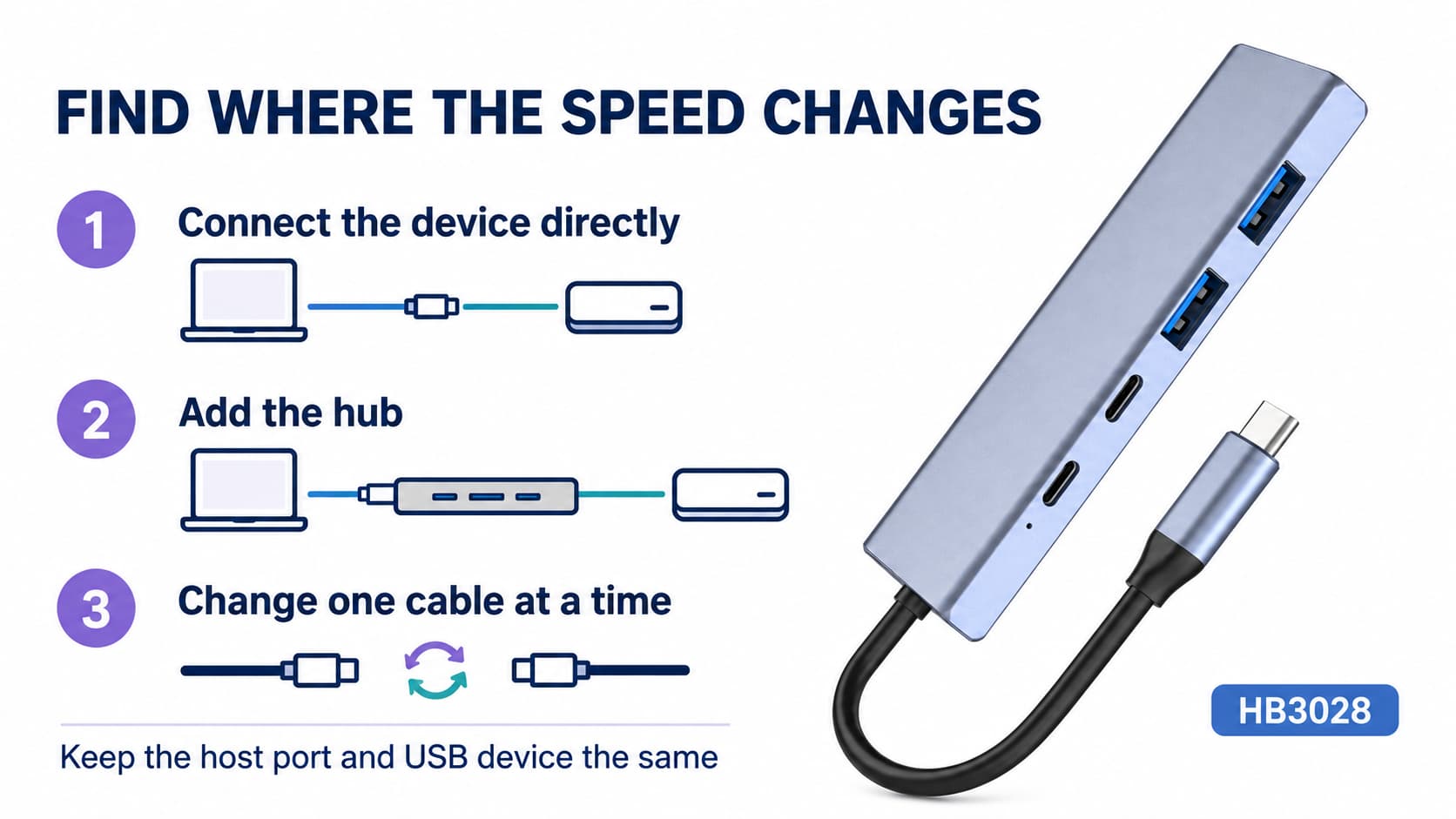
Change one part of the connection at a time and compare the reported operating mode.
- Establish a direct baseline. Connect the peripheral directly to a host port documented to support USB 3.x, using a suitable data cable. If it still reports USB 2.0, keep investigating the host port, cable and peripheral before adding the hub.
- Add the hub with only that peripheral attached. Keep the same host port and peripheral cable where possible. If the operating mode changes, record every component added or changed. A different adapter or cable is another variable, even when it looks similar.
- Check each side separately. Try another suitable peripheral cable and another documented USB 3.x downstream port. On a detachable-cable hub, also test a known working host cable. On a fixed-cable hub, test the hub on another documented USB 3.x host port or computer.
- Confirm that the result repeats. Reconnect the original arrangement and repeat the comparison. If changing one cable consistently changes the operating mode, that is stronger evidence than a single faster file copy. If the result varies without a deliberate change, record it as intermittent rather than declaring the cause solved.
These comparisons narrow the fault to a part of the setup. They do not always identify a single failed component: a hub that behaves differently on two computers may have a host-specific compatibility issue. Keep both results when contacting the supplier.
Use the result to choose the next step
If the device consistently reports SuperSpeed but file transfers remain slow, investigate throughput separately. Compare one device running alone with the intended combination of active devices. Record the file set, source and destination drives, and whether the slowdown starts immediately or after sustained use. Changing the workload and the connection together makes the result harder to interpret.
For a supplier support request or an OEM sample review, include the exact hub model, computer model, operating-system version, host port, peripheral and cable ratings. Add the direct-versus-hub connection screenshots and the smallest setup that reproduces the issue. This gives the supplier a specific problem to reproduce and a clear condition that the corrected setup must meet.