Your docking station has a gigabit Ethernet port, but the computer shows only 100Mbps. Start by checking where that number appears. In the Ethernet status window, 100Mbps is the link speed negotiated between the adapter and the adjacent router or switch port. A 100Mbps result on an internet speed-test website measures something different. Each calls for a different starting point.
If you have confirmed that the Ethernet link is limited to 100Mbps, compare it using a known-working cable and gigabit LAN port, then check auto-negotiation settings. If the link already shows 1Gbps but files still transfer slowly, check the USB connection, network path and storage devices. Following this order can reduce unnecessary equipment swaps and repeated driver installations.
Quick answer
First establish whether 100Mbps is the negotiated link speed or a speed-test result. For a 100Mbps link, check the cable, connectors, in-wall wiring, the LAN port at the other end and negotiation settings. For an established gigabit link, examine the USB connection and the transfer workload. A gigabit specification, a 1Gbps link and a particular file-transfer speed each need their own verification.
Understand the numbers
Link speed, internet speed and file-transfer speed
Link speed describes the negotiated rate of one wired connection. A 1Gbps connection between your computer and a switch does not establish that every connection beyond the switch, your internet plan or the download server can deliver the same throughput. Record the number and the screen where it appears before deciding what to check next.
| What you see | What it tells you | What to check next |
|---|---|---|
| Ethernet status shows 100Mbps | This Ethernet link is operating at 100Mbps. | The cable, connectors, in-wall wiring, the port at the other end and negotiation settings. |
| The link shows 1Gbps, but internet speed tests are slow | This segment has established a gigabit link. The internet path may still have limits. | The internet plan, router uplink, rate-limiting policies and speed-test server. |
| The link shows 1Gbps, but file copying is slow | The Ethernet link rate does not determine the speed of the entire file-transfer task. | The USB path, remote device, storage performance, file mix and concurrent tasks. |
These checks help narrow down the cause. A single symptom does not establish that a component is defective.
Mbps and MB/s differ by a factor of eight
Network speeds commonly use Mbps, while file-copy windows often use MB/s. In decimal units, 100Mbps converts to 12.5MB/s and 1Gbps to 125MB/s. These are arithmetic conversions before overhead, not guaranteed file-transfer speeds. A file-copy reading of 100MB/s represents about 800Mbps of data transfer; it does not mean the connection is limited to 100Mbps. TP-Link's speed guide also explains the distinction between bits, bytes and internet speed.
Check the connection
How to check the negotiated Ethernet link speed
In Windows, press Win+R, enter ncpa.cpl, find the docking station's Ethernet adapter, then right-click it and open Status. Read the Speed field. Make sure you have selected the USB Ethernet adapter rather than the computer's built-in Ethernet port, Wi-Fi or a virtual adapter.
On macOS versions that expose the relevant information, open System Settings > Network > Ethernet > Details > Hardware. Available fields vary with the operating system and driver. If the screen only offers configuration options, a network administrator can check the current status of the corresponding switch port. This wired link-speed guide shows where to find this information on Windows and Mac and explains why link speed differs from internet speed.
If the operating system cannot find the docking station's Ethernet adapter, address device detection first. Our USB-C hub Ethernet troubleshooting guide covers adapter detection and connection checks. Once the adapter is recognized, return to the speed checks here. Seeing "Gigabit" or "10/100/1000" in a device name alone does not confirm that the current link is running at gigabit speed.
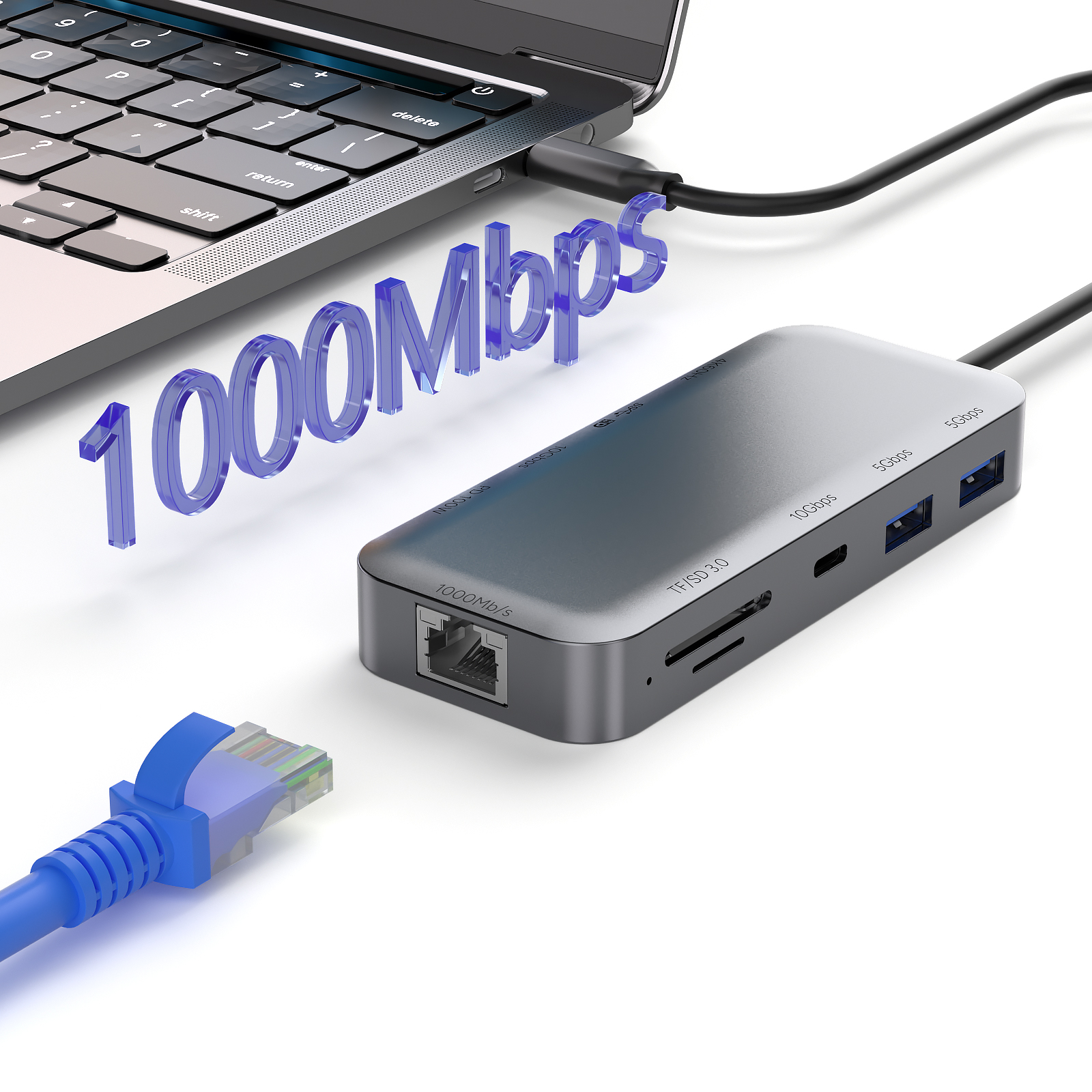
HBC072 Ethernet connection rendering. The 1000Mbps label indicates a supported port speed. Check the operating system or switch status for the current negotiated rate.
Troubleshoot a 100Mbps link
Four checks when the Ethernet link is limited to 100Mbps
1. Substitute a cable that has already established a gigabit link
Start with a pre-terminated cable that has already worked at gigabit speed on another device. Connect the docking station directly to the router or switch where possible, temporarily bypassing wall sockets, couplers and extension sections. If the link returns to 1Gbps, reconnect the original path one section at a time to find where the result changes.
The common RJ45 gigabit Ethernet standard, 1000BASE-T, requires four twisted pairs; 100BASE-TX can use two. This is one reason a connection with a faulty pair or termination may still work without establishing a gigabit link. Cisco's connector and cabling documentation lists the pair requirements. Compliant Cat5e or Cat6 cabling can support gigabit Ethernet. There is no need to start by buying Cat7 or Cat8, and the printing on a cable does not replace checks of its condition and terminations.
2. Check the specific LAN port, not just the router's advertised speed
Confirm that the LAN port receiving the cable supports 1000Mbps. A router's advertised wireless rate, your internet plan and its Ethernet port capabilities are separate specifications. Some devices also have ports with different capabilities. Move the cable to a port known to establish a gigabit link and check whether the computer's reported link speed changes.
If the path includes switches, wall outlets or other network equipment, map the connection sequence. The computer can show a 1Gbps link to the adjacent switch while a 100Mbps uplink farther along limits end-to-end throughput. Record both the segment reporting 100Mbps and the task that runs slowly, so the two observations remain distinct.
3. Check for a fixed 100Mbps setting
Inspect the adapter's speed and duplex configuration and, where applicable, the managed switch port at the other end. Standard gigabit copper connections normally use auto-negotiation. If a port was previously fixed at 100Mbps for an older device, check both ends. Intel's gigabit connection troubleshooting guidance also calls for checking auto-negotiation and gigabit support at the other end. Settings depend on the adapter driver; another brand's menu instructions may not apply.
On a company network with defined port policies, ask the administrator to review both configurations. Avoid forcing a speed at the computer end alone. A missing "1.0Gbps Full Duplex" option does not necessarily mean the adapter lacks gigabit support. Some adapter drivers establish gigabit links through auto-negotiation without offering a separate forced-gigabit option.
4. Change one device at a time
Keep the same cable and switch port, then change either the computer or the docking station. Record the detected adapter, operating system version and link speed for each comparison. If the issue follows a particular combination, examine its driver, firmware and physical connections. A successful test on another computer alone does not establish that the original computer has a hardware fault.
Bottlenecks after a gigabit link is established
Why file transfers can remain slow on a 1Gbps link
Check the USB connection separately from the RJ45 link
A USB Ethernet adapter communicates with the computer over USB and connects to the network through RJ45. A gigabit connection on the RJ45 side does not establish that the USB side has enough throughput. USB 2.0 High-Speed has a nominal rate of 480Mbps. Data passing through that connection is limited by the narrower USB path and protocol overhead.
The distinction is visible in the manufacturer's specifications for a USB 2.0 gigabit Ethernet adapter: a device can support gigabit Ethernet while being constrained by USB 2.0 bandwidth. When a 1Gbps link delivers slow transfers, check the USB port, cable and any intermediate USB devices in use. This does not mean USB 2.0 explains every Ethernet link limited to 100Mbps.
Separate network checks from file-transfer checks
Start with a transfer comparison to another device on the same local network whose performance is known to be sufficient, then compare the internet speed-test result. If local transfers perform as expected while internet access is much slower, investigate the internet service and routing path. If local file copies are also slow, consider the remote storage, computer load, file count and other tasks running at the same time.
When testing with network-attached storage (NAS), record large-file transfers separately from transfers of many small files. If the same docking station also has an external drive or card reader attached, pause other transfers, then restore them one at a time and compare the duration of the same task. A single file-copy result depends on several parts of the system and cannot, by itself, determine whether the Ethernet port meets its gigabit specification.
Selection and acceptance checks
Define Ethernet acceptance checks before deployment
When selecting a docking station, document its Ethernet capabilities separately from your deployment requirements. For example, the PURPLELEC HBC072 multiport docking station has an RJ45 port supporting 10/100/1000Mbps. To assess whether it suits a fleet of office computers, test a sample with the intended host computers, operating systems, cables and switches.

HBC072 multiport product rendering. Validate the planned connection setup when Ethernet and other peripherals will operate at the same time.
- Record the full product model, hardware or firmware revision, host model, operating system version and network adapter driver version.
- Specify the cable and switch port, then confirm that the sample establishes the expected 1Gbps link. Retain the operating system or port-status record.
- Check the USB connection path. Record local-network transfer and internet speed-test results separately, including units, transfer direction and the devices or services tested.
- Time a complete transfer using a fixed set of files. Add the external drives, card readers or other peripherals expected to run concurrently and observe whether the result changes.
- Check device recognition and network connectivity after unplugging and reconnecting, and after waking from sleep. Record the conditions that reproduce any issue so the supplier can investigate.
A supplier requirement could read: "Using the specified Windows version, host USB port, Cat6 cable and gigabit switch port, confirm a negotiated 1Gbps link and provide transfer records for a fixed file set. Include behavior after waking from sleep and while peripherals run concurrently." If minimum throughput matters, specify the required value, test method and duration separately so both parties have the same acceptance criteria.
Frequently asked questions
Gigabit docking station Ethernet FAQ
Will a Cat8 cable always restore a gigabit connection?
No. A higher-category cable cannot change a port that only supports 100Mbps or is configured to use that speed. First compare the connection with a known-working Cat5e or Cat6 cable and a gigabit port, then decide whether the original cable path needs attention.
Does USB-C guarantee full gigabit Ethernet throughput?
The connector shape alone cannot establish that. Check USB data capability, adapter specifications, the Ethernet cable, the port at the other end and the workload. USB-C identifies the connector type; it does not replace those specifications.
Will connecting a USB PD power supply change 100Mbps to 1Gbps?
There is no general guarantee. Connect power according to the product instructions. Power issues may affect stability, but the cable, port capability and negotiation settings still need separate checks. Supplying power to the docking station cannot turn a fixed 100Mbps port into a gigabit port.
If your project only needs wired networking, explore our USB network adapter range. If it also needs display, storage and other connections, evaluate the docking station with the full planned setup. Share the target hosts, network equipment and test tasks to help identify a suitable sample and validation scope.