Can a Docking Station USB-C Port Connect to a Monitor? A Portable Display Guide
A docking station USB-C port can connect directly to a monitor only if that specific downstream port supports video output. If it is a USB data-only port, a faster cable cannot give an ordinary USB-C monitor a native video signal. A 10Gbps rating describes data speed, while 100W describes power. Neither confirms video output.
This guide covers monitors and portable displays that receive DisplayPort video over USB-C. When choosing equipment or troubleshooting a connection, check each link in the chain: computer → docking station → monitor. Then check power separately. USB graphics solutions such as DisplayLink require compatible hardware and software and must be assessed according to their own product documentation.
QUICK CHECK
- Connect ports labeled HOST, PC or with a computer icon to the computer as instructed. Connect a port labeled PD IN to the power supply as instructed.
- Connect the monitor to a downstream USB-C, Thunderbolt, HDMI or DisplayPort port with documented video support. If the only marking is a USB speed rating, check that port's function list.
- A portable display using one cable for video and power must also receive enough power from that port. The docking station's laptop charging rating does not describe the power available to the display.
PORT IDENTIFICATION
Identify each USB-C port's role
USB-C describes the connector's physical form. A docking station can use identical-looking sockets for different tasks: connecting to a computer, accepting power from a charger, transferring USB data or sending video. "Upstream" usually refers to the connection toward the host, while "downstream" refers to connections for peripherals such as monitors and storage devices. These terms alone do not tell you which way power flows.
For example, the computer can send video into the docking station through the upstream connection while receiving charging power over the same cable. The docking station may route that video to HDMI, while an adjacent USB-C socket handles only data. VESA's DisplayPort FAQ also distinguishes USB hub functions from downstream display output in a docking station. Each function needs to be checked separately.
| Port label or specification | Main purpose | What to check before connecting a USB-C monitor |
|---|---|---|
| HOST / PC / computer icon | Connects to a computer or other host | Follow the connection diagram. An upstream port that receives video from the host is not necessarily a downstream port for a monitor. |
| PD IN | Accepts power input | Check the input direction and supported power supply specifications. A charging input is not a video output. |
| USB-C 5Gbps / 10Gbps | Provides the specified USB data connection | Data speed alone does not establish video capability. Look for a separate statement of DisplayPort Alt Mode or display output support. |
| Downstream USB-C with video support | Connects to a compatible USB-C monitor | Check the video protocol, target resolution and refresh rate, and the power that this port can supply. |
| Downstream Thunderbolt | Connects to compatible peripherals and displays | Confirm the display types and connection methods supported by that model. Identify any ordinary USB-C data ports on the docking station separately. |
| HDMI / DisplayPort output | Connects to the matching video input | Match the monitor's input connector first. Arrange power for a portable display according to its instructions. |
Labels help identify ports. Check the documentation for the exact model and port to confirm its functions. The absence of a DP icon alone does not prove that a port lacks video support.
A Thunderbolt docking station can also have data-only USB-C ports
Thunderbolt support at the product level does not make every USB-C socket a Thunderbolt port. The CalDigit TS4 port specifications provide a useful example: ordinary USB-C data ports are listed separately from downstream Thunderbolt 4/USB4 ports, and monitors must use the appropriate video-capable outputs. Check each port instead of relying on "Thunderbolt" in the product name.
PRODUCT PORT EXAMPLE
HOST, PD IN and display output on the DS037
The PURPLELEC DS037 Magnetic Docking Station & SSD Enclosure illustrates these different port roles. One side carries HOST, PD IN and HDMI labels; the other has a USB-C data port and SD and microSD card slots. The port names and their positions help you match each cable to its intended connection.
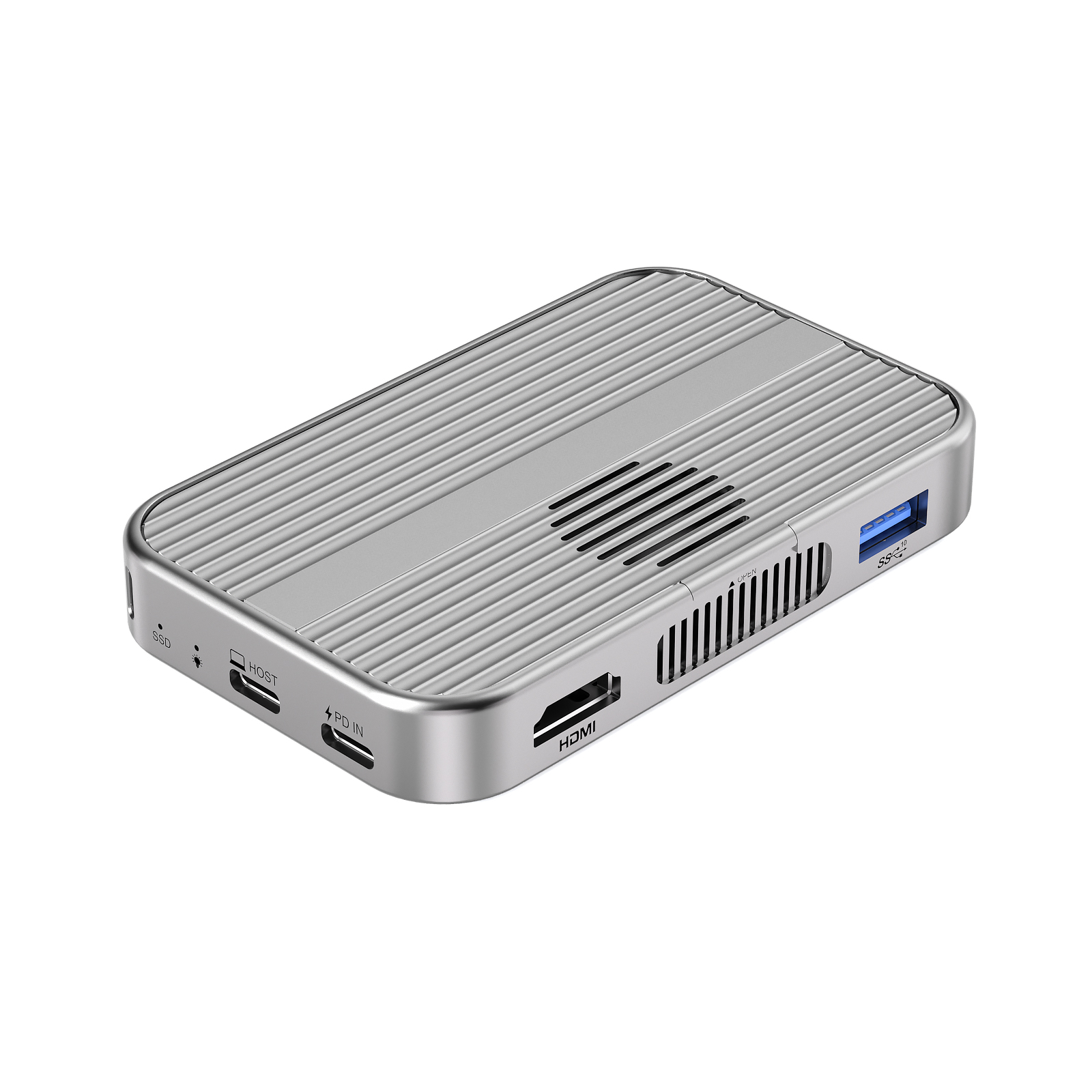
DS037 product rendering with separately labeled HOST, PD IN and HDMI ports.
The DS037's HOST upstream connection supports DisplayPort Alt Mode 1.4, and its HDMI output is rated for up to 4096 × 2160 at 60Hz. The computer port must provide video, and the cable and monitor must support the target display mode. Connecting an HDMI monitor to the HDMI output and the computer to HOST establishes the video path through the appropriate ports.
The USB-C port on the other side is specified as a USB 3.2 Gen 2 data port with speeds up to 10Gbps. Record this data specification separately from the HDMI video output when evaluating the product. It does not establish support for connecting a USB-C monitor directly. If a project requires downstream USB-C video output, confirm that function before choosing the model.
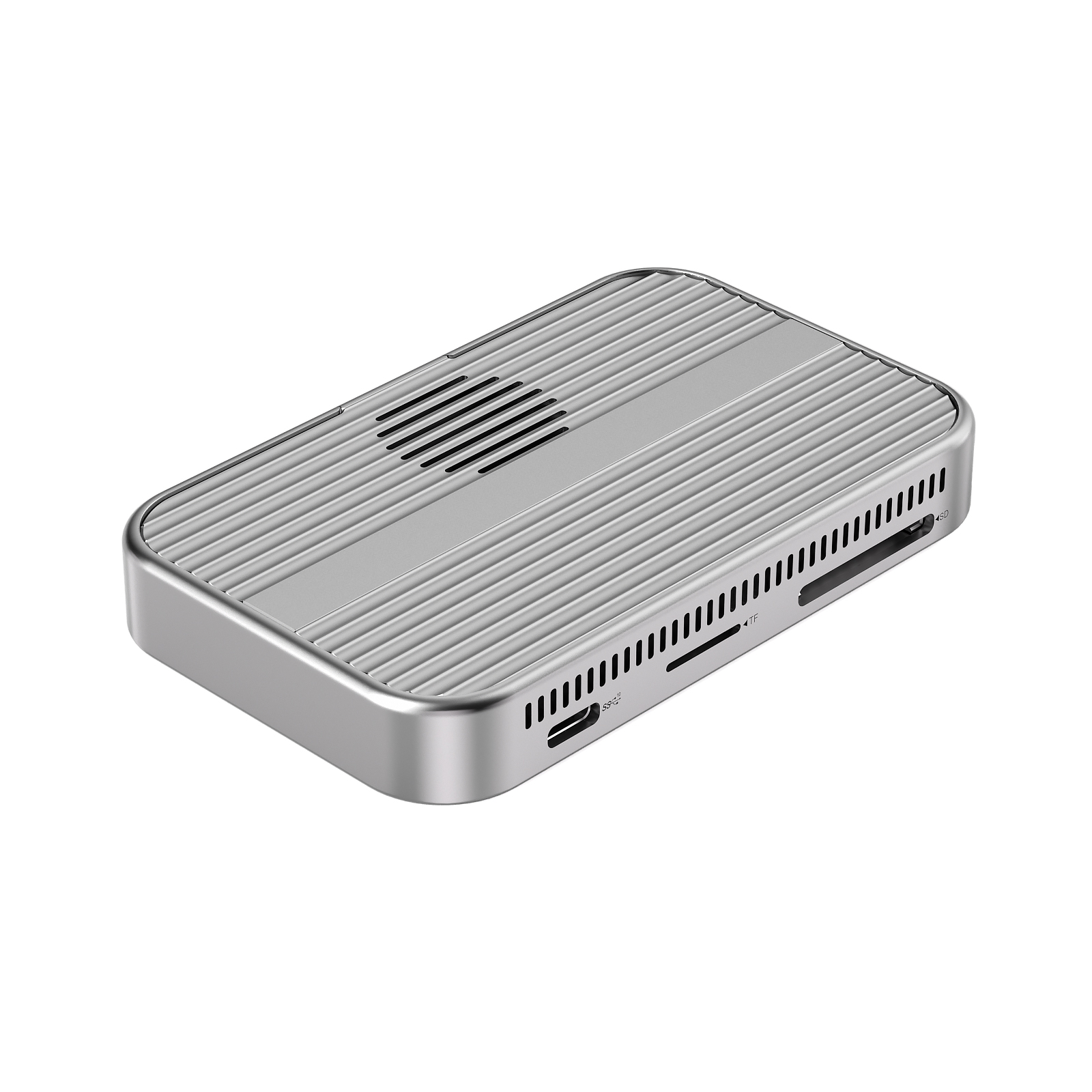
DS037 USB-C data port and card slots. A data speed marking is not a statement of video output support.
Power ratings also need to be separated. The DS037 accepts up to 100W through its USB Power Delivery (PD) input. Its specifications list host charging at up to 90W, with a dynamic power reserve. These figures describe different parts of the power path; neither is a rating for every downstream port. To power a portable display, check the output specification of the port you plan to use against the display's requirements.
CONNECTION OPTIONS
Three ways to connect a portable display
One USB-C cable for both video and power
This setup requires documented display output on the docking station's downstream port, video input on the monitor's USB-C port, a cable that supports the required video connection, and enough power from the port for the monitor. DisplayPort over USB-C allows video, USB data and power to share one connector, but the functions enabled on each product still depend on its specifications.
Use the video cable supplied with the monitor where possible, or choose a cable explicitly specified for the intended display connection. A "100W charging cable" label alone does not confirm video support. A cable with a higher data speed rating also cannot add video output to a docking station port that lacks it.
USB-C video with separate power for the display
If the monitor supports a separate power connection, connect its charger to the designated power input and its video cable to the video input as instructed. This lets you check video and power conditions separately. Plugable's USB-C portable monitor documentation, for example, lists video input, cable conditions and supplemental power requirements separately, showing why the connection needs to be checked for each monitor model.
Adding power only addresses a power problem. If the selected port on the docking station has no video output, powering the screen will not produce an image. A lit backlight or a "No Signal" message does not establish that the video connection is working.
HDMI video with power connected as the monitor requires
If the portable display has an HDMI or Mini HDMI input and the docking station has an HDMI output, use a matching HDMI connection and arrange power according to the display's instructions. This works with equipment that already provides HDMI output. A monitor with only a USB-C video input needs a different connection arrangement that matches its input to an appropriate output.
NO-SIGNAL TROUBLESHOOTING
Troubleshoot a no-signal connection step by step
Start with the minimum equipment needed to verify the video connection, then add storage devices, card readers and other peripherals. Change one condition at a time and record the result before and after each change. This helps locate the failing part of the connection.
- Check the computer first. Look up its full model number and the specifications for the port in use. For a native video connection, confirm support for the required DisplayPort Alt Mode, USB4 video or Thunderbolt display functionality.
- Try a direct monitor connection. If the computer has a video port that matches the display, connect them with a known-working video cable and meet the display's power requirements. If the direct connection also produces no picture, check the monitor's selected input, the cable and the computer's display settings first.
- Add the docking station and check both connections. Connect the computer to HOST and the monitor to a downstream port with documented video output. Match each port to the connection diagram in the manual. Do not infer its function from the neighboring port.
- Check the cable and power separately. Try a cable known to carry video. If the portable monitor accepts separate power, connect an external supply as instructed. Make one change at a time so you can identify which change affected the result.
- Then check settings and software. Once the ports and connections are correct, check the monitor's input selection, display detection in the operating system and extended desktop mode. If problems remain, consult the manufacturers' model-specific firmware, graphics drivers and compatibility guidance.
If one display works but adding a second causes mirroring, a lower refresh rate or a detection failure, check the host's display-count limit, the docking station's display architecture and the supported simultaneous output combinations. One working port does not establish that every output can run at its individual maximum specification at the same time.
PROCUREMENT AND ACCEPTANCE
Specify port functions and acceptance criteria
"Three USB-C ports required" is not enough to define a product. If one connects to the computer, one accepts PD power and the third handles only data, the port count meets that request but cannot provide a direct USB-C portable display connection. When requesting a quote, specify what each port will connect to.
| Requirement | What to record | How to check the sample |
|---|---|---|
| Computer and upstream connection | Full computer model, operating system version, selected port and host cable | Use the target computer and document the actual port positions and configuration. |
| Downstream display port | Port position, supported video protocol and direct USB-C monitor support | Verify video through that specific port. A result from a different HDMI output does not verify it. |
| Monitor and display mode | Monitor model, video input, resolution, refresh rate, and extended or mirrored mode | Confirm the target mode in the computer and monitor settings, and record any multi-display combination. |
| Power direction | Docking station power input, charging power to the host, and output power to the display | Check each separately. Run the target monitor at the intended brightness with the planned peripheral combination. |
| Cables and connection recovery | Cable model and length, sleep and wake, reconnection, and peripherals used together | Keep the same cable set throughout testing. Record failure conditions and reproduction steps. |
If your setup requires a display connection through a downstream Thunderbolt port, compare port configurations in the PURPLELEC Thunderbolt docking station range, then check compatibility with the target computer and monitor. A product name, port count or maximum resolution for one output cannot replace confirmation of the actual connection combination.
FREQUENTLY ASKED QUESTIONS
USB-C monitor connection FAQ
Does a 10Gbps USB-C port always support 4K video?
No. The 10Gbps rating describes USB data transfer. Video output depends on whether that port supports the required display protocol. Even with video support, you must also check the host, cable, monitor and target refresh rate.
Why does my portable display show no signal when the docking station can charge my laptop?
Host charging and display video are separate functions. Check that the screen is connected to a downstream port with video output, that the cable supports video, and that the monitor has the correct input selected.
Can a Thunderbolt cable make a data-only USB-C port output video?
No. A cable carries signals that the port already provides. It cannot add native video output to a data-only port. Confirm the port's functions first, then choose a compatible cable.
Can a docking station labeled 100W supply 100W directly to a portable monitor?
Do not apply that figure without checking what it describes. It may refer to power input, host charging or a particular downstream output. Check the display's power requirements and record the ratings for each port and power direction separately.
DISCUSS YOUR CONNECTION REQUIREMENTS
When sourcing a docking station, send PURPLELEC your computer and monitor models, target display mode and preferred cable arrangement. If you need one USB-C cable to carry both video and power, state that requirement explicitly so the port configuration and sample verification conditions can be checked against it.