With the standardization of the USB Type-C physical interface, using a single cable to simultaneously carry data, power, and video signals has become the industry standard. However, not all USB-C ports possess video output capabilities. The core technology enabling this feature—DP Alt Mode (DisplayPort Alternate Mode)—is often overlooked by users. This article provides an in-depth analysis of this critical protocol from three dimensions: technical principles, hardware identification, and cable specifications.
I. Technical Principle Analysis: What is DP Alt Mode?
DP Alt Mode is a protocol extension specification jointly defined by the USB-IF Association and VESA. Its working principle relies on "Signal Reallocation": it reassigns the physical pins (Lanes) within the USB-C interface, temporarily switching channels originally used for USB data transmission to transmit DisplayPort video signals.
This allows thin and light laptops or mobile devices to connect directly to monitors without the need for bulky HDMI or standard DisplayPort interfaces, achieving synchronized audio and video transmission via a single USB-C port.
Core Technical Advantages
High-Bandwidth Video Output: It directly utilizes native DisplayPort signals, supporting 4K/60Hz or even 8K resolution output. It is also compatible with Adaptive Sync technology, effectively resolving screen tearing issues.
MST (Multi-Stream Transport): Allows for daisy-chaining multiple monitors via a single cable, or driving multiple screens simultaneously through a docking station, physically expanding desktop workspace.
Backward Compatibility: Through passive or active adapters, signals can easily be converted to HDMI, VGA, or DVI to accommodate le-gacy display devices.
II. Hardware Compatibility: How to Identify Device Support?
DP Alt Mode is an optional feature, not a mandatory standard for USB-C. To determine if a host device (such as a laptop or tablet) supports video output, one must primarily rely on the physical markings next to the port or the technical specifications.
1. Visual Identification (Checking Port Symbols)
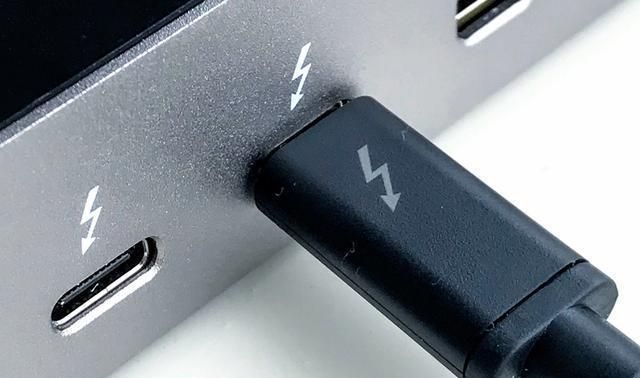
Thunderbolt Symbol: If there is a lightning bolt icon next to the port, it indicates support for Thunderbolt 3/4 protocols, which automatically implies support for DP Alt Mode.
DP Symbol (D-Style): If the port is marked with a "D" letter or the DisplayPort logo, it explicitly indicates video output support.
No Symbol / Standard USB Symbol: If there is only a standard USB "Trident" logo or no icon at all, the port typically only supports USB data transmission and charging, and does not support video signal output.
2. Specification Check
Consult the device's Technical Specifications (Tech Specs). In the "Ports" section, look for keywords such as "Video Output," "DisplayPort," "Thunderbolt," or "Alt Mode."
III. Transmission Medium Requirements: The Importance of Cable Selection
"Interface support" does not guarantee "display success." The transmission medium (the cable) is the most easily overlooked link. A vast number of USB-C cables on the market are merely USB 2.0 charging cables, lacking the complete pins and bandwidth required for video signal transmission.
Cable Selection and Troubleshooting Guide
- Must Use "Full-Featured" Cables: Cables supporting DP Alt Mode are typically referred to as "Full-featured USB-C cables" or "USB 3.1/3.2 Gen 2 cables."
- Check for E-Marker Chips: High-quality video cables contain an E-Marker chip, which communicates the cable's current-carrying capacity and data transmission specifications to the device.
- Identify Cable Markings: Look for the DisplayPort Logo, speed ratings (10Gbps/20Gbps/40Gbps), or "4K/8K Video" text on the cable connector or packaging.
WARNING
Using a standard phone charging cable (usually only 4-core) to connect a monitor will result in "No Signal" or a black screen, as the physical channels are insufficient to carry video data.
IV. Signal Handshake and Configuration
Provided that the hardware (Host, Cable, Monitor) all meet the specifications, enabling DP Alt Mode is typically automated.
Automatic Handshake: Upon connection, the source device and the display will perform a protocol handshake, automatically identifying the optimal resolution and refresh rate. No additional driver installation is required.
System-Level Configuration: If the image does not appear automatically, or if you need to adjust the display mode, navigate to the operating system's display settings:
Windows: Settings > System > Display (Choose "Extend," "Duplicate," or "Show only on 2").
macOS: System Settings > Displays (Configure arrangement or main/extended display).
Summary
DP Alt Mode is the key to achieving the "One-Cable Solution" via USB-C. To ensure a stable video connection, users must ensure the Host Interface supports it, a Full-Featured Cable is used, and the Display is compatible. All three elements are indispensable.