The following aspects can be used to determine the data transfer rate of a USB hub:
Check product identification and manual
Product appearance identification: Usually, the USB hub's shell or interface will be marked with the USB standard it supports, such as "USB 2.0", "USB 3.0", "USB 3.2 Gen 1", "USB 3.2 Gen 2", "USB4", etc. Different USB standards correspond to different data transfer rates, such as the maximum transfer rate of USB 2.0 is 480Mbps, USB 3.0 (USB 3.2 Gen 1) is 5Gbps, USB 3.2 Gen 2 is 10Gbps, and USB4 is up to 20Gbps or even higher.
Product manual or official website introduction: The product manual will list in detail the various technical parameters of the USB hub, including the data transfer rate. In addition, the detailed specifications of the product can also be found on the official website of the product manufacturer, which must include an introduction to the transfer rate.
Observe the port type and quantity
Port type: Generally speaking, different types of ports such as USB-A and USB-C may support different transmission rates. If the hub has a USB-A port marked with "SS" (SuperSpeed), it usually means that it supports USB 3.0 and above standards and has a higher transmission rate; while ordinary USB-A ports may be USB 2.0. If the USB-C port supports USB 3.2 or USB4 standards, it will also have corresponding logos or instructions, and its transmission rate will also be higher.
Relationship between the number of ports and the rate: In a multi-port USB hub, if it is marked that all ports support high-speed transmission and the number of ports is small, then each port may be able to reach its nominal maximum transmission rate. However, if the number of ports is large, the total bandwidth may need to be shared, and the actual transmission rate of each port will be affected.
Use professional detection tools
Software detection tools: You can use some special USB detection software, such as USB Device Tree Viewer, etc. After installing and running on the computer, it can display the detailed information of the connected USB device, including the version of the USB hub, the transmission rate, etc.
Hardware detection equipment: Professional network testers, USB protocol analyzers and other hardware devices can directly measure and analyze the data transmission rate of USB hubs by connecting them. These devices can provide very accurate transmission rate data, but they are generally expensive and suitable for professional testing scenarios.
Perform actual transmission test
Large file transfer test: You can select a larger file, such as a video file, compressed package, etc., connect the storage device through the USB hub, copy and paste the file, and observe the speed display during the transmission process. Taking the USB 3.0 hub as an example, theoretically, a 1GB file can be transferred in about ten seconds under ideal conditions, but in reality it may be affected by factors such as the performance of the storage device.
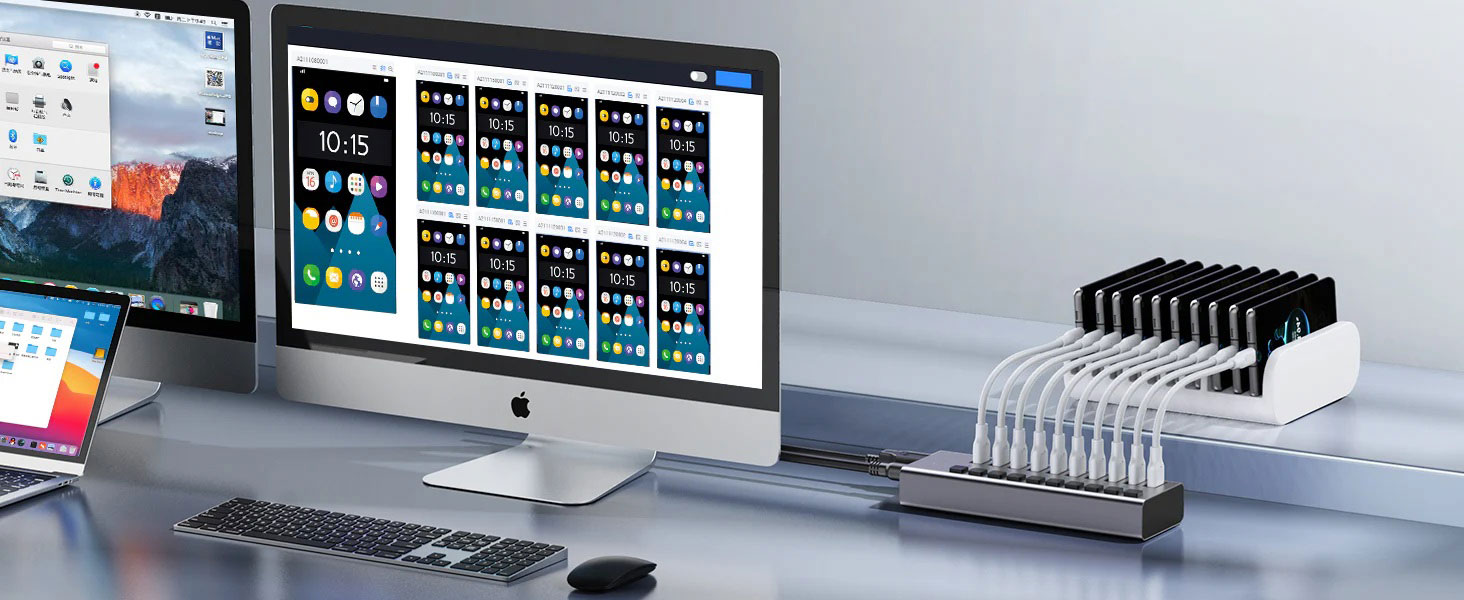
Concurrent transmission test of multiple devices: Connect multiple devices to the USB hub at the same time, and perform data transmission operations at the same time, such as reading data from multiple USB flash drives or writing data to multiple mobile hard drives at the same time, and observe the transmission speed of each device and the overall transmission situation. If it is a USB hub that supports multi-TT architecture, it should be able to maintain a relatively stable transmission rate when multiple devices are transmitting concurrently, and there will be no obvious speed drop.