Let’s be honest, who doesn’t get tired of slaving away on a tiny laptop screen? Not only is it exhausting, it can also make work more difficult.
That’s why connecting two monitors to your laptop can be a game changer. With dual monitors, you can be significantly more productive and multitask with ease. However, the idea of connecting multiple monitors to your laptop can seem a bit complicated.
But don’t worry, we’ve got you covered! In this quick guide, we’ll show you how to connect two monitors to your laptop in just a few easy steps.
Before we get into the technical details of connecting two monitors, let’s talk about the benefits of dual monitors.
First and foremost, dual monitors can significantly increase your productivity. You can open multiple apps and windows at once without having to constantly switch between them, saving you a ton of time and making your workflow more streamlined.
In addition, dual monitors can reduce eye strain. The larger the screen, the easier it is to read the text, which reduces eye strain. You can also adjust the position of the monitors to further reduce the strain on your neck and shoulders.
If you need to work with a team, dual monitors are a great helper for collaboration. You can share screens, making it easier for team members to work together on projects.
What you need to connect two monitors
Before you start learning how to set up dual monitors, you need to prepare the following items:
A laptop with at least one video output port (HDMI, VGA, or DisplayPort)
Two monitors with compatible video input ports (HDMI, VGA, or DisplayPort)
A video cable to connect the monitor to the laptop
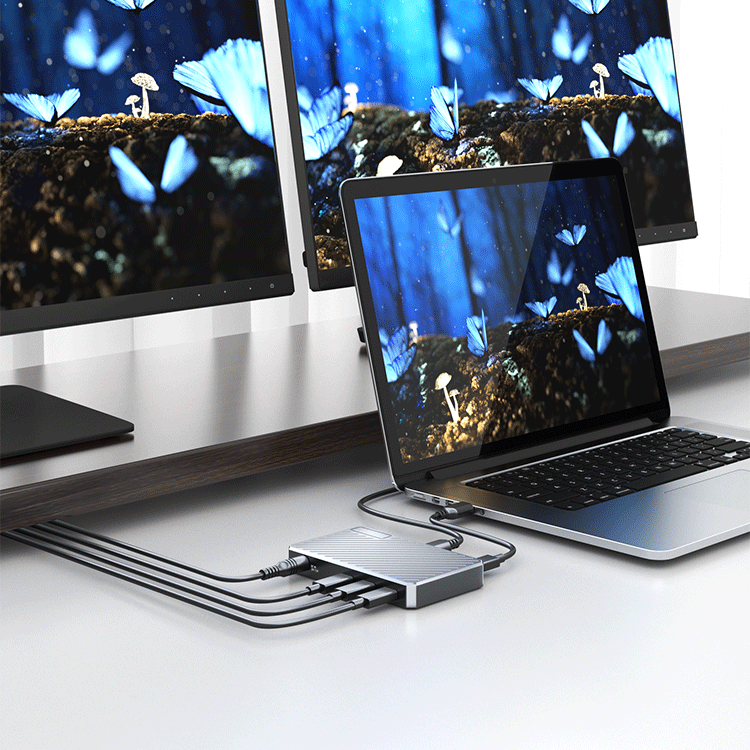
If your laptop only has USB-C ports, you will also need a USB-C hub
Before buying any cables or adapters, be sure to check the video ports on your laptop and monitor, and make sure your laptop supports multiple monitor connections.
A step-by-step guide to connecting two monitors
Now that you have what you need, let's take a look at how to connect the monitors.
Step 1: Turn off your laptop and connect the first monitor.
If you are using an HDMI cable, plug one end into the monitor's HDMI port and the other end into the laptop's HDMI port. If using VGA or DisplayPort, use the appropriate cable and connect to the corresponding port.
Step 2: Turn on your laptop and wait for it to recognize the first monitor.
Depending on your laptop's settings, the display may automatically extend to the new monitor, or you may need to adjust it manually.
Step 3: Repeat steps 1 and 2 for the second monitor.
Step 4: Adjust display settings.
You can choose to duplicate the display, extend the desktop to both screens, or use just one monitor. On Windows, adjust display settings by right-clicking the desktop and selecting Display Settings. On macOS, go to System Preferences and click Displays.
Step 5: Test the connection.
The last step is to test the connection by opening some apps and moving them around to make sure the monitor is working properly.
It's that easy!
Solving common problems when connecting two monitors
If you're having trouble connecting a monitor, here are some solutions to common problems:
The monitor isn't detected: Make sure the laptop and monitor are turned on and properly connected. Try restarting the laptop or disconnecting and reconnecting the cable.
The monitor is mirrored instead of extended: Adjust the display settings as in Step 4.
One monitor not working: Make sure the cable is connected correctly, then try switching the cable between the monitors.
Best USB-C hubs for connecting dual monitors
If your laptop only has USB-C ports, then you'll need a USB-C hub to connect two monitors. Luckily, you've come to the right place, as we've hand-picked some of the best USB-C hubs for connecting dual monitors:
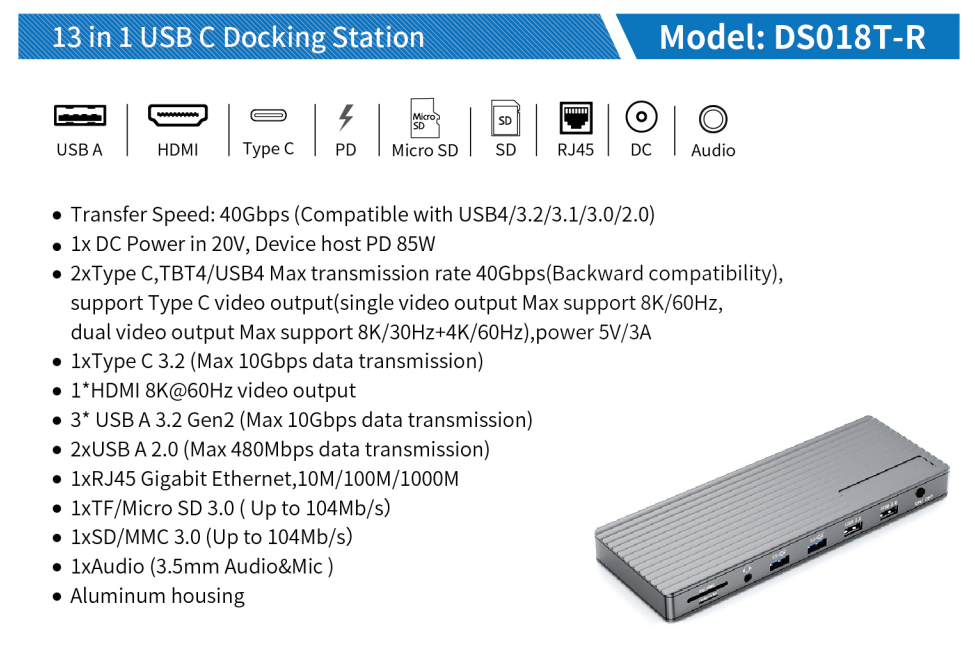
Purplelec 13-in-1 Laptop USB-C Docking Station: This docking station includes all the ports you need (including USB-C, USB-A, WAN, HDMI, and DP), making it easy to connect dual monitors to your laptop.
Other ways to connect dual monitors
Besides using a USB-C hub, there are other ways to connect two monitors to your laptop, such as using a docking station, video splitter, or graphics card. However, these methods are usually more expensive and require more technical knowledge. Therefore, sticking with a quality USB-C hub is your best option.
Dual Monitor Layout Tips
Now that you know how to connect two monitors to your laptop, here are some helpful tips on how to set them up for optimal comfort.
First, you should position your monitors at an angle that's comfortable for your neck and eyes. Then, adjust the monitor's brightness and contrast to reduce eye strain.
It's also wise to buy a monitor stand to elevate your monitor and free up more desk space. Another good tip is to customize your desktop background so that it's easier to distinguish between your monitors.
Learn to use keyboard shortcuts so you can easily switch between windows and applications. In addition, choosing a USB-C hub that's easy to store on your desk or under your laptop can also help with layout.
Maximize Your Workspace with Dual Monitors
At first, connecting two monitors to your laptop may seem a little daunting.
But in reality, it's a simple process that can greatly improve your productivity and comfort. With the right cables, adapters, and a quality USB-C hub, you can easily set up dual monitors and enjoy the convenience of a larger workspace.
Just follow the steps and suggestions in this concise guide, and you'll be experiencing the benefits of dual monitors in no time. So, what are you waiting for? Browse our extensive collection of hubs and docks and start enjoying multitasking today!