In the era when desktop computers still dominated, people mainly relied on desktop computers to efficiently complete various tasks at home or in the office. However, with the rapid development of technology, people's demand for portable devices has increased, and laptops have gradually become mainstream.
Although laptops have greatly changed the way people access work materials, news information and documents, they also have an obvious shortcoming: the limited number of ports makes it difficult to meet people's needs to connect laptops to multiple devices such as monitors, keyboards, printers, external hard drives, etc., which are easy on desktops.
Fortunately, there is now a new way to solve this problem - docking stations. Maybe you don't know much about this term, but for laptop users, docking stations are undoubtedly one of the key tools to achieve a desktop experience for laptops. This article will introduce you to the basic concepts, usage methods and selection tips of docking stations.
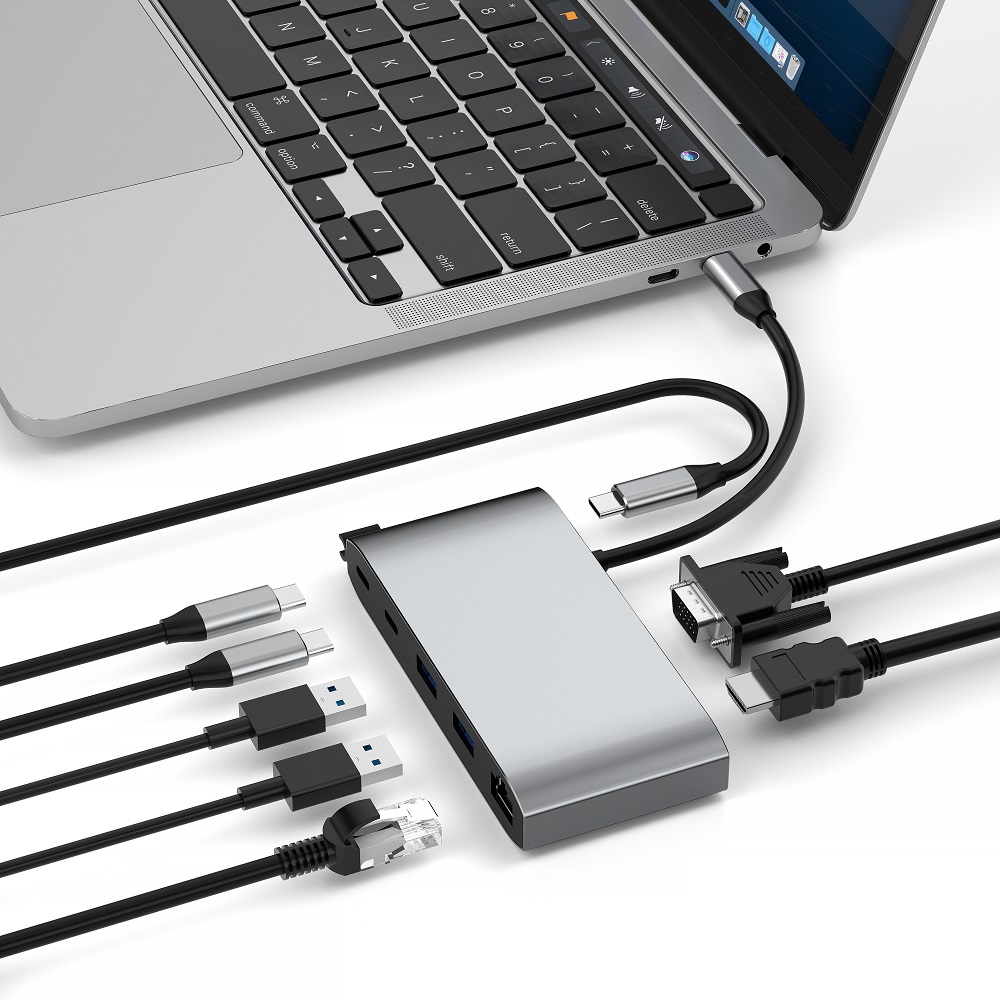
A docking station is a hardware device that can connect a laptop to other peripherals, such as a monitor, keyboard, mouse, printer or external hard drive. It is an effective way to expand the functions of a laptop, allowing you to easily access other devices and make full use of your laptop.
These devices help users transform their laptops into a desktop-like experience so they can access all their devices at once. A docking station is a versatile solution and a great choice for users who are not satisfied with their current work equipment. It provides many additional ports to connect any device you need, making your laptop run like a desktop, making it a perfect all-in-one solution that can seamlessly adapt to different work environments.
What is a docking station used for?
Docking stations have a variety of uses, from connecting your laptop to a printer or mouse to operating it like a desktop device. Docking stations exist to allow users to connect multiple devices to their laptops at the same time. When you only need to carry your laptop, simply disconnect the docking station.
Scenarios for using docking stations include:
Individuals who work remotely and want to transform their laptops into office-friendly devices
Users who want to use their laptops on the go
Individuals who need a desktop-like experience at a more affordable price
Anyone who wants to lighten their tech gear with a compact solution
How to use a docking station?
Once everything is ready, you can use the docking station in a variety of ways. Once you have the docking station connected to your laptop, you can start connecting other devices to it.
One of the main benefits of a docking station is the ability to connect multiple peripherals at the same time, including external hard drives, monitors, printers, and other USB devices. With the right docking station, you can add multiple monitors and have a multi-screen setup. This feature is very useful if you need to open multiple documents or programs at the same time.
Another great way to use a docking station is to turn your laptop into an entire desktop workstation. By connecting a keyboard, mouse, and monitor to the docking station, you can place your laptop in the corner of your desk and use the docking station as your primary workstation. You can connect your laptop to the docking station via a USB-C cable for web browsing or word processing.
However, before you can enjoy the convenience of a docking station, you need to set up the device and make sure it runs smoothly.
Setting Up a Laptop Docking Station
Installing a docking station for your laptop is a great way to enhance its functionality. A docking station typically connects your laptop to multiple external devices, such as a monitor, keyboard, mouse, and external hard drive, while charging the laptop at the same time. Next, let's explore the main steps to setting up your first docking station.
How do I connect a docking station to my laptop?
The first step in setting up a docking station for your laptop is to connect the docking station to your laptop. You need to use the USB-C cable that usually comes with the docking station. While the connection is usually made using a USB-C cable, some devices, such as the MacBook, may have a docking station that connects to the Thunderbolt 3 port.
After plugging the USB-C cable into the docking station and the laptop, you need to make sure that the docking station has enough power supply, so you need to connect a power source. Many vendors will provide a power adapter with the docking station. Once connected to the power source, you can power the docking station and connect the external devices to the corresponding ports on the docking station.
How to connect two monitors to the docking station?
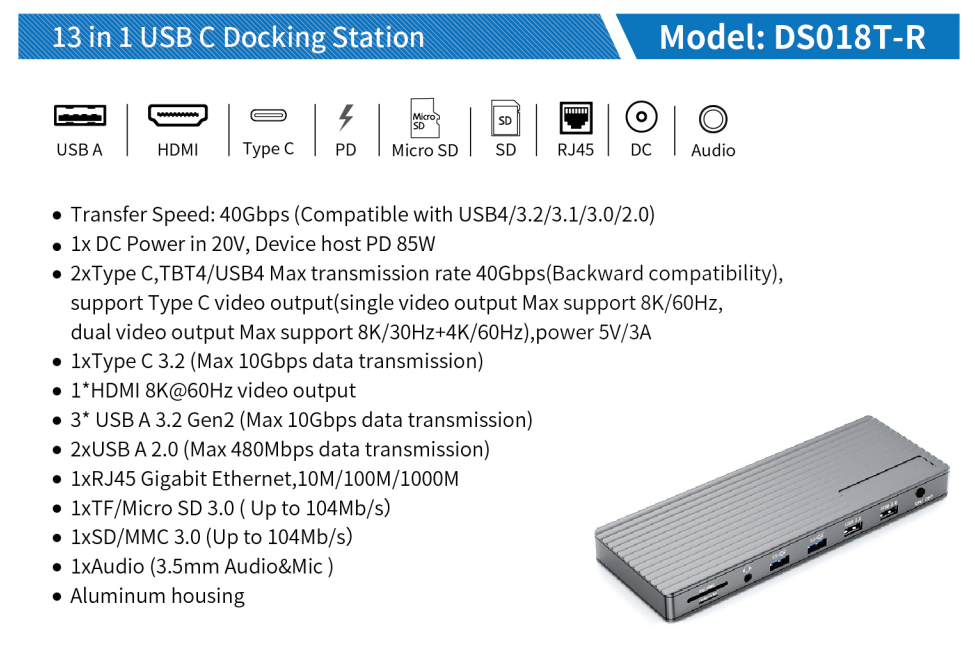
For those who need a dual or triple screen setup, a portable laptop docking station is essential. If you need an extra monitor to get the most out of your laptop, then a docking station is the best choice and will enable your multi-screen PC setup. For example, the Purplelec 13-in-1 Docking Station can easily connect two monitors to your device. Here is a step-by-step guide to connecting two monitors to a laptop docking station:
1. After connecting the docking station to the laptop, you should hear a prompt tone indicating a successful connection.
2. After hearing the prompt tone, connect the second external monitor to the docking station.
3. Access the display settings on your device. Right-click on the desktop screen and select the "Display Settings" option.
4. Once you are on this page, you will see icons for three monitors. You can arrange these monitors as you see fit. Double-check the "Multiple Displays" section and set it to "Extend these displays" to ensure both monitors work properly.
5. Click the option to select and rearrange the display areas of your monitors and select the "Identify" option. Each monitor will display a corresponding number to help you identify and rearrange the monitors and ensure everything is extended appropriately.
How to choose a docking station?
Determining the features you want your docking station to have can help you make your final purchasing decision. Here are the main factors to consider when choosing a docking station:
Connection Type
The first factor to consider when choosing a docking station is the type of connection you need. Docking stations usually offer USB Type-C connections, and some models offer Thunderbolt connections. However, if your laptop does not support USB Type-C or Thunderbolt 3/4, you may need to choose a model that connects via a traditional USB-A connection.
Compatibility
It is also very important to ensure that the docking station is compatible with your laptop. Most models are designed to work with a specific model of laptop, so check carefully before buying.
Also, make sure the model you buy is compatible with your current operating system. While many docking stations are designed to be compatible with both Windows and MacOS, some models may only be compatible with one operating system or may have compatibility issues with other operating systems.
If you buy a premium model, you must also make sure it is compatible with the peripherals you want to connect. For example, if you use multiple monitors, make sure the dock supports multiple displays.
Dimensions and weight
You also need to consider the size and weight of the dock before buying. If you are looking for a basic model, make sure it is compact enough to fit on your desk and doesn't take up too much space. Premium models that offer more connection options may be larger and heavier - however, if you choose one of these models, make sure it is manageable so that you can easily move it when necessary.
Price
Finally, you need to consider the price. One advantage of docking stations is that they are more affordable than buying a whole desktop computer. However, different vendors still offer competitive prices, which makes your choice more difficult.
Conclusion
Docking stations are a great way to enhance the functionality of your laptop and make the most of its performance. They allow you to connect multiple devices to your laptop, including a monitor, keyboard, mouse, and external hard drive. With a docking station, you can easily transform your laptop into a desktop-like experience and make it more powerful.
When choosing a docking station, make sure you choose one with the right ports and required features for your laptop. Suppliers such as Baseus offer affordable, efficient, and advanced docking stations to ensure you get the best experience from your laptop. Purplelec docking stations have the following features:
Fast transmission speed and stable network
Wide compatibility
Intelligent security protection
Compatible with Macbook Air and Macbook Pro devices
Guaranteed customer satisfaction