








When choosing a USB-C docking station, first check which side a ‘PD 100W’ label refers to. It may describe the docking station's maximum power input or the maximum power it can pass to the laptop. Treat 100W as the host-side capability only when the specification explicitly says ‘100W host output.’ Even then, the laptop will not charge its battery at 100W all the time.
To decide whether a USB-C docking station can power your setup, start with your laptop's required wattage, then check the charger, both USB-C cables, and the docking station. Once power reaches the laptop, it is split between running the system and charging the battery. If charging is slow, follow this chain to find the limit. If you are sourcing or customizing a docking station, specify host power, peripheral load, and the supplied power adapter together.
Know Which Power Rating You Are Comparing
Numbers at different points in the same power path are not directly comparable. The wattage printed on a charger is its rated capability. A docking station's specification may describe a port limit, while a power meter shows the power corresponding to the voltage and current at its measurement point at that moment.
| Power rating | What it means | What to check |
|---|---|---|
| Charger rated output | The power the charger is rated to provide | For a multi-port charger, check the port you use and how power is shared when other devices are connected |
| Docking station PD input limit | The highest power the docking station's power-input port can accept | This is not automatically the output available to the laptop |
| Maximum host output | The highest power the docking station can supply to the laptop | The host, cables, and power configuration must also support it |
| Real-time power at a point | The power measured at the meter's position at that moment | Readings at the input and host sides may differ |
| Actual battery charging power | Power used to charge the battery after the laptop's internal power management | Also affected by system power use and charging controls |
For example, the power a laptop receives from a docking station runs the system and charges the battery. A battery-charging reading below the docking station's rated host output does not by itself mean the rating is false. First make sure you are comparing the same kind of power, then evaluate the setup against the agreed requirements.
Why a Docking Station With 100W Input May Deliver Only 85W to Your Laptop
Controller chips inside the docking station consume power, and downstream devices may draw power from it. The power design also accounts for conversion losses and allocation rules. You therefore cannot assign the entire rated input to the laptop. Leave a power budget for the docking station itself and connected peripherals when selecting the adapter. [Dell charging guidance]
Our 4-in-1 USB-C hub accepts up to 100W PD input and supplies up to 85W to the host. Our 7-in-1 USB-C docking station also accepts up to 100W input, with an 81W host-output limit. Check the stated host output for the exact model you are considering instead of relying on the ‘100W’ label alone. [4-in-1 specifications, 7-in-1 specifications]
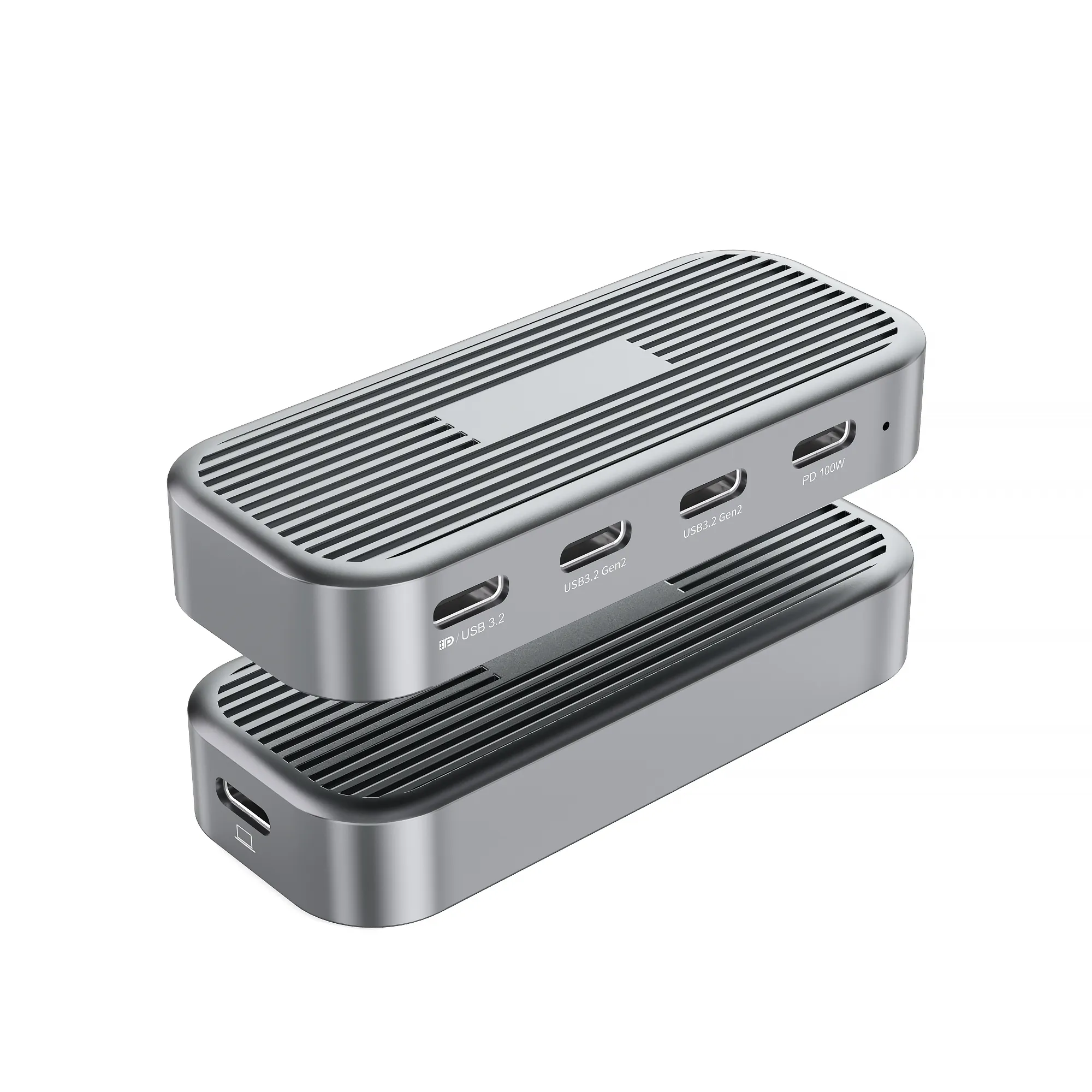
On the 4-in-1 model, the PD 100W label identifies the power input; its maximum host output is 85W.
One more distinction matters: the 15W gap between 100W and 85W does not mean the docking station turns 15W into heat at all times. A reserved power budget is not the same as instantaneous consumption, and you cannot assume every docking station always deducts 15W. Check how the specific model allocates power and what output it can sustain with your target peripherals connected.
Sending video to a monitor with its own power adapter does not mean the docking station supplies all of that monitor's power. Include portable displays, drive enclosures, and other devices that draw power from the docking station in your budget. If a monitor has a separate power supply, calculate the load according to how it is actually connected.
Check These Three Limits Before Switching to a Higher-Wattage Charger
Check the Docking Station's PD Input and Host Output Ratings
Connecting a docking station rated for up to 100W input and 85W host output to a 140W charger does not automatically give the laptop 100W. Check the docking station's supported input voltage and current combinations and its host-output profiles. Then check whether the chosen charger port offers matching profiles. The PD version label alone does not replace these specifications. [4-in-1 specifications, USB-IF Power Delivery guidance]
Check Both USB-C Cables
With an external USB-C charger, check both links: charger to docking station and docking station to laptop. Delivering 100W at 20V requires 5A and a cable rated accordingly; a 3A cable at 20V corresponds to 60W. If the host cable is captive, evaluate it as part of the docking station's complete product specification. [USB-IF Power Delivery guidance]
Check charging capability and data capability separately. A cable with a high power rating may not support the data rate or video features you need. A high-speed data cable does not remove the need to verify its current rating. Certification also does not raise the docking station's or laptop's own limits. [USB-IF cable guidance]
Check What Your Laptop Requires and Accepts
Check your laptop's full model number for USB-C charging support and the recommended adapter configuration. Do not infer the requirement from labels such as ‘business laptop’ or ‘gaming laptop.’ If you use a Mac, choose a power source that meets at least the minimum recommended wattage for that model, and verify the port and cable combination you actually use. [Apple power adapter guidance]
When the battery is nearly full, a charge limit is active, or optimized charging is working, the laptop may reduce or pause battery charging. If your Mac says ‘Charging On Hold,’ check whether Optimized Battery Charging is enabled. A low reading in that state does not necessarily indicate insufficient supply; interpret it alongside the system message. [Apple battery charging guidance]
Troubleshoot Slow Laptop Charging Through a Docking Station
The goal is to locate the restriction in the power path. Keep one baseline configuration and add devices one at a time. This produces a clearer result than changing the charger, cables, and laptop together. The steps below check functionality; if your project needs precise PD negotiation data, use analysis equipment suited to the interface.
- Record the laptop model, charger model and port in use, both cables, docking station model, and battery state at the start of the test.
- If the laptop supports it, connect a suitable charger directly and record the system's power status and battery change. For a useful comparison with the docking station, keep the starting charge level, temperature, workload, and observation period as similar as possible.
- Connect the docking station without downstream peripherals. Confirm that the charger is in the PD input and the laptop is connected to the host port, then record the same observations.
- Add the drive enclosure, portable display, and other devices in your actual setup one at a time. Watch for slow-charging messages, power renegotiation, or device disconnects, and record the exact combination that triggers a problem.
- If you use a multi-port charger, repeat the check after connecting or disconnecting its other loads. Follow that charger's own port-allocation rules.
- Retest with another cable whose rating is clear and suitable. Only then swap the charger or docking station, changing one condition at a time.
When using a USB-C power meter, note whether it sits between the charger and docking station or between the docking station and laptop. An ordinary voltage-and-current reading shows real-time power at that point. It does not by itself show the PD negotiation ceiling or the battery's actual charging power. The meter must also suit the link being tested. If inserting it disrupts video or data, run the power measurement and full-function test separately.
What to Specify for USB-C Docking Station Power Delivery in OEM Purchasing
A purchasing brief that only says ‘supports PD 100W’ is incomplete. Ask your supplier to state input, host output, and downstream power separately, and include the charger and cables in one acceptance configuration. This keeps sample testing, packaging claims, and final shipment tied to the same conditions.
| Item to confirm | Specification to record |
|---|---|
| PD input | Input-port location, maximum power, and supported voltage/current combinations |
| Host power | Maximum output and the output sustainable under the agreed peripheral load |
| Downstream power | Per-port capability, combined multi-port budget, and allocation priority |
| Charger and cables | Whether included, models and lengths, ratings, and permitted substitutes |
| Simultaneous-use setup | Exact target laptop, monitor, storage, and other peripheral combination |
| Faults and recovery | Power and connection behavior after peripheral hot-plug, charger-load changes, and sleep/wake |
Record the actual setup and meter position with each acceptance result. Define test duration, allowed power variation, and recovery time according to the application and agreed project requirements. A single demonstration that the laptop charges is not proof of sustained full-load capability. Do not claim ‘compatible with all laptops’ for combinations you have not tested.
In the specification sign-off, ask for separate figures such as ‘PD input up to 100W; host output up to 85W.’ If you need a certain output while peripherals operate at the same time, include the laptop model, peripheral set, charger, and cables in the acceptance conditions. That avoids different interpretations of ‘supports 100W.’
Frequently Asked Questions
My 100W docking station shows only a few dozen watts. Is it faulty?
One reading is not enough to tell. Confirm whether 100W refers to input or host output, then check the meter position, laptop workload, battery state, and cables. A rated maximum is not constant consumption. If the setup fails to provide the required power under agreed test conditions, investigate further.
Will a 140W charger charge my laptop faster through a docking station with 85W host output?
Only if the original charger was the limiting factor and the new charger offers the power profile the docking station needs. A different charger does not raise the docking station's 85W host-output ceiling.
If I unplug peripherals, will all of their reserved power go to the laptop?
Not necessarily. Some products reserve power at a fixed level; others adjust it with load. Whether power is reassigned, and by how much, depends on the docking station's power-management design. You cannot infer it simply by subtracting the current peripheral draw from the input limit.
Can a 240W USB-C cable make a 100W docking station output 240W?
No. The cable rating describes the cable's capability; it does not raise the docking station's or laptop's limit. Every device and cable in the path must support the target power and the required voltage/current combination.
Tell Us About Your Laptop and Peripherals
To choose a USB-C docking station power setup, first determine the wattage your laptop needs, then check the docking station's host output, peripheral power budget, and adapter. For an OEM or volume-purchasing project, send us the target laptop model, monitor and storage list, required host power, and whether the charger should be included. We can then identify suitable products and a sample-validation configuration based on your requirements.
Explore PURPLELEC docking station OEM/ODM services and share your power requirements
