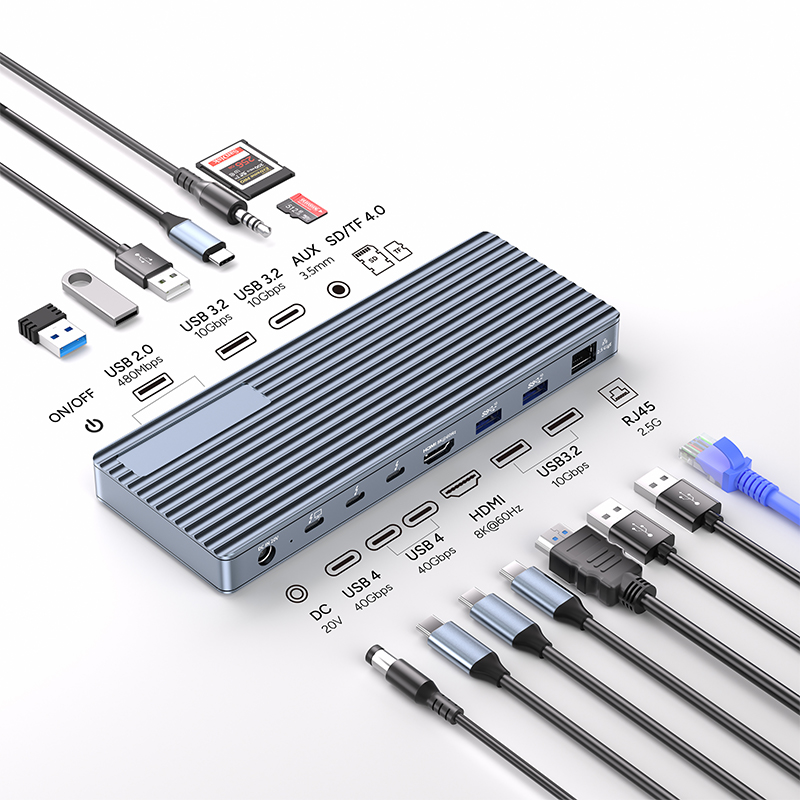
If you want to upgrade your laptop to a full-featured desktop workstation, facing the various docking stations on the market, many people will fall into a dilemma of choice. It is easy to make mistakes if you simply choose based on price and specifications. In fact, as long as you think about five key questions before buying, you can accurately find a docking station that fits your home office environment and unlock an efficient office experience.

From the appearance, most type c docking stations are small boxes, but they can achieve powerful connection functions - connecting one or more large displays, Ethernet, full-size wired keyboards and mice, external power supplies, and almost all devices that can be connected to USB ports. Only one cable is needed to connect the laptop, and a comfortable and efficient working environment can be built in an instant, which is why docking stations are so popular. However, the price of docking stations on the market ranges widely, ranging from less than $100 to more than $300. If you choose blindly, you may spend money unnecessarily and still not meet your needs.
I. Does the laptop support Thunderbolt?
Today, most modern laptops are equipped with USB Type-C interfaces, and even the Micro-soft Surface series is no exception. Although its charging still relies on a dedicated interface, data transmission has adopted USB Type-C. However, not all USB-C ports are the same. Laptops that support Thunderbolt (such as Dell's high-end XPS, Latitude series, and Apple MacBook) have USB-C ports that are fundamentally different from devices that do not support Thunderbolt (such as some Surface models). Once a Thunderbolt docking station is connected to a non-Thunderbolt computer, the function may be limited at best, or the docking station may not work properly, causing unnecessary economic losses. Therefore, ensuring the compatibility of the docking station with the laptop is the first prerequisite for purchase.
II, can the docking station provide sufficient power for the laptop?
Most docking stations support USB Type-C Power Delivery (PD), but the power supply (measured in watts) varies and may not meet the charging needs of all laptops. In particular, large laptops equipped with high-end CPUs and discrete GPUs used to handle high-load tasks such as video editing and graphic design require higher power. For example, the 15-inch and 16-inch MacBook Pro require 87W and 96W of power, respectively. If you use a docking station that only supports 60W USB Type-C PD, the charging speed will drop significantly or even fail to charge when running under high load. When purchasing, be sure to compare the power requirements of the laptop with the maximum power output of the docking station to avoid power anxiety.
III. Are the port types and quantity sufficient?
It is a common purchase error to only focus on the number of USB ports and ignore the port specifications and functions. In actual use, the USB port may not charge the mobile device or the charging speed may be too slow. In addition, if the device interface type does not match, if you need to plug a USB-A device into a USB-C port, you need to purchase an additional adapter or cable. Therefore, in addition to calculating the number of ports, you must carefully check the port specifications, plan the device connection requirements in advance, and ensure that the docking station can fully function.
Specifications:
Transfer Speed: 40Gbps (Compatible with USB4/3.2/3.1/3.0/2.0)
1x DC Power in 20V, Device host PD 85W
2xType C, TBT/USB4 40gbps interface downward compatibility
(Video output up to Single 8K@30Hz or Dual 4K@60Hz or
Three 4K@30Hz), power output up to 15W
1*HDMI 8K@60Hz video output
3* USB A 3.2 Gen2 (Max 10Gbps data transmission)
2xUSB A 2.0 (Max 480Mbps data transmission)
1xTF/Micro SD 3.0 ( Up to 104Mb/s)
1xSD/MMC 3.0 (Up to 104Mb/s)
1xAudio (3.5mm Audio&Mic )
1xRJ45 Gigabit Ethernet,10M/100M/1000M
IV. Can the video hardware meet the display requirements?
If you only connect an ordinary 24-inch full HD (1920x1080) monitor, most docking stations can easily handle it. But if you plan to use a high-resolution monitor, such as a 5K monitor, or drive two 4K monitors to achieve multi-screen collaboration, the video output capability requirements of the docking station will be greatly increased. At the same time, the refresh rate is also a parameter that cannot be ignored. Under advanced configurations, the refresh rate of some docking stations may drop to 30Hz, which is more likely to cause eye fatigue after long-term use than the native 60Hz. Users who pursue high-quality visual experience must confirm whether the video hardware of the docking station meets the requirements.
V. Is the ergonomic design of the docking station suitable?
Office desks usually have a set layout, and the placement of the docking station should also be considered. Most docking stations use the back port for fixed connection devices, and reserve one or two ports on the front for convenient connection of USB flash drives, smartphones and other devices. However, if the connection cable between the docking station and the computer is fixed, and the corresponding port position of the laptop does not match it, and the cable length is insufficient, it will cause inconvenience to use. When purchasing, you should consider the interface position and cable design of the docking station in combination with the desktop layout and usage habits to ensure that it fits into the office environment and improves the comfort of use.
When choosing a type c docking station, spend more time thinking about these five questions to avoid blind consumption and choose a product that truly meets the needs of home office, turning your laptop into an efficient productivity tool and adding convenience to work and life.