A docking station or multifunctional USB-C hub is an essential tool for efficient laptop work in modern offices. It expands a single port into multiple connectivity options, allowing you to easily connect monitors, Ethernet, keyboards, hard drives, and SD/TF cards. This greatly enhances the productivity and flexibility of your workspace.
Today, PURPLELEC brings you a comprehensive FAQ guide to help you choose the right docking station for your needs.
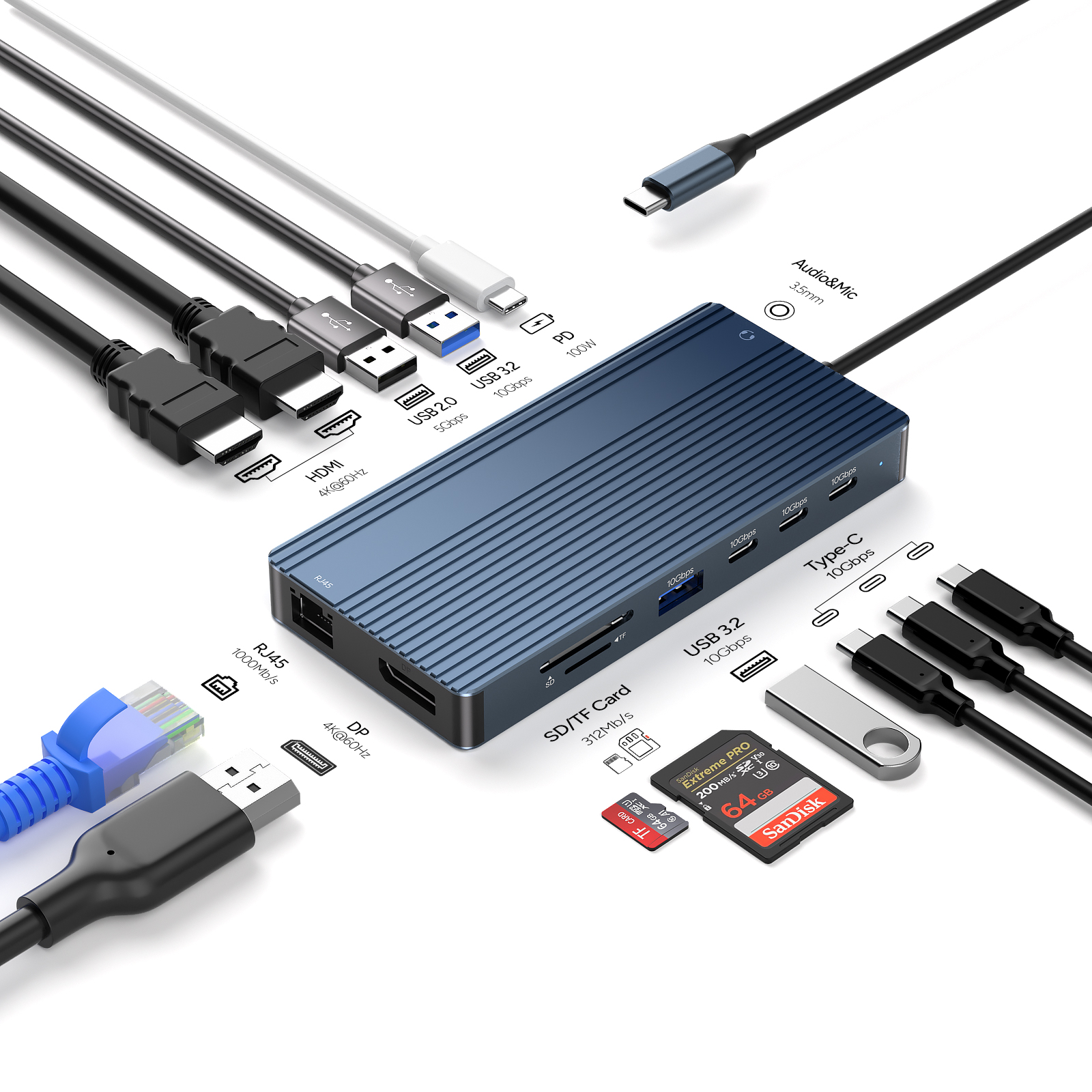
1. What should I do if my laptop cannot detect the docking station?
If your laptop fails to recognize the docking station, first check whether the device is compatible with your operating system. Refer to the brand’s official specifications or user manual to confirm support for Windows, macOS, and other system versions.
Next, verify whether your laptop requires additional drivers or firmware updates. Visit the corresponding manufacturer's website to download the latest software to improve stability and compatibility.
Additionally, adjust your laptop’s power management settings—especially USB power-related options—as they may affect docking station performance.
2. How do I know if the docking station is compatible with my monitor?
To ensure smooth display output, pay attention to:
Supported resolution and refresh rate of your monitor (1080P, 2K, 4K, 5K, etc.)
Whether your laptop’s GPU supports that output level
Whether the docking station has enough bandwidth (some dual-4K setups may be limited to 30Hz)
If you plan to work with high-resolution screens or dual monitors, confirm that the docking station supports the required bandwidth to avoid frame drops or screen flickering.
3. Why won’t my laptop wake from sleep when connected to the docking station?
When a laptop cannot wake from sleep mode while connected, try the following:
Update docking station drivers
Adjust display and sleep settings in your system
Disable certain power-saving features that may turn off external displays
Optimizing your power configuration can significantly reduce sleep-related issues.
4. Why does the docking station become hot?
It is normal for docking stations to generate heat—especially during heavy data transfer, charging, or multi-device usage.
Aluminum-alloy housings dissipate heat more effectively, helping transfer internal heat quickly. If you frequently work with large data files or multiple displays, choosing a metal-cased docking station will offer better safety and stability. You may also use a cooling pad if needed.
5. Why can’t my laptop charge through the docking station?
If charging doesn’t work, check the following:
Whether the docking station supports USB-C Power Delivery
Whether the power adapter wattage meets your laptop’s requirements
Whether your USB-C cable is a full-function cable (supports power + video + data)
Whether USB charging options are enabled in system settings
If the docking station’s power output is too low, your laptop may charge slowly or not charge at all. Make sure the PD wattage matches your laptop’s needs.
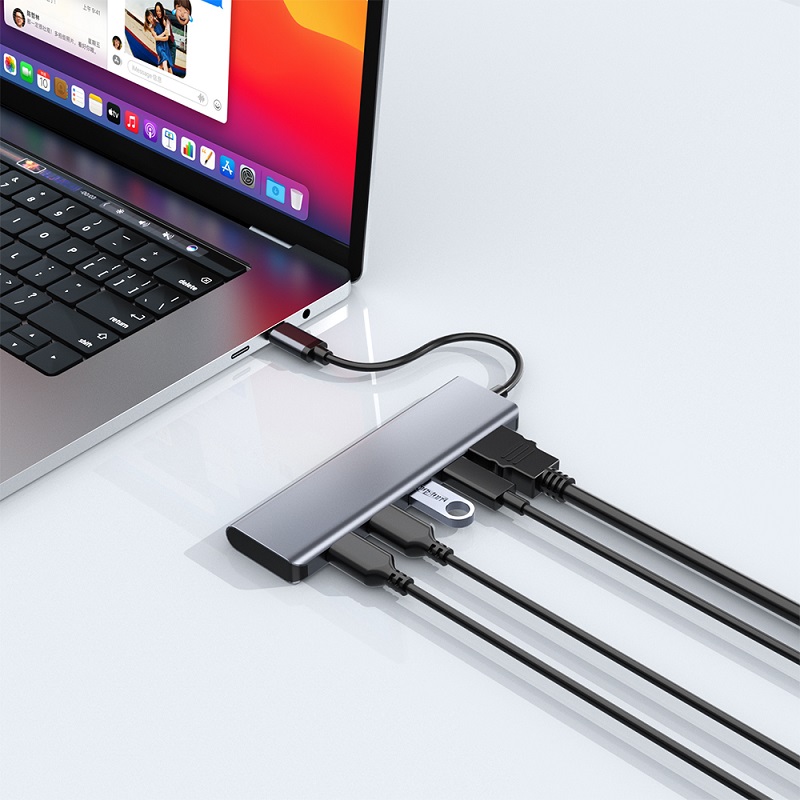
6. What should I do if there is lag or delay when using the docking station?
To fix latency or lag between your peripherals and the docking station:
Update drivers for the docking station, graphics card, and peripherals
Use high-quality cables
Prefer wired connections for mice and keyboards
Adjust USB power-saving settings
In Windows Device Manager, you can disable
“Allow the computer to turn off this device to save power”
to ensure stable USB power supply and reduce disconnect issues.
7. What benefits does a docking station offer?
A docking station can:
Create a plug-and-play mobile workstation
Enable single-cable laptop connection
Expand the number and types of available ports
Keep your desktop clean with hidden cable routing
Add missing ports to slim modern laptops
For mobile workers, multitasking professionals, video editors, streaming creators, and conference users, a docking station is an essential productivity tool.









