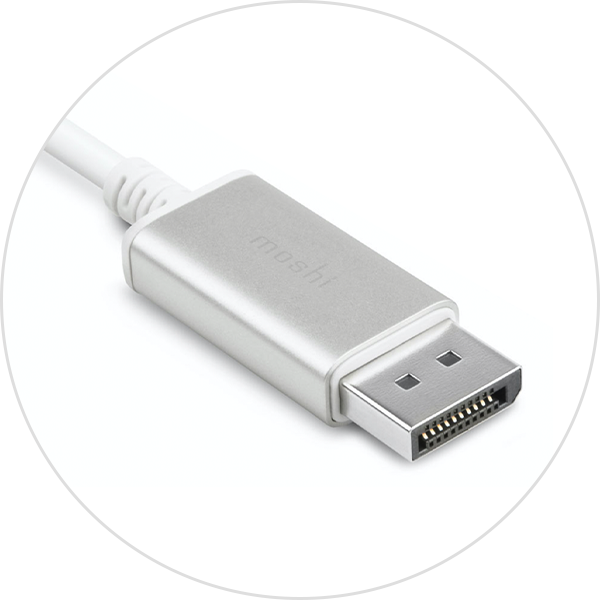
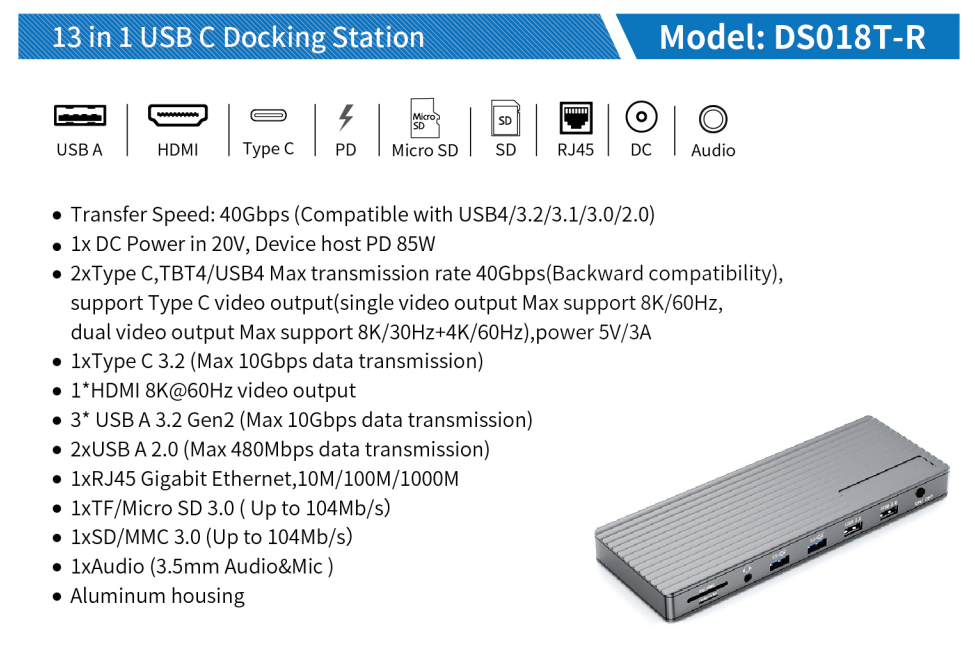
When setting up a new 4K monitor or connecting a high-performance dock to your laptop, it’s easy to get confused by the various ports and cables—especially when they look nearly identical. DisplayPort and Thunderbolt are two of the most powerful connection types today, but they serve slightly different purposes. So, what’s the difference between DisplayPort and Thunderbolt? Which one should you use?
This guide will walk you through the basics, whether you’re building a home office or gaming on a high-refresh-rate monitor. We’ll break down each port’s functionality, compare their features, and help you choose the right option for your devices.
I. Technical Origins and Core Positions
(A) DisplayPort: The Display Specialist Focused on Audio-Video Transmission
Developed by the Video Electronics Standards Association (VESA), DisplayPort is a digital display interface designed to replace legacy standards like VGA and DVI. Its core mission is to deliver high-definition audio and video efficiently. The latest DisplayPort 2.1 standard supports up to 80 Gbps bandwidth, capable of driving a single 8K@60Hz display or dual 4K@144Hz displays. It also supports advanced features like HDR metadata and Adaptive Sync, making it ideal for gamers and content creators.
Physically, DisplayPort comes in two sizes: standard DisplayPort and Mini DisplayPort (common in older Mac devices). Modern devices often use USB-C ports with "DisplayPort Alt Mode" to transmit DisplayPort signals, allowing 4K video output via a single cable.
(B) Thunderbolt: The All-in-One High-Speed Connection Hub
Co-developed by Intel and Apple, Thunderbolt is a high-speed connectivity standard designed to simplify setups by integrating data transfer, video output, and power delivery into a single cable. Starting with Mini DisplayPort for Thunderbolt 1/2, the standard shifted to USB-C with Thunderbolt 3, enhancing versatility and compatibility.
The latest Thunderbolt 5 brings revolutionary upgrades: 80 Gbps bi-directional bandwidth (peaking at 120 Gbps for video-intensive tasks), support for dual 8K displays or PCIe 4.0 external GPUs, and up to 240W power delivery—enough to fully charge a 16-inch high-performance laptop. With its daisy-chain topology, a single Thunderbolt 5 port can connect up to 6 devices (e.g., monitors, SSDs, docks) while maintaining full bandwidth and power.
II. Key Dimension Comparisons
(A) Functional Positioning Differences
| Dimension |
DisplayPort |
Thunderbolt |
| Core Function |
Dedicated to A/V transmission (4K/8K/HDR) |
Unified data/video/power transmission |
| Data Transfer |
Supports only DisplayPort protocol data |
Supports multi-protocol data (PCIe 4.0, USB4, etc.) |
| Power Delivery |
Up to 35W (via USB-C) |
Up to 240W (Thunderbolt 5) |
| Device Expansion |
Relies on MST daisy-chaining (hardware-dependent) |
Native daisy-chaining support (up to 6 devices) |
(B) Port Identification Guide
1. Mini DisplayPort Era
DisplayPort Port: Marked with a monitor icon (▯), supports only A/V transmission.
Thunderbolt 1/2 Port: Marked with a lightning bolt (⚡), compatible with DisplayPort cables and supports high-speed data transfer.
2. USB-C Era
DisplayPort Alt Mode Port: May be marked with a DP icon or unmarked, supports only video output and limited power (≤35W).
Thunderbolt 3/4/5 Port: Marked with a lightning bolt (⚡), supports full USB-C functionality (data/video/power).
(C) Performance Specs Comparison
| Technical Indicator |
DisplayPort 2.1 |
Thunderbolt 5 |
| Max Bandwidth |
80 Gbps (unidirectional) |
120 Gbps (peak bi-directional) |
| Display Support |
Single 8K@60Hz or dual 4K@144Hz |
Dual 8K@60Hz or triple 4K@144Hz |
| Typical Use Case |
Direct GPU-to-monitor connection for high-end setups |
Dock-based multi-device connectivity (SSDs, GPUs, power) |
III. Scenario-Based Selection Tips
(A) When to Choose DisplayPort
Pure Display Needs: Directly connecting a GPU to a monitor/projector for high-resolution, high-refresh-rate setups at optimal cost.
Multi-Display Expansion: Using MST-compatible GPUs and monitors for cost-effective daisy-chained multi-screen setups.
Legacy Compatibility: Older devices (e.g., MacBook Pro with Mini DisplayPort) or budget-friendly entry-level monitors.
(B) When to Choose Thunderbolt
Minimalist Desktop Setups: Connecting a dock via a single Thunderbolt cable for simultaneous 4K video, 10Gbps data transfer, and laptop charging.
Professional Creative Workflows: External NVMe RAID arrays (read speeds >7000MB/s), PCIe GPU docks (upgrading laptop graphics), and other high-performance peripherals.
Future-Proofing: New high-end laptops (e.g., Windows devices or MacBooks with Thunderbolt 5) requiring 5-8 years of expandability.
(C) Hybrid Usage Strategy
If your device has both DisplayPort and Thunderbolt ports, use a "division of labor" approach: connect the primary monitor via DisplayPort for maximum video performance, and use Thunderbolt for docks to handle data and power—optimizing efficiency.
IV. Conclusion: Technological Evolution and User Choice
DisplayPort and Thunderbolt are not substitutes but complementary solutions. The former excels in specialized A/V transmission, driving display technology forward, while the latter redefines modern work and creative ecosystems through unified connectivity. With USB-C’s proliferation, Thunderbolt has become the standard for premium devices due to its protocol compatibility and expandability, while DisplayPort remains irreplaceable in cost-effective and professional display markets.
When choosing, assess your needs first: DisplayPort suffices for display-centric setups, while Thunderbolt offers future-proof versatility for interconnected workflows. As Thunderbolt 5 and DisplayPort 2.1 gain traction, their technical boundaries may blur, but their distinct functional positions will continue to guide informed decisions.