The role of a docking station has changed significantly over the past few years.
Early laptop users mainly relied on a docking solution for adding USB ports or connecting a monitor. Modern office environments place much heavier demands on connectivity, display expansion, network stability, charging capability, and desktop flexibility.
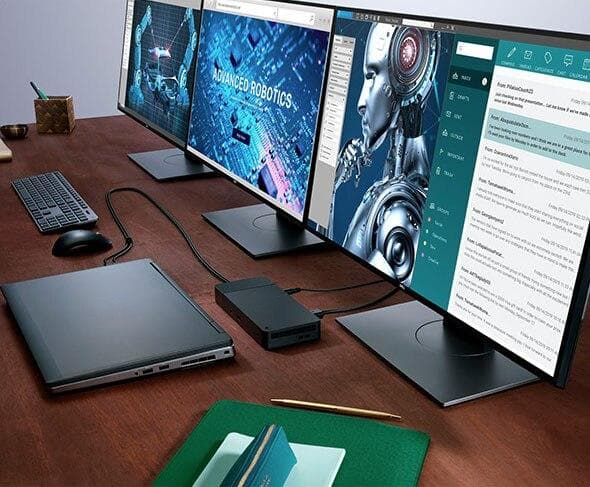
As remote work and hy-brid office setups became standard across many industries, the demand for a reliable displaylink docking station increased rapidly.
Particularly among MacBook users, financial analysts, programmers, video editors, and enterprise office teams, the need for multi-monitor support exposed the limitations of many native USB-C and Thunderbolt display outputs.
A DisplayLink-based docking solution addresses a problem traditional docks often struggle with: expanding multiple displays through standard USB data transmission rather than relying entirely on the GPU’s native video pipeline.
In long-term testing across Windows laptops, Intel Evo ultrabooks, and Apple Silicon MacBook devices, DisplayLink docks revealed a very different usage profile compared with conventional Thunderbolt 4 docking stations. Their strengths are closely tied to cross-platform compatibility and flexible display expansion rather than raw bandwidth alone.
A displaylink docking station is a laptop docking station built around DisplayLink chipset technology. Unlike conventional USB-C video output methods such as DisplayPort Alt Mode or Thunderbolt tunneling, DisplayLink transmits compressed display signals over standard USB data channels.
From the operating system’s perspective, the dock behaves similarly to an external graphics processing device. Once the DisplayLink driver is installed, the system can generate additional virtual displays even if the laptop itself has hardware limitations on external monitor outputs.
This architecture became especially important after Apple introduced M1 and M2 MacBook models with native restrictions on external monitors. Many base-model MacBook Air devices officially supported only one external display through native output. DisplayLink solutions effectively bypassed that limitation.
Current mainstream DisplayLink docks commonly integrate:
▪ HDMI and DisplayPort outputs
▪ USB 3.2 Gen2 expansion ports
▪ Gigabit or 2.5GbE Ethernet
▪ Type-C PD charging
▪ Audio interfaces
▪ SD or microSD card readers
In practical enterprise deployments, a usb docking station based on DisplayLink is often used as a centralized desktop hub. A single cable can simultaneously handle display output, networking, charging, peripherals, and storage devices.
How DisplayLink Technology Works
The core of DisplayLink technology lies in video compression and USB data transmission.
Traditional display outputs depend directly on the GPU’s physical display engine. Thunderbolt 4 and USB-C Alt Mode essentially extend native GPU video signals through high-speed lanes. The number of supported monitors depends heavily on hardware-level GPU capabilities.
DisplayLink follows a different approach.
The DisplayLink driver captures rendered frames from the operating system, compresses them in real time, then transmits the data stream through USB protocols to the docking station’s dedicated decoding chip. The dock reconstructs the image signal before sending it to HDMI or DisplayPort outputs.
This explains several common characteristics observed during real-world usage:
Strong Multi-Display Flexibility
Even laptops with limited native video outputs can achieve dual monitor docking station or triple-monitor configurations through DisplayLink.
In testing with an M2 MacBook Air connected to two 4K@60Hz monitors, the desktop operated in full multi-screen independent mode after driver installation, something impossible through native macOS support alone.
CPU Resource Consumption Exists
Since video compression occurs partially through software, DisplayLink introduces measurable CPU usage under heavy workloads.
During spreadsheet processing, browser multitasking, code compilation, and conference applications, CPU overhead remains relatively minor on modern processors. High-motion content such as 4K video editing timelines or gaming, however, can increase system resource consumption noticeably.
Driver Dependency Cannot Be Ignored
Unlike native Thunderbolt display output, DisplayLink requires active driver support.
Windows compatibility is generally mature, while macOS environments occasionally experience permission resets after major OS upgrades. Enterprise IT departments often standardize DisplayLink Manager deployment to maintain consistent workstation behavior.
Differences Between DisplayLink and Thunderbolt Docking Stations
The comparison between DisplayLink docks and Thunderbolt 4 docks often causes confusion among buyers because both products may advertise dual 4K monitor support.
Their internal logic differs substantially.
| Feature |
DisplayLink Dock |
Thunderbolt 4 Dock |
| Display Transmission |
USB compressed data |
Native GPU signal |
| Driver Requirement |
Required |
Usually unnecessary |
| macOS Multi-Monitor Expansion |
Strong advantage |
Limited by Apple hardware |
| Gaming Latency |
Higher |
Lower |
| Office Productivity |
Excellent |
Excellent |
| GPU Performance Dependency |
Lower |
Higher |
| Compatibility |
Broad USB support |
Hardware-dependent |
| Price Range |
Usually lower |
Higher |
In long-duration office environments, DisplayLink often proves more flexible than Thunderbolt solutions.
A Thunderbolt dock delivers superior native responsiveness for professional video editing, high-refresh gaming, or color-critical production workflows. Yet in enterprise office deployments focused on spreadsheets, ERP systems, browser multitasking, virtual meetings, and cross-platform compatibility, DisplayLink frequently becomes the more practical option.
Multi-Monitor Productivity Experience
The biggest reason many users choose a displaylink docking station is multi-monitor efficiency.
Large spreadsheet management, stock trading systems, software development environments, and design collaboration tools benefit significantly from expanded desktop space.
A common workstation configuration in financial and engineering offices includes:
▪ One primary 4K monitor
▪ One vertical communication display
▪ One monitoring or data dashboard screen
DisplayLink handles these heterogeneous layouts well.
In daily testing under Windows 11 with dual 4K monitors plus a 1440p side display, cursor movement remained smooth, wake-from-sleep recovery was stable, and monitor arrangement persistence was reliable after reconnecting the dock.
MacBook users benefit even more noticeably.
Apple Silicon devices impose native external monitor limitations on non-Pro chips. DisplayLink effectively restores the usability expected from a professional desktop workstation.
There are still scenarios where DisplayLink shows limitations.
Fast-motion video editing, HDR production, esports gaming, and high-refresh 144Hz or 240Hz monitor usage remain better suited to native Thunderbolt GPU pipelines.
DisplayLink is fundamentally optimized for productivity rather than graphics-intensive workloads.
USB Expansion and Peripheral Connectivity
Modern docking stations increasingly function as desktop I/O hubs rather than simple display adapters.
A well-designed usb c docking station typically integrates:
▪ USB-A 10Gbps ports
▪ USB-C data interfaces
▪ Ethernet connectivity
▪ Audio output
▪ SD card readers
▪ External storage expansion
This becomes particularly important when working with external storage devices.
In actual office environments, many users connect a hard drive enclosure or SSD enclosure directly to the dock for backup operations, project transfers, or media asset storage.
A docking station equipped with USB 3.2 Gen2 bandwidth can maintain relatively stable transfer performance even while multiple monitors remain active. In testing with NVMe-based solid-state drive enclosures, sustained transfer rates remained acceptable during simultaneous display output and network usage.
Bandwidth allocation still matters.
Lower-cost docks sometimes share USB controller resources aggressively, leading to temporary storage speed drops when multiple high-bandwidth devices operate simultaneously.
Enterprise-grade docks generally handle USB lane scheduling more effectively.
Network Stability, Charging, and Long-Term Reliability
Office docking stations are expected to remain connected for extended periods, often operating continuously for eight to twelve hours daily.
Long-term stability matters more than benchmark numbers.
In prolonged workstation testing, thermal management proved critical for DisplayLink docks. Models using aluminum chassis construction maintained lower controller temperatures and showed fewer random disconnect events compared with compact plastic enclosures.
Network reliability also varied significantly between controllers.
Intel-based Ethernet solutions consistently demonstrated lower packet instability during VPN usage and remote desktop sessions than lower-end generic network chipsets.
Power delivery behavior deserves attention as well.
Most mainstream laptop docking station products now support Type-C PD charging ranging from 65W to 100W. For ultrabooks and productivity-focused laptops, this is generally sufficient for simultaneous charging and office workloads.
High-performance mobile workstations with dedicated GPUs may still require original power adapters under sustained heavy load.
Advantages and Limitations of DisplayLink Docking Stations
Advantages
Excellent Cross-Platform Compatibility
DisplayLink works across Windows, macOS, ChromeOS, and even some Linux environments.
Effective Solution for MacBook Multi-Monitor Restrictions
This remains one of the strongest reasons many MacBook Air users adopt DisplayLink docks.
Flexible USB-Based Expansion
Even laptops lacking Thunderbolt 4 support can still achieve extensive display expansion through standard USB connections.
Lower Entry Cost
Compared with enterprise-grade Thunderbolt docks, DisplayLink solutions are usually more affordable.
Limitations
Driver Dependence
Driver installation and maintenance remain unavoidable.
Increased CPU Usage Under Heavy Display Workloads
Video-heavy workflows can expose resource overhead.
Not Ideal for Competitive Gaming or Professional Color Work
Native GPU signal paths remain superior for latency-sensitive tasks.
Compression Artifacts Can Occasionally Appear
Under specific fast-motion video scenarios, slight image compression traces may become visible.
Which Users Benefit Most from DisplayLink Docking Stations
DisplayLink docks are especially suitable for:
▪ Hy-brid office professionals
▪ Financial analysts
▪ Programmers
▪ Enterprise administrative teams
▪ MacBook Air users needing dual monitors
▪ Users requiring large peripheral expansion
▪ Hot-desk office environments
Users focused primarily on gaming, 3D rendering, or professional film production generally benefit more from Thunderbolt-native workflows.
Buying Recommendations
Several factors deserve close attention when selecting a displaylink docking station.
Verify the DisplayLink Chipset Generation
Newer chipsets provide improved 4K multi-display stability and lower CPU overhead.
Confirm 4K Refresh Rate Support
Some lower-end docks only support 4K at 30Hz despite advertising dual-display capability.
Evaluate PD Charging Power
Insufficient charging capacity can lead to battery drain during heavy laptop workloads.
Consider USB Bandwidth Allocation
This becomes important for users simultaneously connecting external SSD enclosures, capture devices, and high-speed peripherals.
Check Operating System Support Frequency
Manufacturers with consistent firmware and driver updates generally offer better long-term reliability.
Conclusion
The rise of the displaylink docking station reflects broader changes in modern mobile computing. Users increasingly expect thin laptops to behave like fully equipped desktop workstations once connected to a single cable.
DisplayLink technology does not replace Thunderbolt 4 entirely. Their strengths target different workflows.
Thunderbolt remains ideal for native GPU-intensive scenarios. DisplayLink, meanwhile, excels in flexible multi-monitor productivity, broad compatibility, and practical office deployment.
For users managing complex desktop layouts, hy-brid work environments, or MacBook monitor limitations, DisplayLink docking solutions have evolved into one of the most practical categories in the modern docking station market.









