USB Hub Overview
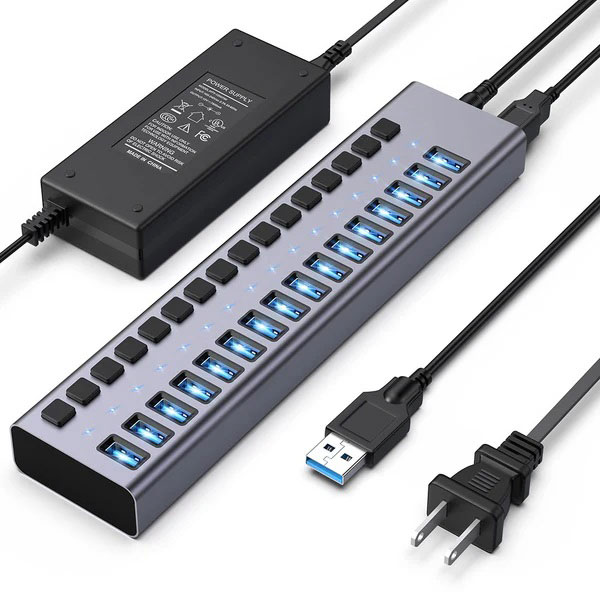
A USB Hub is a practical expansion tool that extends a single USB port on a computer or laptop into multiple available ports for connecting more peripherals. All devices connected through the hub share the available bandwidth of that single port.
External USB hubs allow users to consolidate daily devices such as mice, keyboards, and printers, creating an efficient and centralized workstation.
Based on power supply, hubs are mainly divided into two categories:
Self-powered hubs: These come with their own power supply, making them ideal for high-power USB peripherals like speakers, printers, or scanners, or for charging multiple devices simultaneously. For devices that require more power than a standard USB port can supply, these hubs ensure stable and reliable performance.
Bus-powered hub: These hubs draw all necessary power directly from the host device's USB port (e.g., a computer) and lack a separate power source.
USB Hubs and Latency
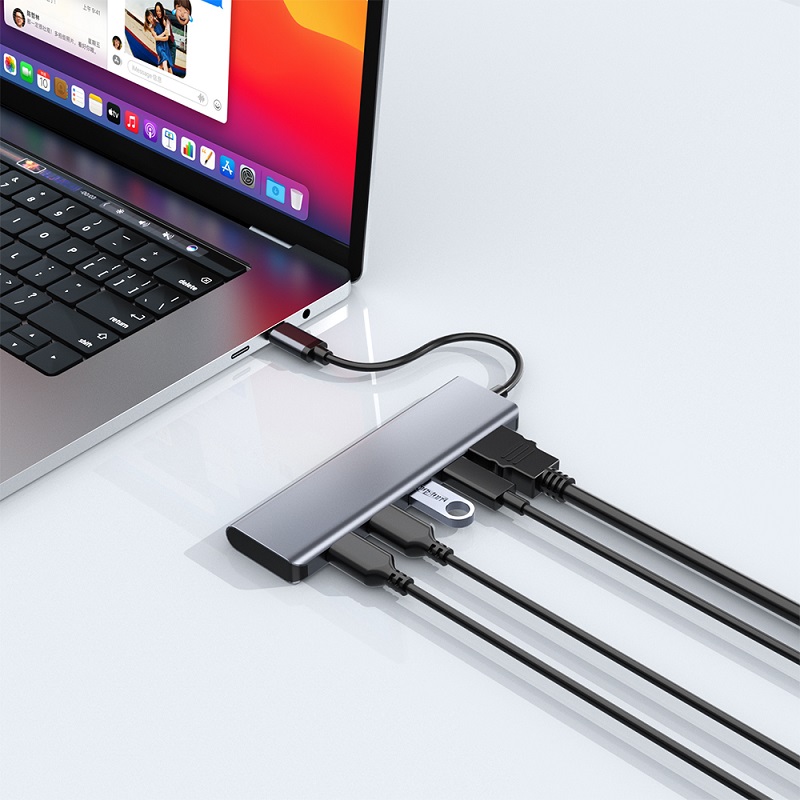
Latency is a critical metric for measuring USB hub application performance, referring to the delay in data transmission that occurs when passing through the hub. This delay significantly impacts the overall operation of connected devices. Especially for peripherals requiring quick response, like gaming gear, minimal latency is essential for a smooth user experience.
So, does using a USB hub increase latency? The answer is yes, a hub will introduce latency, but the degree depends on various factors.
Key Factors Affecting Latency
Multiple factors collectively determine the level of latency introduced by a USB hub:
Hub and Cable Quality: High-quality hubs can process data faster, helping to reduce latency. Conversely, lower-quality hubs may require extra processing time for data transfer, leading to delays. Furthermore, excessively long USB cables can cause signal degradation, slowing down data transfer speed and increasing latency.
Chipset Efficiency: The USB chipset inside the hub significantly impacts latency. Highly efficient chipsets improve performance and reduce delay.
Number and Activity of Connected Devices: The more devices connected to the hub, the greater the data traffic. If multiple devices are active simultaneously and exceed the maximum bandwidth limits of USB 2.0 or USB 3.0, latency will increase.
USB Technology Standard: Different USB standards, such as USB 2.0 and USB 3.0, have varying speeds and capabilities. A hub utilizing an older USB standard will operate slower.
Host Computer Performance: The USB Host Controller on the computer also affects latency. If the controller is slow or processes data inefficiently, it can cause delays.
External Environment Interference: External Electromagnetic Interference (EMI) or improper cable management can disrupt signals within the hub, leading to increased latency.
USB 3.0 vs. 2.0 Speed Differences
The USB 3.0 specification is similar to USB 2.0 but includes significant enhancements and improvements in data transfer rates and power delivery.
- Due to its faster transfer capability, USB 3.0 generally exhibits lower latency than USB 2.0. Its maximum speed of 5Gbps allows data to be transmitted more quickly, effectively minimizing delay.
- USB 2.0 has a maximum data transfer speed of only 480Mbps. Although sufficient for many daily devices, it introduces higher latency compared to USB 3.0 when processing large file transfers.
Effective Methods to Optimize Hub Performance and Minimize Latency
To minimize latency and optimize the performance of your USB hub, consider the following practical tips:
Choose the Right Hub:
Selecting the correct hub based on your specific device and application needs is crucial. For example, if extremely low latency or large file transfers are required, a USB 3.0 or newer standard hub will be much faster than a USB 2.0 hub.
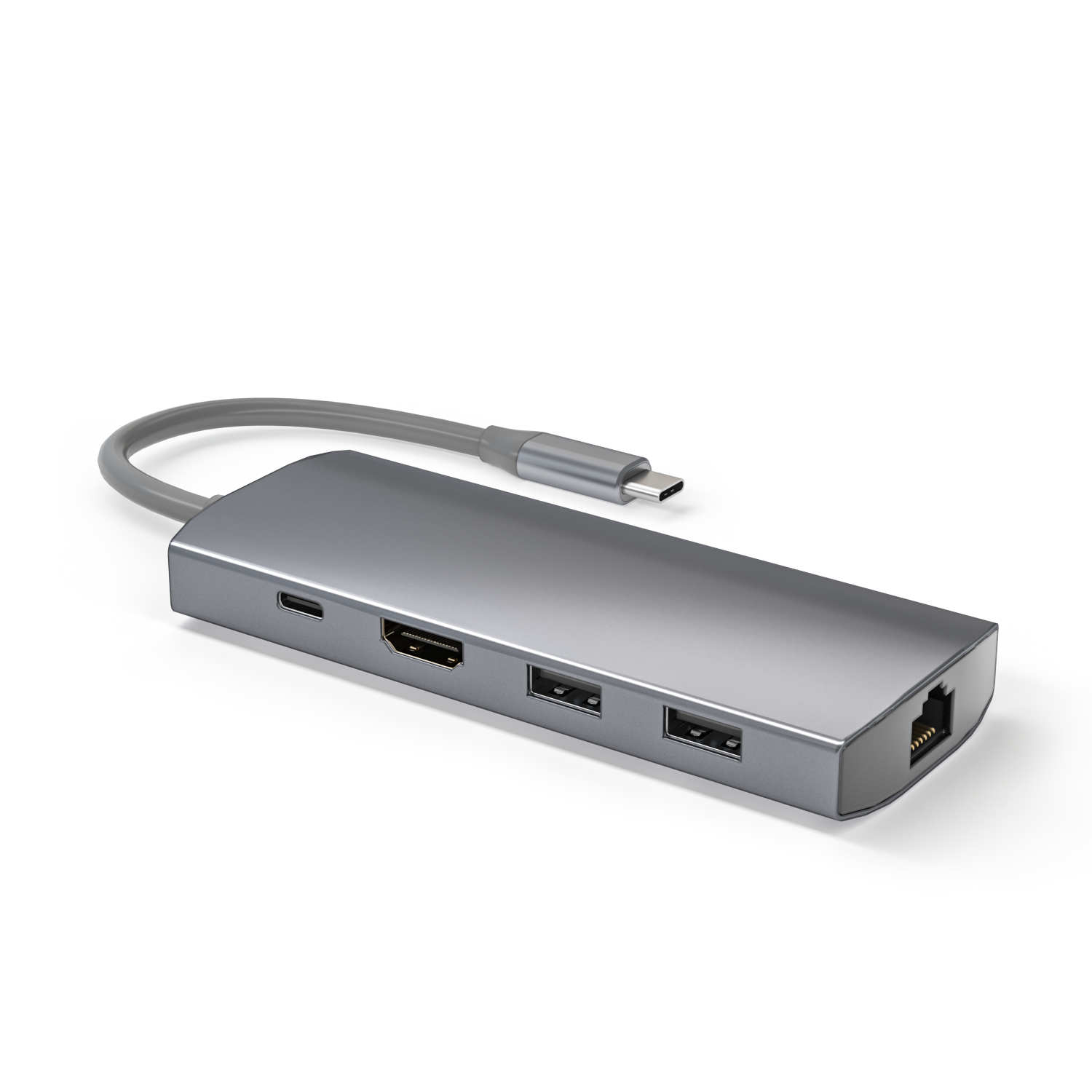
We recommend the PURPLELEC' s 9 in 1 Portable Single Wire Type C Dock Station, which offers the following features to meet professional demands:
- Supports PD Charging.
- Provides 4K HDMI video output (up to 4K@30Hz).
- Integrated Gigabit Ethernet port (up to 10/100/1000 Mbps).
- Includes 2 x USB 3.0 ports (5Gbps) and 2 x USB 2.0 ports (480Mbps).
- Supports TF & SD Card Reader (up to 104MB/s).
- Its Aluminum + ABS structure ensures durability and portability.
Update Drivers and Firmware Promptly: Ensure your hub has the latest drivers and firmware installed, as these often fix known issues and improve performance.
Reduce Connected Peripherals: The more devices connected and active simultaneously, the greater the data volume, increasing latency risk. Consider disconnecting unused peripherals to lower the delay.
Prioritize Self-Powered Hubs: Self-powered hubs can supply extra power to high-power devices like large external hard drives, which helps enhance overall performance.
Position Devices Correctly: Physical obstructions and interference sources can affect latency. Place the USB hub and connected devices away from other wireless devices or potential electromagnetic interference to effectively mitigate latency issues.
Test and Monitor Regularly: Continuously perform latency tests using specialized software tools and monitor the performance of your hub and connected devices to identify and address potential latency problems promptly.
Conclusion
A USB hub is a useful tool for connecting multiple devices and streamlining your workflow, but users must understand its impact on device performance. Factors like data transfer rates, the number of connected devices, and power supply all affect its functionality. By choosing high-performance hubs and reducing the number of active peripherals, users can effectively optimize USB hub performance and minimize latency.