








A type-C docking station with dual HDMI ports can connect two monitors, but the two sockets alone do not prove that the system will support two independent extended desktops. The result depends on the laptop's USB-C capabilities, the dock's display technology, the operating system, the upstream cable, and the dock's simultaneous-display limits. This guide helps you identify that display path before connecting or buying hardware.
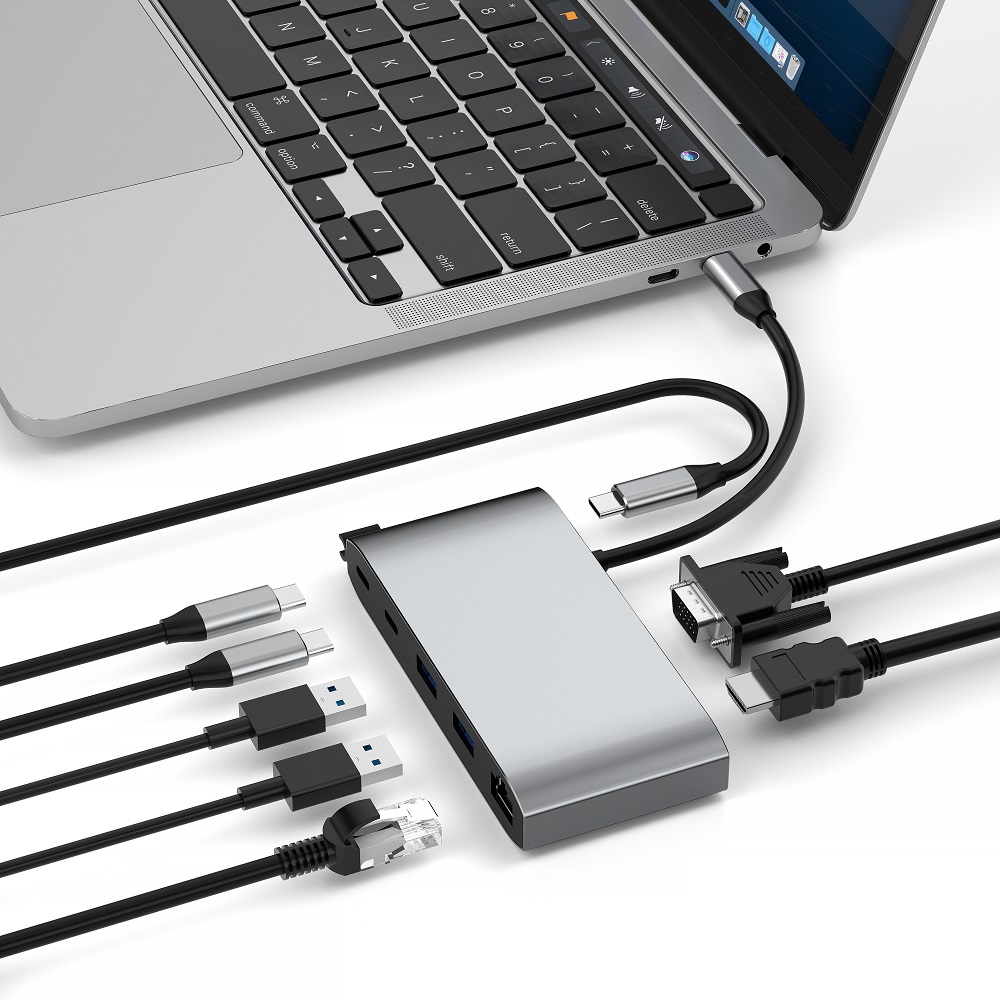
Start With the Display Path, Not the HDMI Sockets
Before connecting dual monitors to a laptop docking station, identify the components involved and whether the goal is mirroring or an extended desktop:
- 1. Laptop: Confirm that your laptop supports external monitors and identify what its USB-C port carries: DisplayPort Alt Mode, USB4 or Thunderbolt display support, or the USB data connection required by a DisplayLink dock. A USB-C connector by itself does not guarantee video output.
- 2. Docking Station: Make sure your docking station supports two simultaneous monitors on your operating system, not merely two physical video outputs.
- 3. Monitors: Have two monitors ready with the appropriate HDMI cables.
Decide whether you want mirrored screens or an extended desktop. A mirrored setup shows the same image on both monitors; an extended setup gives each monitor its own workspace.
How to Connect Two HDMI Monitors to a USB-C Docking Station
Step 1: Check Compatibility
Verify the laptop's native external-display limit, the dock's display technology and simultaneous-output matrix, the operating system, and the cables needed for the target resolution and refresh rate.
Step 2: Connect the Docking Station to Your Laptop
Connect the dock using the specified USB-C or Thunderbolt cable. Supply external power if the dock requires it. A cable may fit the USB-C socket without carrying the video, data rate, or charging power required by the dock.
Step 3: Connect the Monitors
Run one HDMI cable from each monitor to a separate HDMI output and select the matching input on each monitor. Two cables complete the physical connection, but independent extended displays still require a compatible host and dock display path.
Two HDMI Ports: MST, DisplayLink, or Thunderbolt?
- 1. HDMI splitter: An ordinary HDMI splitter sends the same signal to both monitors. It can mirror an image but cannot create two independent extended desktops.
- 2. MST: A dual-output USB-C dock using DisplayPort Multi-Stream Transport can provide two independent desktops on a compatible Windows PC. The same MST dock may mirror its external outputs on macOS.
- 3. DisplayLink or Thunderbolt: A DisplayLink dock uses a dock chip plus software to carry graphics over USB. Confirm that the product explicitly includes DisplayLink. On macOS, DisplayLink Manager requires Screen Recording permission, and some protected video may not play while DisplayLink screens are connected. A supported Thunderbolt path carries native DisplayPort video, but the computer still sets its maximum external-display count.
Step 4: Configure Display Settings
Once connected, configure the display settings on your laptop.
Windows
- Open Settings > System > Display.
- Under “Multiple displays,” select “Extend these displays.”
- Drag the numbered display icons to match their physical positions.
macOS
- Open Apple menu > System Settings > Displays.
- Select each display and use the “Use as” menu to extend or mirror it.
- If both HDMI outputs mirror unexpectedly, check the Mac model's native display limit and the dock's MST, DisplayLink, or Thunderbolt documentation. Two HDMI sockets alone do not establish a two-screen extended mode.

Dual-HDMI Dock Specification Checklist
- 1. Simultaneous displays: Read the dock's two-display matrix, not only the maximum printed beside one HDMI port. Confirm both outputs together at the resolution and refresh rate you need.
- 2. Host and OS support: Confirm whether the dock provides independent displays on Windows, macOS, or both. For a Mac, check Apple's specification for the exact model, chip, resolution, refresh rate, and any lid-closed requirement.
- 3. Upstream cable: Use the dock's supplied cable or one explicitly rated for the required video, data speed, and charging power.
- 4. Power delivery: Check the dock's power input, maximum power delivered to the laptop, charger rating, cable rating, and the laptop's recommended wattage. External power does not increase the host's native display-stream limit.
After Connection: Optimize the Workspace
- 1. Resolution and orientation: Set both monitors to modes supported by the complete display chain.
- 2. Positioning: Place the top of the monitors at or slightly below eye level.
- 3. Dock placement: Keep the dock accessible without putting strain on the cables.
- 4. Cable management: Use ties or clips to keep cables secure and separated.
Troubleshooting Common Issues
No Signal on One or Both Monitors
Check every connection and confirm that each monitor is using the correct HDMI input.
Test one monitor at a time, swap the HDMI cables and dock outputs, then connect a monitor directly to the laptop when possible. If one display works but two do not, compare the result with the dock's simultaneous-output matrix and the host's display limit.
After checking the hardware path, install current graphics, Thunderbolt, DisplayLink, or dock firmware updates only from the relevant manufacturer.
Monitors Not Detected
Restart the laptop, dock, and monitors.
In Windows, open Multiple displays and select “Detect.” On macOS, open System Settings > Displays and hold Option to reveal “Detect Displays.”
Check whether the docking-station manufacturer provides a firmware update for the exact model.
The essential decision is mirror or extend. For a true extended desktop, choose a dual-monitor docking station whose documentation confirms two independent displays on your exact laptop and operating system. Treat two HDMI ports as connectors, not as proof of two independent display streams.
Before buying a type-C docking station with dual HDMI, verify the host port, display technology, operating-system support, simultaneous resolution and refresh rate, upstream cable, and power-delivery rating. If any item is missing, request the model-level display matrix.
