








One cable can run two external monitors from a laptop, but only when the laptop, operating system, dock's display technology and firmware, upstream cable, and monitors support the same configuration. Once those pieces line up, the hookup takes about five minutes. Start with the compatibility check below; it also explains why some Mac docks mirror both outputs instead of extending them.
Table of Contents
• Can Your Laptop Actually Drive Two Monitors?
• How a Docking Station Drives Dual Displays: Which Path Fits?
• Why Your Setup Mirrors Instead of Extends (Especially on a Mac): MST vs SST
• Connect Two Monitors to Your Docking Station in 5 Steps
• Running 3 or 4 Monitors: Check the Whole Bandwidth Path
• How to Verify It Actually Worked
• Troubleshooting: The 3 Most Common Dual-Monitor Failures
• Compliance and Safety Notes
Before You Plug In: Can Your Laptop Actually Drive Two Monitors?
The docking station and your laptop both help decide how many displays you get. A native DisplayPort Alt Mode or Thunderbolt dock cannot create GPU display streams that the host does not expose. The dock's chipset, firmware, output routing, and simultaneous-display matrix also set limits. A dock that explicitly contains DisplayLink technology can add software-driven displays within its own hardware and operating-system limits. Check the complete path before buying.
Here's what to confirm, by host type:
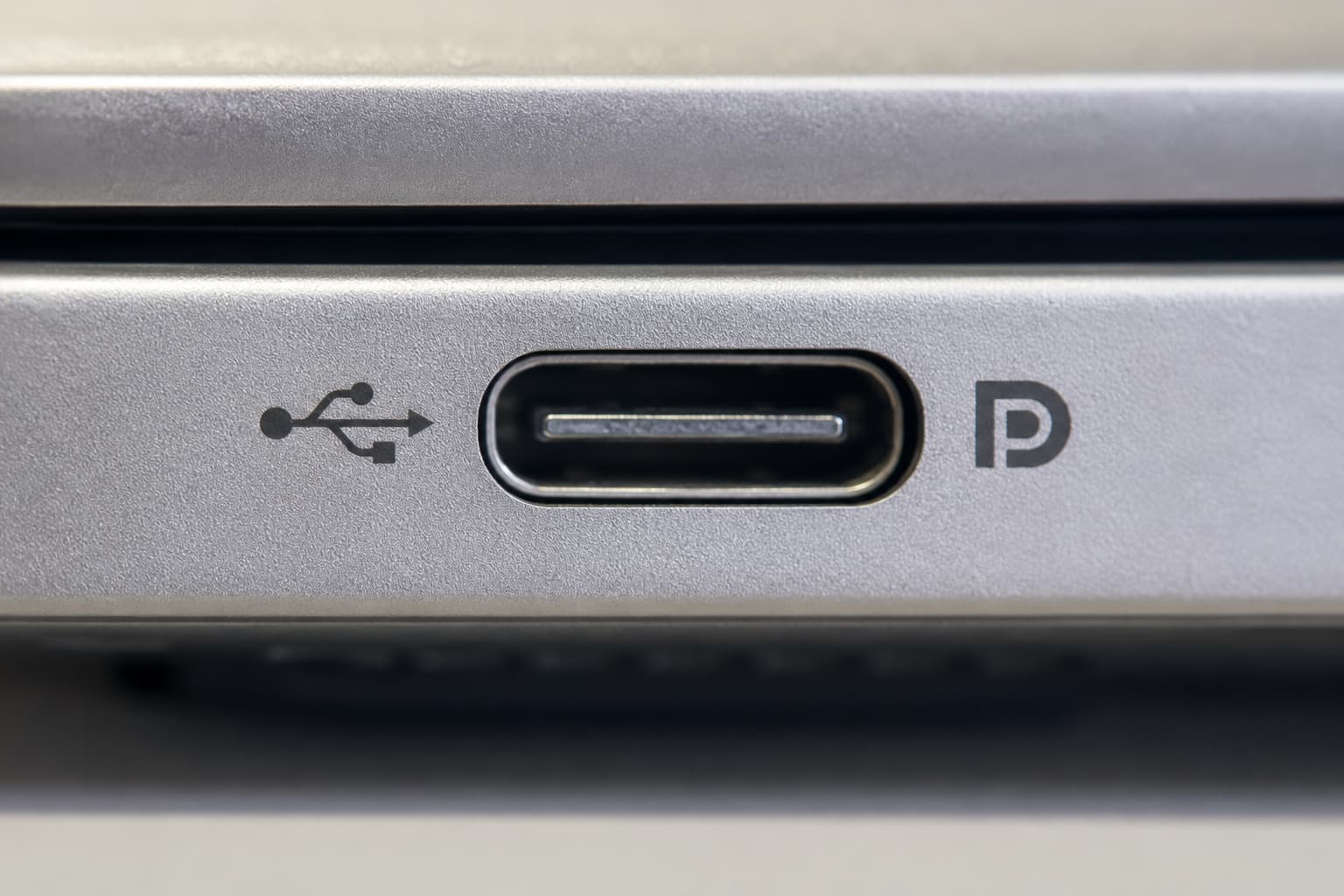
Windows USB-C laptops: For a native USB-C display path, the USB-C port has to support DP Alt Mode (DisplayPort Alternate Mode), the mechanism that lets a USB-C port carry native DisplayPort video. Look for a small DisplayPort logo next to the USB symbol on the port, or check the spec sheet for "DisplayPort over USB-C" or "DP Alt Mode." A USB-C connector alone does not guarantee video, USB4, Thunderbolt, or Power Delivery. How many independent display streams the host GPU can output helps set your dual-display ceiling, while the dock's tested simultaneous-output matrix sets another limit. Check the manufacturer's product page under "graphics" or "external display support" for the maximum number of displays. If the dock uses DisplayLink instead, it must contain a DisplayLink chip and use the matching software; installing that software cannot convert an ordinary dock into a DisplayLink dock. If everything's already connected, the quickest tell is whether Windows display settings shows two separately numbered external monitors rather than one.
Thunderbolt 4 and USB4 laptops: Thunderbolt 4 has a 40 Gb/s certification baseline and includes dual-4K display capability at the technology level. USB4 products can advertise different data rates and display implementations. For either path, confirm the exact laptop model, dock, cable, and tested simultaneous-display matrix before expecting two 4K displays at 60 Hz.
Macs: Check the exact model and lid state, not only the chip family. M1 and M2 MacBook Air models support only one external display natively, while M1 and M2 Mac mini models support two. The M3 MacBook Air supports two external displays, but only with the lid closed (clamshell mode) and under Apple's stated software and power conditions. Current M4 and M5 laptop limits differ again. If an M1 or M2 MacBook Air needs a second external screen, a dock explicitly based on DisplayLink may add a software-driven display, subject to its application and content limitations. Not sure which chip you have? It's listed under the Apple menu > About This Mac. Then confirm the display limit against Apple's support page for your exact model.
How a Docking Station Drives Dual Displays: Which Path Fits?
Docking stations deliver the second display through different signal paths. The right one depends on the laptop, operating system, dock, cable, and target display modes.
DisplayPort Alt Mode (native). The host GPU sends DisplayPort video through USB-C, and the dock routes that signal to its video outputs. This path normally uses the operating system's native graphics stack and does not require DisplayLink software. Display count and modes still depend on the host's streams and link bandwidth plus the dock's MST, DSC, and output-routing design. It fits compatible laptops operating within their native display limits.
DisplayLink (driver-based). DisplayLink software presents an indirect display to the operating system, encodes the display pixels on the host, and sends them over USB. A DisplayLink chip in the docking station decodes that stream and outputs it through HDMI or DisplayPort. This sidesteps the host's native display limit within the dock's and operating system's own limits, which can help a compatible laptop push more displays than it natively supports. The product must explicitly contain DisplayLink technology, and you must install the matching OEM or Synaptics software. macOS also requires Screen Recording permission. DisplayLink documents that some protected video may not play on macOS while its screens are connected; support elsewhere depends on the exact chipset and licensed product implementation. Best for: adding displays beyond what the host natively allows, after those limits are reviewed.
Thunderbolt and USB4 display paths. Thunderbolt 4 has a 40 Gb/s certification baseline and a technology-level dual-4K requirement. USB4 rates and display implementations vary. Both still depend on the computer's supported display count, the dock's tested matrix, and the cable and monitor modes. Native paths normally use the operating system's graphics stack without DisplayLink software.
If the laptop and dock matrix support the required displays natively, use a compatible DisplayPort Alt Mode, Thunderbolt, or USB4 path. If you need a software-driven extra display, choose a dock explicitly labeled for DisplayLink after reviewing its application and content limitations. For dual 4K at 60 Hz, rely on a tested simultaneous-output table rather than the connector name.
Why Your Setup Mirrors Instead of Extends (Especially on a Mac): MST vs SST
If both monitors show the same picture, that's mirroring, and the cause is usually how the second display stream gets created.
DisplayPort Multi-Stream Transport (MST) carries several independent audio/video streams over one DisplayPort connection and routes them through an MST hub or daisy chain. A compatible Windows GPU and dock can use those streams for separate desktops. Standard MST hubs are not supported by macOS for multiple independent extended desktops, so an MST-based dock may mirror its external outputs on a Mac. This is a topology and platform-compatibility result. It does not mean macOS is limited to one Single-Stream Transport (SST) display overall; supported Thunderbolt and model-specific Mac configurations can provide multiple independent displays.
For a Mac, first check Apple's native display limit for the exact model and lid state. Then choose a supported native Thunderbolt or display path within that limit, or a DisplayLink-enabled dock when a software-driven extra display is acceptable and its application and protected-content limits have been reviewed. Two HDMI sockets on a dock do not by themselves guarantee two extended desktops on macOS. The separate USB-C dual-HDMI compatibility guide covers that hardware-selection check in more detail.
Connect Two Monitors to Your Docking Station in 5 Steps
With compatibility settled, the hookup is quick.
1. Confirm the prerequisites. Check that the host supports the display count, the dock's display path matches the host and operating system, and the upstream cable carries the required data, video, and power capabilities. A USB 2.0 Type-C cable does not carry USB4 or DisplayPort Alt Mode signals. Use the dock's supplied host cable or one explicitly rated for the required protocol.
2. Connect the docking station to the laptop with the specified USB-C or Thunderbolt cable. Connect external power when the dock manual requires it, when laptop charging is needed, or when attached peripherals exceed the available bus-power budget. External power does not increase the host's native display-stream count or video bandwidth.
3. Connect each monitor to a separate video port on the docking station: HDMI, DisplayPort, or a documented video-capable USB-C output, with one cable per monitor. Do not feed two monitors from one HDMI port through a passive splitter. A passive splitter duplicates one signal and cannot create two independent desktops. If the dock has only one HDMI port, use another documented video output or a dock whose manual explicitly supports two extended displays on your operating system.
4. Install extra display software only for a DisplayLink-based dock. Get the current software from the product OEM or Synaptics. On macOS, install DisplayLink Manager and grant the required Screen Recording permission so it can send display pixels to the device. Native DisplayPort Alt Mode and Thunderbolt paths normally use the operating system's graphics stack without DisplayLink software, though the laptop's graphics and Thunderbolt components and the dock firmware should follow the OEM's supported versions.
5. Set the displays to extend. In Windows, open Settings > System > Display. Use Identify, drag the numbered screens to match their physical positions, and choose Extend. If a monitor is missing, open Multiple displays and select Detect; Win+P also opens the Extend option. In current macOS, open Apple menu > System Settings > Displays, select each display, and use the "Use as" menu to extend the desktop. Hold Option to reveal Detect Displays if a screen is missing. Older macOS releases use System Preferences.

Running 3 or 4 Monitors: Check the Whole Bandwidth Path
More screens and higher resolutions need more bandwidth, so set your expectations before you buy.
Three or four displays can use a supported MST hub or daisy chain on compatible Windows hardware, a native Thunderbolt path within the host's display limit, or a DisplayLink path for software-driven displays. Dual 4K at 60 Hz is not automatic. Check the dock's tested simultaneous-output table and the host's DisplayPort link rate, lane allocation, MST or DSC support, color depth, and HDR mode. HBR3 can carry two 4K60 streams in some four-lane MST configurations without Display Stream Compression (DSC); other configurations may require DSC or lower display modes. The dock, not necessarily the monitor, may decode DSC or convert the output protocol. High-speed USB traffic can also share link resources, so test the complete configuration you plan to use.
If 4K at 60 Hz on both screens matters, confirm the host and dock's simultaneous-display matrix, the required link and lane conditions, the cable rating, and each monitor's input mode. Do not infer the result from a USB-C, USB4, or Thunderbolt label alone.
How to Verify It Actually Worked
Don't assume the setup is right because something lit up. Check these:
Extended, not mirrored. Each monitor should show different content. Drag a window from the laptop screen across both external displays. If it moves continuously, the desktop is extended.
Full resolution and refresh rate per monitor. In Windows, open Settings > System > Display > Advanced display and read the active resolution and refresh rate for each monitor. In macOS, open System Settings > Displays and select each display. Compare the active modes with the host-and-dock matrix rather than assuming every connected screen will reach its standalone maximum.
Stable in normal use. A short test can reveal obvious flicker or dropouts, but it does not certify link margin. Recheck after sleep and wake, then test with the USB and display workload you actually plan to use.
Laptop charging. If the dock supplies host-facing power, the battery should indicate that it is charging. USB-C does not automatically include USB Power Delivery. If charging fails or is slow, check the dock's host-facing PD output, its included or required power adapter, the cable's power rating, and the laptop manufacturer's recommended wattage.
Troubleshooting: The 3 Most Common Dual-Monitor Failures
One monitor shows no signal or isn't detected. Connect one monitor at a time, then connect the problem display directly to the laptop when possible. This separates a host or monitor problem from the docking-station path. Check the monitor input, ports, and connectors. Swap to a cable rated for the protocol, re-confirm the host's display limit and the dock's simultaneous-output matrix, disconnect nonessential USB devices, and try a lower resolution or refresh rate. In Windows, click "Detect" under Multiple displays. In macOS, hold Option in Displays to reveal Detect Displays. If the fault remains, update the GPU driver and the docking station's firmware from the computer, GPU, dock OEM, or Synaptics.
Both monitors mirror instead of extending. First make sure the operating system is set to Extend rather than Duplicate or Mirror. If the dock relies on MST, a compatible Windows system may extend the external screens while the same dock may mirror them on macOS. On a Mac, verify the exact model's native display limit and lid condition, then choose a supported native Thunderbolt/display path or a dock explicitly based on DisplayLink.
Laptop won't charge, or peripherals keep dropping. The upstream PD may be too low for the laptop, the USB bandwidth may be oversubscribed, or a bus-powered docking station can't supply enough current. Check the dock's host-facing PD output, power adapter and upstream cable, and the laptop's recommended input. Disconnect high-draw peripherals to test the available power and USB budget. Use external power when the manual requires it or the connected devices need it. Keep the two power paths straight: upstream PD is what the docking station feeds back to charge your laptop, while downstream power is what its ports supply to peripherals. Neither power rating increases the host's display streams or video bandwidth.
Compliance and Safety Notes
For a fleet or commercial shipment, document these items before standardizing on a docking station:
Read the performance number, not only the connector or protocol family. USB-C products can advertise USB 5, 10, 20, 40, or 80 Gb/s capabilities. Current USB4 compliance covers 20, 40, and 80 Gb/s generations. Thunderbolt 4 has a 40 Gb/s certification baseline. Thunderbolt 5 starts at 80 Gb/s and can allocate up to 120 Gb/s in a display-oriented boost mode. These labels still do not state a finished dock's simultaneous-display matrix.
Read Power Delivery as host-facing output. Check the dock's power input, the included or required adapter, maximum host-facing PD output, cable power rating, and the laptop's recommended wattage. The power adapter's headline rating is not necessarily the power delivered to the computer.
Check model-specific market-access documents, not logos alone. For the US, verify the applicable FCC equipment-authorization route, which can be Supplier's Declaration of Conformity or Certification. For the EU, review the signed EU Declaration of Conformity and the applicable rules it lists, such as EMC and RoHS requirements. Current Great Britain rules accept UKCA or CE for relevant electrical-equipment and EMC regimes; Northern Ireland follows a different CE or CE-plus-UKNI route. The required path changes with the power supply, radio functions, hardware version, and target market.
HDCP on DisplayLink. Protected-content support is product- and platform-specific. DisplayLink documents that some protected streaming services may not play on macOS while DisplayLink screens are connected. On other platforms, HDCP capability depends on the DisplayLink chipset and the device manufacturer's licensed implementation. If streaming on a DisplayLink output matters, plan around it by verifying the exact dock and playback path.
Next Steps
If your host checks out, the last decision is matching the docking station to your interface and protocol, whether that is DP Alt Mode, DisplayLink, Thunderbolt, or USB4, and to the number and resolution of displays you actually need. For teams rolling out a dual-monitor setup across a mix of Windows and Mac laptops, the same complete-path compatibility rules apply per host. Record each computer model, operating system, native display limit, required lid state, and approved dock matrix before standardizing on one configuration. If you are comparing finished products after that compatibility check, use the separate dual-monitor docking-station selection guide.
