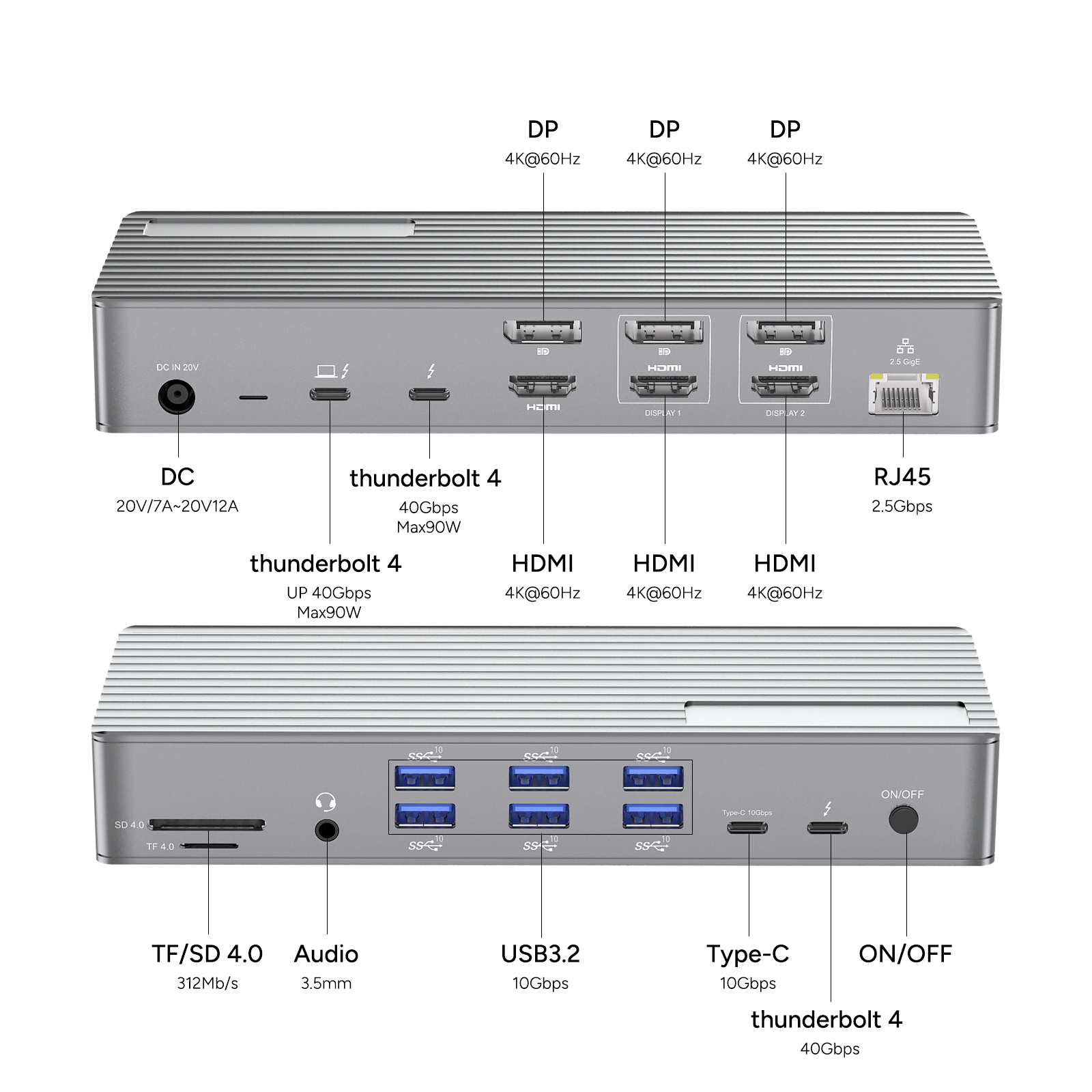
Are you searching for ways to make your laptop more powerful and streamline your remote work experience? Connecting a Dell USB-C dock can easily help you achieve these goals. Next, we will delve into the setup process of the dock and its connection to your Dell laptop. You'll be surprised at how simple it is.
Docks: Essential Tools for Professional Work
Regardless of the manufacturer, whether it's Dell or not, docks can significantly enhance the convenience of using your laptop in a professional environment. A dock acts like a hub that connects to your laptop and is equipped with multiple ports for connecting various peripheral devices. It keeps your desktop tidy and provides a seamless work experience, much like using a personal computer at home.
Dell Type-C Dock: Is It Worth Having?
The answer to whether a Dell Type-C dock is necessary isn't straightforward. If you try connecting input and output devices directly to your laptop's ports, you'll quickly run out of space. A Dell USB-C dock, however, expands the possibilities for connecting devices and offers reasonable pricing with long-term value. If you need to connect multiple monitors and have complex setups, purchasing a Dell USB-C dock is undoubtedly a wise choice. In the long run, it not only saves you costs but also provides numerous value-added features.
Overview of Dock Types
There are various types of docks available on the market, primarily categorized into the following six types:
1、Docks: Used for expanding hardware operations, supporting connections to external devices such as portable storage devices, liquid coolers, and GPUs.
2、Port Replicators: Also known as pass-through ports, they offer the best personalized configurations and can connect extension cables. These bus-powered hubs enable the reuse of devices and are practical accessories for laptops, allowing simultaneous connection to multiple devices like printers, large monitors, and keyboards.
3、Breakout Bases: Multi-port adapters that expand existing ports. Dell USB-C docks also provide additional ports, which are built into the laptop and can access multiple buses simultaneously.
4、OEM Bases: Generate multiple connections through a single port and are equipped with built-in power supplies, matching certain laptop models. Most OEM docks feature wired connections and dual display capabilities, along with audio connections.
5、Drone Stations: Also known as DiaBs, they consist of a docking box, a drone, and a management system, allowing users to interact with both the drone and the docking station. These stations are made of carbon fiber and metal, requiring automated operations and remote control for installation. Professional assistance is recommended.
6、Third-Party Bases: Similar to OEM docks but typically provide multiple connections through a single port (such as Type-C or Thunderbolt 3). Additionally, they offer connections to audio chipsets, network cards, modems, and memory card readers, can charge devices, and add output devices. They are easy to install and ideal for workplace use.
Steps to Set Up a Dock
If your laptop is equipped with modern features like USB-C or Thunderbolt 3 ports, setting up a Dell USB-C dock is straightforward. Follow these steps:
1、Connect one end of the cable to your laptop's port (Thunderbolt 3 or USB-C).
2、Connect the other end to the input port of the Dell USB-C dock (not the USB-C port section). If you're unsure which port is the input port, check the labels next to each port and look for one marked "Host" or "dock in."
3、Ensure the cable length is appropriate for your operational needs. Shorter cables won't affect bandwidth, which is essential for Dell USB-C dock connections. Additionally, longer cables tend to be more expensive.
4、If your host doesn't have a C port, you'll need an adapter to connect all devices. However, note that older USB versions don't support video output, so the setup process may be more complex.
Steps to Connect to a Dock
1、First, shut down your laptop or put it into sleep mode. Before connecting to the Dell USB-C dock, be sure to save critical files and back them up.
2、Connect the Dell USB-C dock to your laptop, ensuring a proper fit to avoid mechanical damage.
3、Connect your keyboard and mouse to the dock. Other ports can be used to connect devices like monitors and printers. You can match the ports and cables according to their types for connection.
4、If it's your first installation, turn on your laptop and allow the computer to automatically install new drivers.
Practical Tips for Reliable Connections
1、Connect the dock to a power source near your desk and ensure the power plug is firmly inserted with no loose wiring.
2、Check the peripheral devices connected to the Dell USB-C dock to ensure the connectors are properly inserted. You can use a cotton swab dipped in rubbing alcohol to remove dust, but avoid frequent plugging and unplugging.
3、If the drivers are outdated, the Dell USB-C dock won't work properly. Therefore, regularly update the drivers. If your laptop can't recognize the dock, you may need to manually locate and install the drivers.