Is your computer's connectivity limited by a lack of ports? A computer docking station, the ultimate solution, allows you to easily connect a wide range of devices in a variety of ways, with nearly limitless options.
Computer docking stations not only improve productivity and ergonomics, but also offer significant benefits for professionals like content creators, 3D designers, and CAD engineers. They can simultaneously connect a monitor, keyboard, mouse, storage drive, network port, audio jack, SD card, and charging port, streamlining your workspace and workflow. With just one USB-C data port, a docking station can expand it into over 10 different connections, making your work more efficient.
Docking Stations: Definition and Use
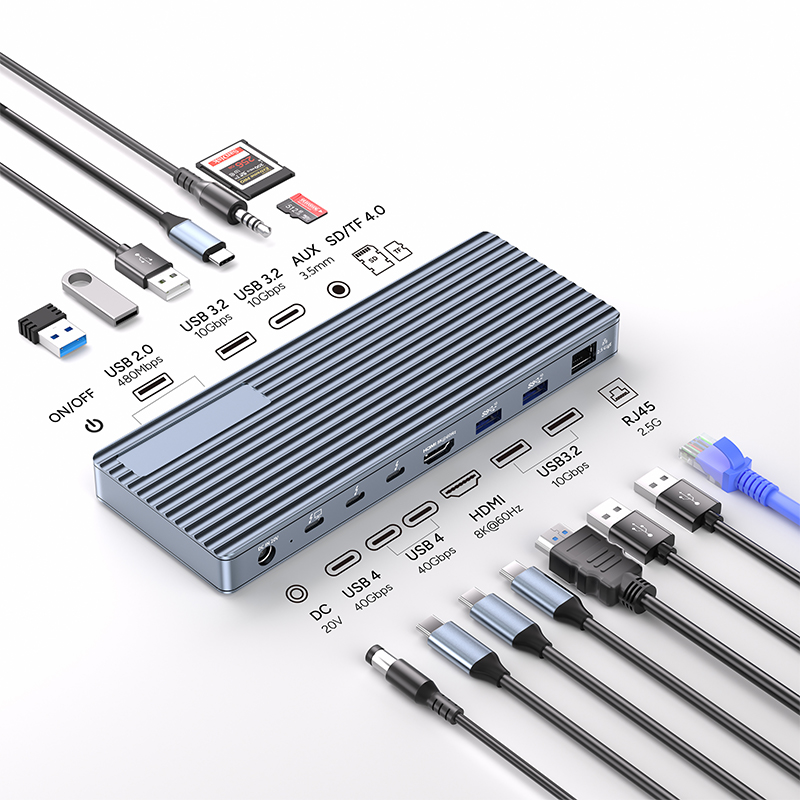
Docking stations, also known as "port replicators," are designed for users who need to connect multiple devices. Whether you're using a laptop, desktop, gaming console, or smartphone, a docking station provides the variety and quantity of input/output ports you need. Connecting to a computer via a single Type-C or Thunderbolt cable, a docking station provides power, data transfer, and display output, making it an ideal interface. For example, the Purplelec 15-in-1 docking station supports all connected devices, including NVMe/NGFF storage expansion, while simultaneously charging the laptop and connecting peripherals.
Significant Advantages of Using a Docking Station
Expandability: A docking station expands a single USB-C port into USB-A, USB-C, DisplayPort, HDMI, SD, TF, NVMe, LAN, and audio connections, meeting the multi-port needs of power users like video editors and gamers.
Convenience: Modern docking stations offer convenience for businesses and professionals, allowing portable devices or laptops to connect to a variety of peripherals and providing wired Ethernet for ultra-fast data transfer.
Boost Productivity: Multitaskers can use docking stations to connect multiple screens and avoid switching between applications. Streamers can use multi-monitor docking stations to simultaneously manage video, chat, and audio, streamlining their workflow.
Optimize your workspace: Docking stations provide a fixed connection point for all devices, allowing them to work with a single connection, reducing desk clutter and making them ideal for users who frequently travel.
Types of Docking Stations
1. Dedicated Docking Stations: These are offered by manufacturers such as Dell, HP, Lenovo, Micro-soft, and Apple, but are only compatible with select models. They typically feature unique connection interfaces and are more expensive, but are easy to set up and offer comprehensive functionality.
2. Universal Docking Stations: These work across operating systems, devices, and ports, making them compatible with a wide variety of laptops. They offer widely accepted interfaces, such as USB, and are affordable, but require knowledge of ports and interfaces for proper setup.
Use Cases for Docking Stations
Office Use Cases: Offices benefit most from docking stations, and modern workstations often come pre-installed. Employees can simply plug in a single cable to connect all their devices, improving productivity.
Meeting and Presentation Use Cases: Pre-installed docking stations in conference rooms simplify device connectivity and reduce setup complexity. Employees can bring their laptops and quickly start presentations using the docking station.
Home Entertainment: Devices like HTPCs in home entertainment rooms often have limited ports due to size constraints. Docking stations provide convenient connectivity and support smooth 8K video playback.
Popular Gaming: Docking stations enhance the gaming experience, enabling fast loading times and zero-lag gaming. They use the NVMe protocol for high-speed data transfer, allowing gamers to expand their storage space infinitely.
How to Choose a Docking Station?
1. Understand Your Needs: Clarify your needs, such as digital artists needing multiple high-resolution monitors or programmers needing multiple USB ports.
2. Compatibility:
USB-C Capabilities: Check your laptop's USB-C capabilities to ensure support for data transfer, power delivery, and DisplayPort.
Operating System: Windows users can typically choose a universal docking station, while macOS users may need a DisplayLink docking station for dual-monitor expansion.
Port Compatibility: Ensure your computer's USB-C port supports the required interfaces, such as USB 4, Thunderbolt 3, and 4.
3. Video and Audio Output: The docking station supports a variety of video and audio output options, such as VGA/DVI-D, DisplayPort, and HDMI, to meet the needs of gamers and HTPC users.
4. Number of Ports: Choose the number of ports based on your needs. For example, the Purplelec 15-in-1 docking station supports three video ports and more than six USB ports.
5. Ease of Use: Consider the ease of device setup and choose a DisplayLink-powered or driverless docking station. Modern docking stations typically feature plug-and-play configurations, requiring no driver installation.
6. Design: Choose a portable or fixed docking station based on your needs, considering size, aesthetics, and portability.
Setting Up and Using a Docking Station
Universal docking stations are easy to install; users simply connect them correctly and they're ready to go. Here are some simple steps:
1. Check your computer/device for compatibility with the docking station.
2. Connect the docking station to your laptop using a USB-C/Thunderbolt connection.
3. Connect all peripherals to the docking station.
4. If external power is required, connect the AC adapter.
5. Turn on your device/computer and install the necessary drivers from the docking station manufacturer's website.
6. The computer should recognize all connected hardware.
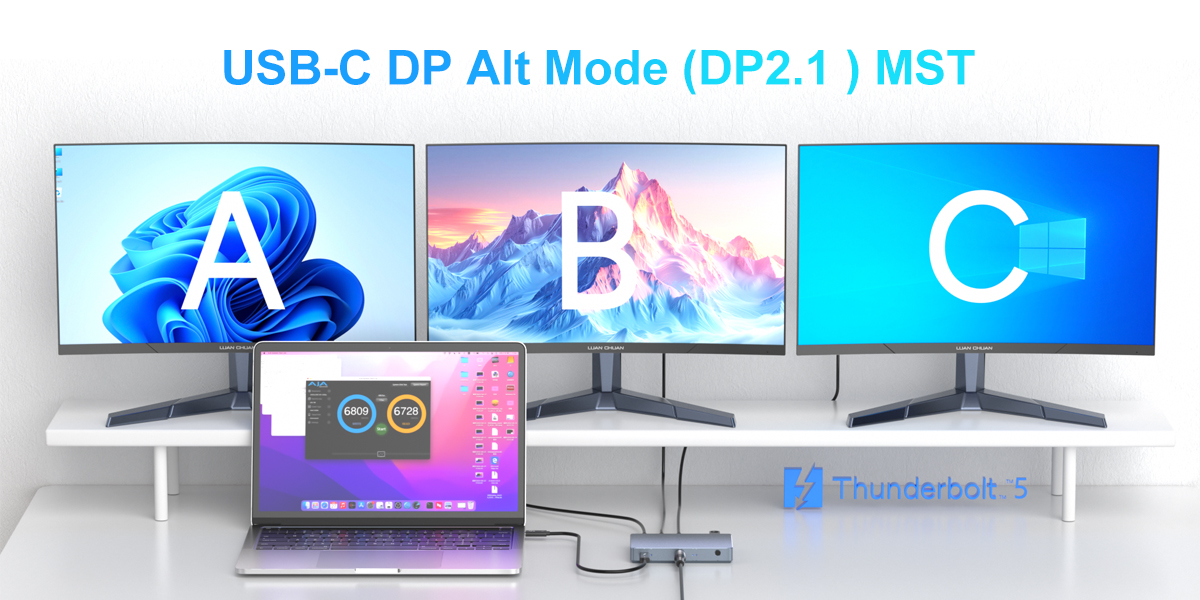
How do I connect three monitors to a laptop docking station?
High-end laptop docking stations typically come with three monitor ports. The connection steps are as follows:
1. Make sure the docking station supports three monitors.
2. Check the monitor ports and match them to the ports on the docking station.
3. Connect the monitors using HDMI/DP/USB-C cables that support 8K resolution.
4. If necessary, use a passive adapter.
5. Download and install the docking station driver (if necessary).
6. The monitors should display normally.
With the continuous advancement of digital devices, docking stations, as new interface connection devices, have demonstrated great adaptability and diverse application scenarios. Buyers should pay attention to their needs and ensure that the docking station design includes the most commonly used ports.