By PURPLELEC | 01 June 2026 | 0 Comments
Troubleshooting and Solutions for USB Port Not Working
When everything is connected properly, but the USB port still does not work properly, don't worry. We can use a series of tests to determine the problem, step by step to check, ensure that the relevant components are operating normally, and find the root cause of the problem.
Before working through the tests below, it helps to know the most common reasons a USB port stops working. Most cases trace back to one of these: a faulty cable, a damaged or dirty port, a device that needs external power, an overloaded or unpowered hub, an outdated or corrupted driver, or a Windows power-management setting that quietly shuts the port down. The checks below move from the simplest physical tests to the software side, so you can isolate the cause without guesswork.
Multi-port and cable testing
1. USB port test: If your computer is equipped with multiple different types of USB ports, you might as well try to connect the device to different ports to determine whether the problem only occurs in a specific port. For example, if you are using a desktop computer, the rear USB port is usually directly connected to the motherboard, and its stability and power supply capacity may be better than the front port. By switching ports, you can initially locate whether there is a fault in the port itself.
2. Cable inspection: At the same time, carefully check the condition of the cable connecting the device. Make sure that the existing USB cable does not show signs of tearing, melting or other obvious damage. Sometimes, seemingly minor cable damage, such as a broken internal core, can cause data transmission to be blocked or power supply abnormalities. You can try to use a different cable to connect the plugged-in peripheral device. If the device resumes normal operation after changing the cable, then the original cable is likely the problem.
Device cross-test
1. Same port different device test: If the mouse does not work on a specific port, try to connect other devices such as keyboards and printers to the port. In this way, it can be determined whether the device itself is faulty or the port has a problem. For example, if the keyboard works properly on the port, but the mouse does not, then it is likely that the mouse itself is faulty.
2. Different computer test: Plug the device into another computer and observe whether the device works properly. If the device works properly on other computers, it means that the problem lies in the USB-related settings or hardware of the current computer; otherwise, you need to focus on checking the device itself.
USB hub test
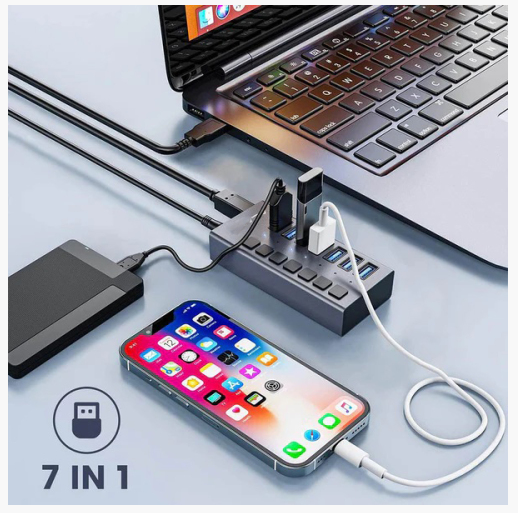
1. Power supply check: If the USB hub is equipped with a power adapter, make sure it is properly connected and the hub is powered. Some hubs require an external power supply to work stably, especially when connecting multiple devices or high-power devices. Adequate power supply is the basis for the normal operation of the device.
2. Device connection: Connect USB peripherals to the hub. It should be noted that the USB hub itself does not usually appear in the system's hardware list, but when a normal USB device is connected to the hub, the device should be displayed in the system. If there is no response after the device is connected, the hub may be faulty.
3. Driver installation:
. Peripheral device driver: Install the driver for the USB peripheral device. Some devices require specific drivers to work properly on the computer, such as some professional drawing tablets, game controllers, etc. If the driver is not installed or installed incorrectly, the device may not work properly.
. USB controller and motherboard chipset driver: Install the latest driver for the USB controller and motherboard chipset. Outdated drivers may cause compatibility issues between the USB port and the device. By updating the driver, the stability and compatibility of the device can be improved. It should be noted that in general, the USB hub can run on the operating system without additional drivers or software. It is independent of the software and can work properly in any operating system.
USB peripheral device test
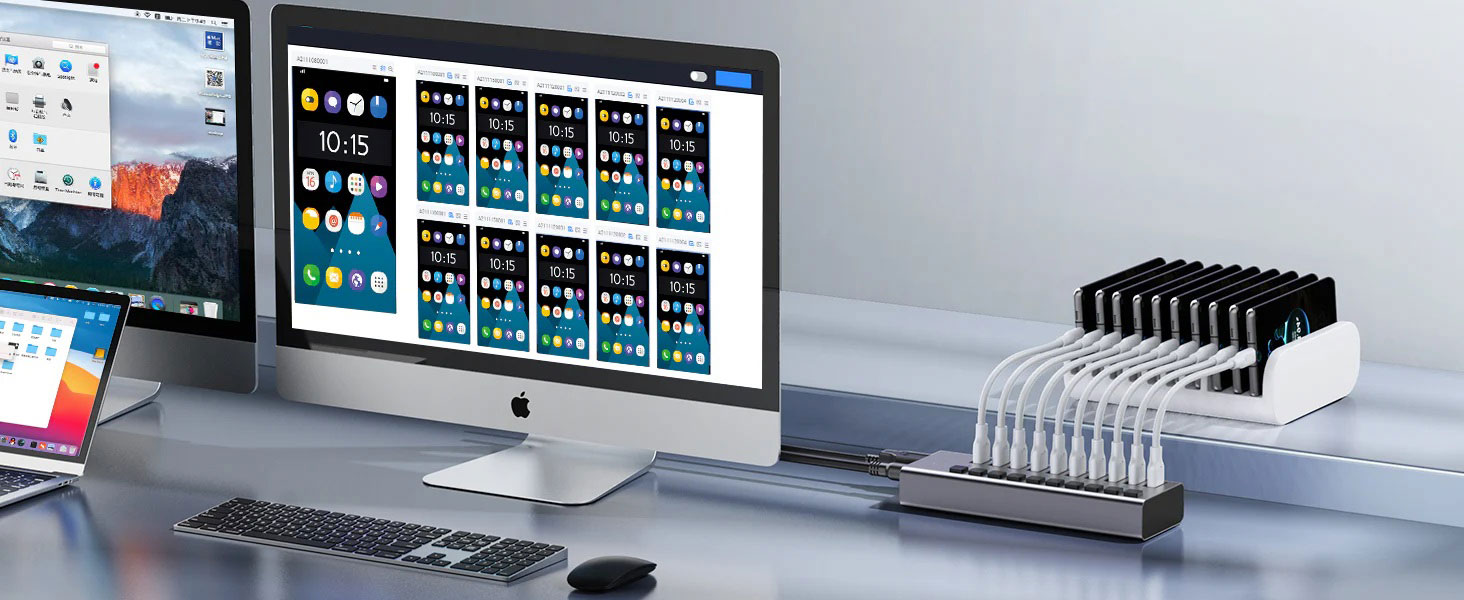
1. External power connection: For some USB peripheral devices that require external power, make sure that their external power is properly connected. Some devices, such as external hard drives and some high-power speakers, may not be able to meet their working needs only by relying on USB ports for power supply, and require additional external power support.
2. Standard USB port detection: Confirm whether the peripheral device can operate normally on the standard USB port. Connect the device directly to the standard USB port of the computer (not through a hub). If the device can be detected and used normally, but cannot be detected when connected through a hub, you can further troubleshoot by following the steps below:
. Replace the cable: Use a new USB A to B cable. Cable failure may cause poor data transmission. A new cable can eliminate problems caused by aging and damage of the cable.
. Basic device test: Use basic USB peripherals, such as a keyboard or mouse, to test the current settings. Basic devices are relatively simple and have good compatibility. If they can work normally on a hub, it means that there may be a compatibility problem between the original device and the hub.
. Replace the USB port: Try to use another USB port for testing again to further confirm whether the special settings or failure of the port cause the device to not work properly.
Software and system-level troubleshooting
If the hardware checks all pass but the port still fails, the cause is often on the software side. These steps cover the most common system-level reasons a USB port stops working.
1. Power cycle the computer: Fully shut down the computer, unplug it from power for about 30 seconds, then restart. This drains residual power and forces the USB drivers to reload, which clears many temporary faults.
2. Check Device Manager (Windows): Open Device Manager and expand "Universal Serial Bus controllers." Look for any item with a yellow warning icon. Right-click the problem device, choose "Uninstall device," then restart the computer so Windows reinstalls the driver automatically. You can also choose "Scan for hardware changes" to force re-detection.
3. Disable USB power management: Windows can switch off a port to save power, which is a frequent cause of ports that work intermittently. In Device Manager, open each "USB Root Hub" entry, go to the "Power Management" tab, and uncheck "Allow the computer to turn off this device to save power." Then open Control Panel, Power Options, and set "USB selective suspend setting" to Disabled.
4. Resolve common error messages: Messages such as "USB device not recognized," "Unknown USB Device (Device Descriptor Request Failed)," "Code 43," or "Code 10" are usually driver- or power-related. Reinstalling the USB controllers and updating the motherboard chipset driver normally resolves them.
5. Update Windows, chipset, and BIOS: Run Windows Update, install the latest chipset drivers from the motherboard or PC manufacturer, and check whether a BIOS/UEFI update is available. On a desktop, also confirm that USB (XHCI) support is enabled in the BIOS.
6. On a Mac: Restart the computer and open "System Information," then "USB," to confirm whether the device is detected at all. On Intel-based Macs, resetting the SMC and NVRAM can restore ports that have stopped responding.
USB-C, USB4, and Thunderbolt connections
USB-C, USB4, and Thunderbolt ports add a few failure points that older USB-A ports do not have. If a USB-C device is not detected:
1. Check the cable rating: A USB-C cable that is charge-only, or rated only for USB 2.0, may charge a device but fail to carry data or full speed even though it fits the port. Use a cable rated for the protocol your device needs, such as USB 3.2, USB4, or Thunderbolt.
2. Confirm feature support: A reversible USB-C connector does not guarantee every feature. Video output, for example, depends on DisplayPort Alt Mode being supported by both the port and the cable.
3. Watch the power budget: A bus-powered USB-C hub or docking station can run short of power when several devices, or high-draw devices, are connected at once. Switching to a powered hub or a model with Power Delivery input usually stabilizes the connection.
Because USB4 carries data, video, and PCIe over a single physical link, a problem at the cable or port often looks like a protocol failure when it is really a connection issue. If you want to understand how the underlying connection is built, see our explanation of the USB4 system structure.
Through the above comprehensive and systematic testing process, we can gradually find out the reasons why the USB port cannot work, and take targeted solutions to restore the normal use of USB devices.
Frequently Asked Questions
Q1: Why did my USB port suddenly stop working?
A1: Sudden failures are most often caused by a Windows power-management setting turning the port off, a corrupted USB driver, or a loose or damaged connection. Power-cycling the computer, disabling USB selective suspend, and reinstalling the USB controllers resolve most cases.
Q2: How do I know if a USB port is physically dead?
A2: Connect a known-good device with a known-good cable, then test that same device on another port and another computer. If the device works elsewhere but never works on one specific port, and software checks make no difference, that port is likely physically faulty.
Q3: Can a USB port be repaired?
A3: A loose or dusty port can sometimes be restored by cleaning it carefully or reseating the internal connector. A port with bent pins or a broken solder joint usually needs board-level repair. In the meantime, a quality powered USB hub can add reliable ports without opening the device.
Q4: Why does my device work on the rear ports but not the front ones (or vice versa)?
A4: On a desktop, front-panel ports connect through an internal header that may be loosely seated or under-powered, while rear ports connect directly to the motherboard. A front port that fails while the rear port works often points to that internal header rather than the device.
Q5: Why isn't my device recognized through a USB hub but works when plugged in directly?
A5: This usually indicates the hub is unpowered, overloaded, or incompatible with the device. Connect the hub's power adapter, reduce the number of attached devices, or test with a basic keyboard or mouse to confirm whether the hub or the device is at fault.
Background and Advantages of Apple's Switch to USB-C Interface
Common Problems and Solutions for USB-C to HDMI Devices
Leave a Reply
Your email address will not be published.Required fields are marked. *