By PURPLELEC | 15 May 2025 | 0 Comments
Unlocking efficient office work: A complete guide to connecting laptops to dual external monitors
The built-in display of your laptop may meet basic daily needs, but if you pursue the ultimate efficient work and entertainment experience, investing in an external monitor is undoubtedly a wise choice. Having a second or even two external monitors is like expanding the digital space of infinite possibilities, making your operations more handy.

External dual monitors, the secret to soaring efficiency
Connecting additional monitors can greatly improve work efficiency. The spacious screen space allows you to open multiple windows at the same time and easily drag and drop data between different applications. Whether it is comparing massive data in academic research or referring to past results in a new project, you can get twice the result with half the effort and say goodbye to the tediousness of frequent window switching.
The core solution for connecting dual monitors: the magic of docking stations
A docking station is an excellent choice for connecting multiple monitors to a laptop, especially if your laptop is equipped with Thunderbolt 3 or 4, USB4 ports. The most direct way is to plug the two new monitors into the two independent display ports of the docking station, whether it is HDMI, DisplayPort or USB-C port. You can also daisy-chain monitors via USB-C, Thunderbolt, or DisplayPort; or skip the daisy-chaining and plug one monitor into the dock's HDMI port and the other into the DisplayPort port (if the dock has that port).
Thunderbolt 3/4 and USB-C Port Connection Guide
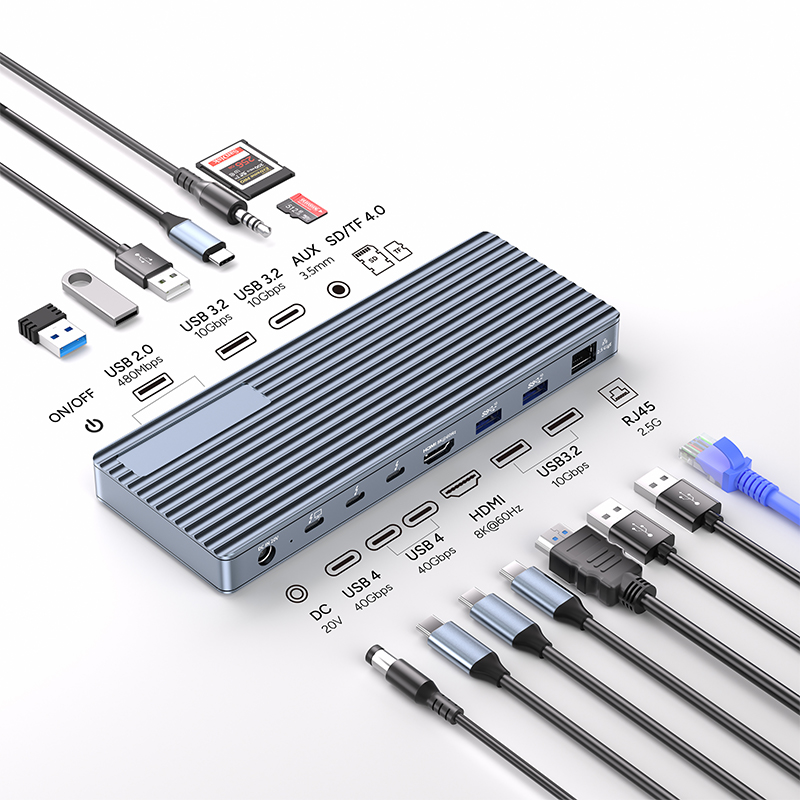 |
13 in 1 thunderbolt4 docking station with 3 x 40 Gbps Ports |
|
Specifications: Transfer Speed: 40Gbps (Compatible with USB4/3.2/3.1/3.0/2.0) 1x DC Power in 20V, Device host PD 85W 2xType C, TBT/USB4 40gbps interface downward compatibility (Video output up to Single 8K@30Hz or Dual 4K@60Hz orThree 4K@30Hz), power output up to 15W 1*HDMI 8K@60Hz video output 3* USB A 3.2 Gen2 (Max 10Gbps data transmission) 2xUSB A 2.0 (Max 480Mbps data transmission) 1xTF/Micro SD 3.0 ( Up to 104Mb/s) 1xSD/MMC 3.0 (Up to 104Mb/s) 1xAudio (3.5mm Audio&Mic ) 1xRJ45 Gigabit Ethernet,10M/100M/1000M |
Thunderbolt 3 or 4 Ports: High-Definition Dual Display Made Easy
Modern laptops with Thunderbolt 3 or 4 ports are ideal for multi-monitor configurations. The Thunderbolt 3 specification natively supports two 4K monitors at 60Hz, making dual display a breeze. Simply purchase a dual-monitor docking station, plug the laptop and monitor into the docking station, and enjoy a high-definition, smooth multi-screen experience. Even if some docking stations only have one built-in HDMI port or DisplayPort port, you can still connect a second monitor smoothly with a USB-C to HDMI cable or USB-C to DisplayPort cable.
USB-C port: flexible adaptation to meet diverse needs
Don't worry if you don't have a Thunderbolt 3 port, the USB-C interface can also achieve dual-monitor connection. Many USB-C docking stations on the market support connecting two 4K monitors, so even if your device is relatively ordinary, it can easily meet your needs. You can even use a mobile hub to get rid of the constraints of a large docking station and make it easy to carry. However, it should be noted that due to the bandwidth of USB-C, the display refresh rate will be limited to 4K 30Hz, which is slightly inferior to Thunderbolt 3's 60Hz in terms of picture smoothness.
Master it in one article! A complete guide to buying a Thunderbolt dock
M.2 SSDs: Form Factors, Types, and a Selection Guide
Leave a Reply
Your email address will not be published.Required fields are marked. *