By PURPLELEC | 10 May 2025 | 0 Comments
Streamlabs: An all-around assistant for console players to create professional live broadcasts
In the digital age where game live streaming is popular, whether it is Xbox, PS5 players or enthusiasts of other console platforms, they are eager to share the fun of games and show superb skills through live streaming. As a popular live streaming tool, Streamlabs is becoming a powerful assistant for many console players to achieve professional-level live streaming. It breaks the limitations of console live streaming, enriches functions and convenient operations, and opens up a new live streaming experience for players.

I. Streamlabs: A star tool in the live streaming industry
Live streaming has become an important form of digital content, especially for gamers, it is crucial to have a suitable live streaming tool. Streamlabs is built on OBS, but has a more user-friendly interface. It is a popular choice for gamers and content creators to live stream on platforms such as Twitch and YouTube. It is like a live streaming treasure chest, with built-in easy-to-use overlays, chat integration, widgets and real-time reminders. Even novices with no technical knowledge can easily create professional-level live streaming effects. From live streaming operations to audience interaction to effect tracking, Streamlabs provides a one-stop solution to help all kinds of anchors take live streaming content to new heights.
II. Necessary preparations before live streaming
To do your job well, you must first sharpen your tools. Before starting your Streamlabs live streaming journey, you need to prepare the following equipment:
Powerful computer: To run Streamlabs, especially to live stream high-quality game images, you need a PC or laptop with a powerful CPU and at least 16GB of RAM.
Game console and capture card: If you plan to live stream from Xbox, PlayStation, or Switch, in addition to the console, you also need a compatible capture card, such as the Elgato HD60 series, to transfer the console image to your computer.
Audio and video equipment: Microphones and webcams are important media for establishing emotional connections with the audience. Even basic models can significantly improve the quality of live streaming.
Stable network: Make sure the upload speed meets the standard. 720p live streaming requires at least 5Mbps, and 1080p and higher resolutions require more than 10Mbps.
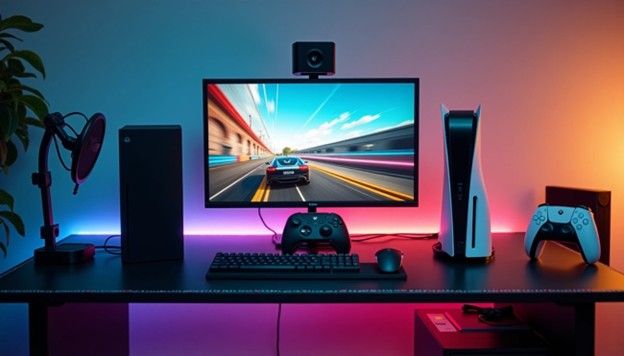
III. Xbox Live: From Basic to Advanced
(I) Convenience and Limitations of Direct Connection to Twitch App
Xbox players can quickly start live streaming through the Twitch app: open the Twitch app on the console, enter the activation code through twitch.tv/activate to log in and bind the account, set the resolution, microphone and camera, start the game and click Live. However, this method has many limitations. The custom overlay and alert functions of Streamlabs cannot be used. The live title and description also need to be manually modified through the browser or mobile app. The audio control is also relatively basic, which is more suitable for live streaming beginners.
(II) Professional gameplay of capture card connection
To give full play to the advantages of Streamlabs, the capture card is the key. After preparing the capture card, the computer with Streamlabs installed, two HDMI cables and a USB cable, follow the steps below:
1. Connect the Xbox video output to the capture card input with an HDMI cable;
2. Use another HDMI cable to connect the capture card output to the TV/monitor so that you can continue to watch the game;
3. Connect the capture card to the computer via a USB cable;
4. Open Streamlabs on the computer, add "Video Capture Device", and select the capture card;
5. Use Streamlabs's overlay, alert and other functions to adjust the live broadcast layout, and finally click "Start Live Broadcast" to stream the exciting game screen to platforms such as Twitch and YouTube.
(III) Recommended settings for optimizing live streaming
To achieve the best live streaming effect, refer to the following settings: select 1080p 30fps or 720p 60fps for resolution; 4500–6000 kbps for 1080p and 3000–4500 kbps for 720p; select NVENC (NVIDIA GPU) or x264 for encoder according to CPU performance; set the audio bitrate to 160 kbps; at the same time, design simple overlays, create scene switching, and add interactive alerts, and test before live streaming to ensure audio and video synchronization.
IV. PS5 live streaming: diverse choices and skills
(I) Pros and cons of PS5 direct streaming
PS5 has a built-in "share" function that supports direct streaming and is easy to operate, but it cannot use the rich features of Streamlabs, which is suitable for amateur anchors who pursue convenience. For creators who want to improve the quality of live streaming, connecting to computer configuration becomes an inevitable choice.
(II) Detailed steps for connecting the capture card
To combine PS5 with Streamlabs, you need a capture card, an HDMI cable, and a computer with Streamlabs Desktop installed. The specific steps are as follows:
1. Install the capture card on the PC motherboard (PCIe) or connect via USB;
2. Connect the PS5 to the capture card input port with an HDMI cable, and then connect the capture card output to the TV/monitor;
3. Add the capture device as a video source in Streamlabs Desktop;
4. Disable HDCP in the "System Settings" > "HDMI" option of the PS5. In addition, you can also mirror the PS5 screen to the computer through PS Remote Play, and then use the Streamlabs window capture function for live broadcasting.
(III) Audio routing and overlay settings
The audio settings of PS5 live broadcast are key. PCIe capture cards can reduce audio latency. Headphone users can connect the controller, capture card, and headphones through the Chat Link cable, and configure audio input capture in Streamlabs. In terms of overlay effects, you can add custom graphics through Streamlabs, and use integrated tools or template libraries to create overlays that meet the platform requirements in PNG/JPG format, with transparent background, appropriate size, and file size not exceeding 10MB.
V. Multi-platform live broadcast: one-click to reach more viewers
Streamlabs' multi-channel streaming function is a highlight, which can help creators live broadcast simultaneously on multiple platforms such as Twitch, YouTube, Kick and TikTok Live with one click. When connecting to each platform, you need to follow specific steps, such as Twitch integration requires adding a target in the Streamlabs desktop version settings and completing identity authentication; YouTube requires linking an account and waiting for channel verification, etc. At the same time, using Streamlabs' dual output function and overlay tools, you can design appropriate live broadcast images and visual effects according to the characteristics of different platforms, expand the audience range, and enhance the influence of live broadcasts.
VI. Summary: Start a new journey of professional live broadcasting
Streamlabs provides professional-level live broadcast solutions for console players such as Xbox and PS5 with its powerful functions. Whether it is the convenient integration of Xbox or the diverse connection methods of PS5, they can meet the needs of different players. At the same time, multi-platform live broadcasts and personalized settings help anchors attract more viewers. But it should be noted that high-quality audio and video equipment is also the key to improving the quality of live broadcasts. Whether you are a novice in the live broadcast industry or a senior anchor who hopes to break through the bottleneck, with the help of Streamlabs and the right equipment, you can start your own new journey of professional live broadcasting.
Hard Drive Enclosure for M.2 NVMe & SATA with USB 3.2 & 10Gbps Transmission
PS5 capture card purchasing guide: Unlock high-quality game live streaming and recording experience
Leave a Reply
Your email address will not be published.Required fields are marked. *