Have you ever been frustrated by the single USB-C port on your laptop? Wanting to connect a monitor, transfer files, and link to a network all at once, but unsure how to proceed? Don’t worry—today we’ll explore three essential tools to unlock the full potential of your USB-C port.
From "All-in-One Port" to "Universal Hand"
Once upon a time, we struggled with USB ports that required careful orientation. Now, USB-C has become the new universal language of digital devices with its reversible design. From smartphones to ultrabooks, power banks to car infotainment systems, this small oval port is quietly unifying our digital lives.
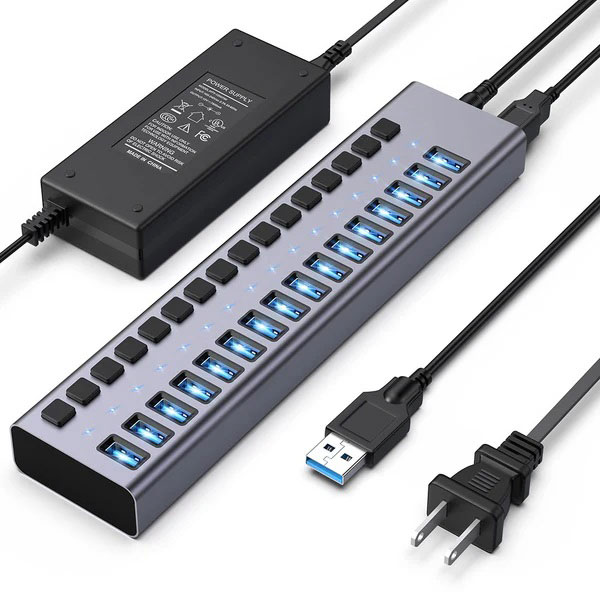
But a challenge arises—as devices get thinner and ports become fewer, how do we connect to a world of peripherals? This is where USB-C hubs, docking stations, and adapters step in. They act as "external gear" for your device, transforming a single USB-C port into a multifunctional hub.
Meet the Three Connection Heroes
USB-C Hub: Your Portable Connection Assistant
Imagine being on a business trip: in a hotel room, you need to connect a USB drive, Ethernet, and project for a meeting. A palm-sized USB-C hub solves all these problems. Compact enough to slip into a laptop bag, it instantly expands into three to five common ports, perfectly meeting mobile office needs.
USB-C Docking Station: The Engine of Your Desktop Workstation
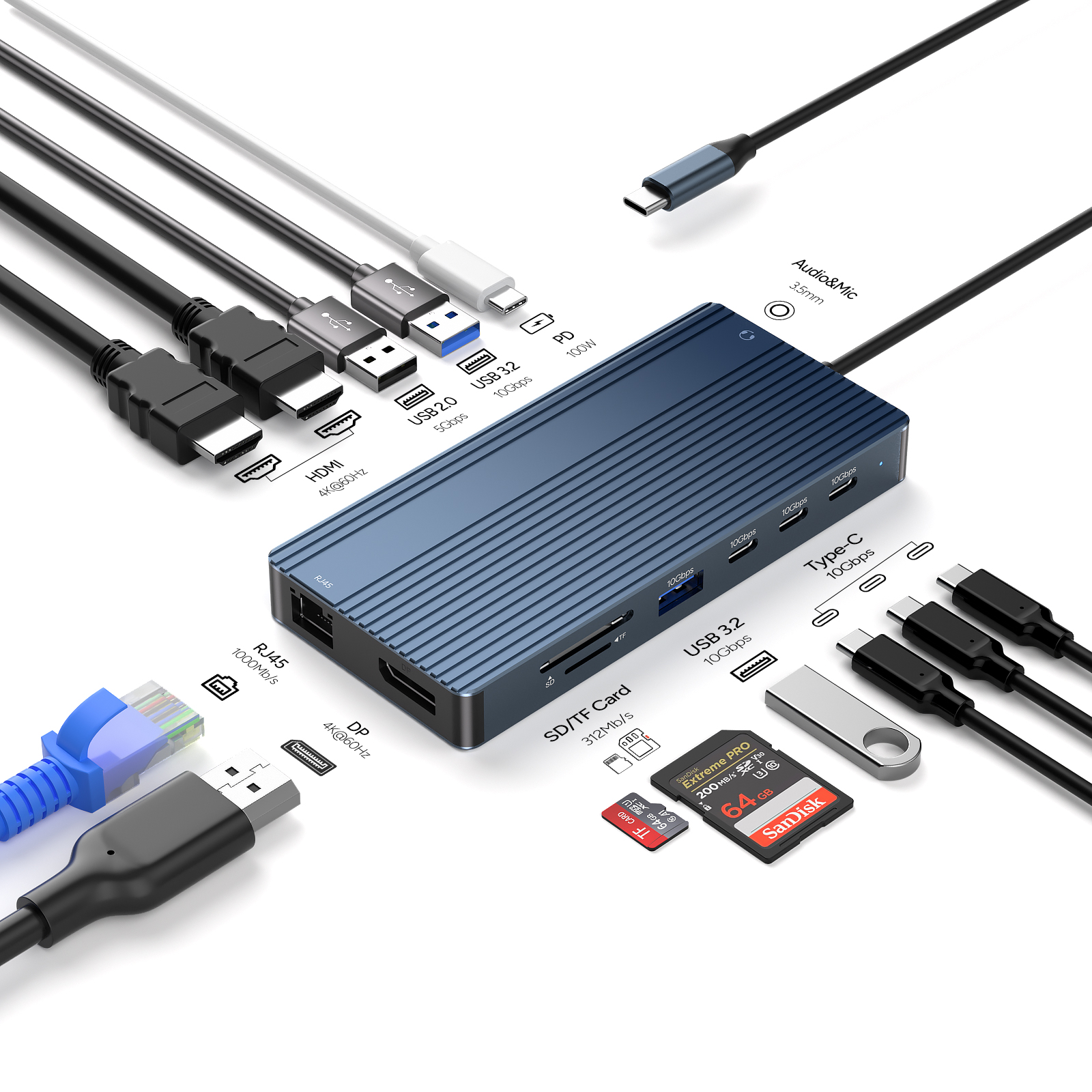
If you want to turn your laptop into a desktop replacement, a docking station is your best bet. These typically offer richer interfaces—multiple USB-A, HDMI, Ethernet, even SD card readers and audio jacks. Premium models support up to 100W power delivery, allowing you to charge your laptop via a single cable while connecting all peripherals. Thunderbolt technology even enables multi-4K display setups.
USB-C Adapter: The Precision Tool for Specific Tasks
Sometimes, you only need to solve one specific problem—like connecting a USB-C laptop to an HDMI projector in a conference room or linking to a wired network. Here, a dedicated adapter is most practical. It focuses on one function, is budget-friendly, and highly portable.
How to Choose?
Think of it this way:
A hub is like a Swiss Army knife for everyday small tasks
A dock is like a professional toolkit for a complete workstation
An adapter is a specialized tool for a single purpose
Price-wise, adapters are usually the most affordable, hubs sit in the middle, and docks command a premium due to their robust features. The key isn’t buying the most expensive—it’s choosing what fits your use case best.
Real-World Application Tips
Office Efficiency Station
Financial analyst Xiaowang needs to monitor multiple data dashboards daily. With a USB-C dock, his ultrabook connects to two external monitors for real-time market data and transaction processing. Keyboard, mouse, and Ethernet all connect through the dock, keeping his desk tidy. At day’s end, a single USB-C cable pull transforms it back to mobile mode.
Creative Workhorse Support
Video creator Xiaolin frequently transfers 4K footage between devices. Her USB-C hub connects a camera card, external SSD, and color calibrator simultaneously, with USB 3.2 speeds eliminating transfer waits. For review, she uses the hub’s HDMI to connect to a professional monitor.
Mobile Office Essential
Consultant Lao Zhang is always on the road. In his bag, a lightweight USB-C hub ensures he can connect to projectors, Ethernet, and client USB drives anywhere. Power Delivery even charges his laptop during presentations to avoid mid-meeting shutdowns.
Buying Guide: Avoid Common Pitfalls
Step 1: Confirm Compatibility
Check your device’s supported protocols before buying. Apple users, for example, should verify Thunderbolt compatibility. Video output support varies by device—check manufacturer websites.
Step 2: Identify Real Needs
Don’t be dazzled by interface counts. Ask: Which devices do I actually use? Need multiple displays? Ensure the device supports simultaneous output. Frequent large file transfers? Opt for higher USB speeds.
Step 3: Check Core Specs
Power delivery: At least 60W for laptop charging
Video: 4K@60Hz is now standard
Data speed: USB 3.2 Gen2’s 10Gbps covers most needs
Network: Gigabit Ethernet is vital for video calls
Step 4: Balance Portability vs. Performance
If you commute daily, weight and size matter. For fixed office use, prioritize interface count and features.
The Future: Evolution of USB-C
Next-gen USB-C is on the horizon. Optical transmission will shatter current speed limits, enabling faster, more stable data transfer. Smart power management will allow devices to share power automatically—imagine your laptop charging your phone. Wireless USB-C is also in development, hinting at truly wireless high-speed connections.
Security enhancements are equally promising. Hardware-level encryption will safeguard data, especially in public spaces. Audio quality improvements will meet professional creative needs, making USB-C a true all-rounder.
Embrace a More Efficient Digital Life
Choosing the right USB-C accessory is about embracing a more efficient lifestyle. It breaks physical limits, enabling seamless transitions between scenarios. Whether you’re a creative chasing peak performance, a mobile professional needing flexibility, or a home user enjoying digital entertainment—this ecosystem has your ideal solution.
Technology’s purpose isn’t stacking complex specs—it’s serving human life. The evolution of USB-C and its accessories perfectly embodies this philosophy. Now’s the time to find the perfect "external gear" for your device.