Thunderbolt 3, Thunderbolt 4, USB4, and standard USB-C ports can all use the same USB-C connector. Therefore, the shape of the port alone cannot tell you what your laptop supports.
The quickest way to find out is to check the symbol beside the port, look up the exact laptop specifications, and confirm the hardware in Windows or macOS. Of these methods, the manufacturer’s specification for the exact computer model is usually the most reliable Thunderbolt checker.
How to Check If Your Laptop Has Thunderbolt
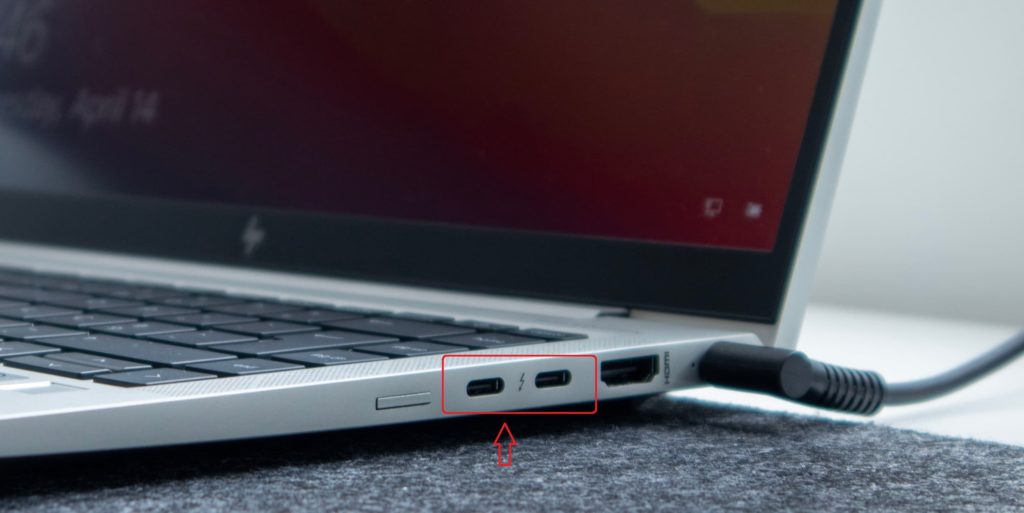
Check the port: A Thunderbolt port is commonly marked with a lightning-bolt symbol beside the USB-C connector. However, some manufacturers do not label every compatible port, and the symbol usually does not identify whether it is Thunderbolt 3 or Thunderbolt 4.
Check the laptop specifications: Find the complete model or product number and search for it on the manufacturer’s website. Under “Ports,” “Input/Output,” or “Connectivity,” look for Thunderbolt 3, Thunderbolt 4, or USB4. If the specification only says “USB-C,” Thunderbolt support is not guaranteed.
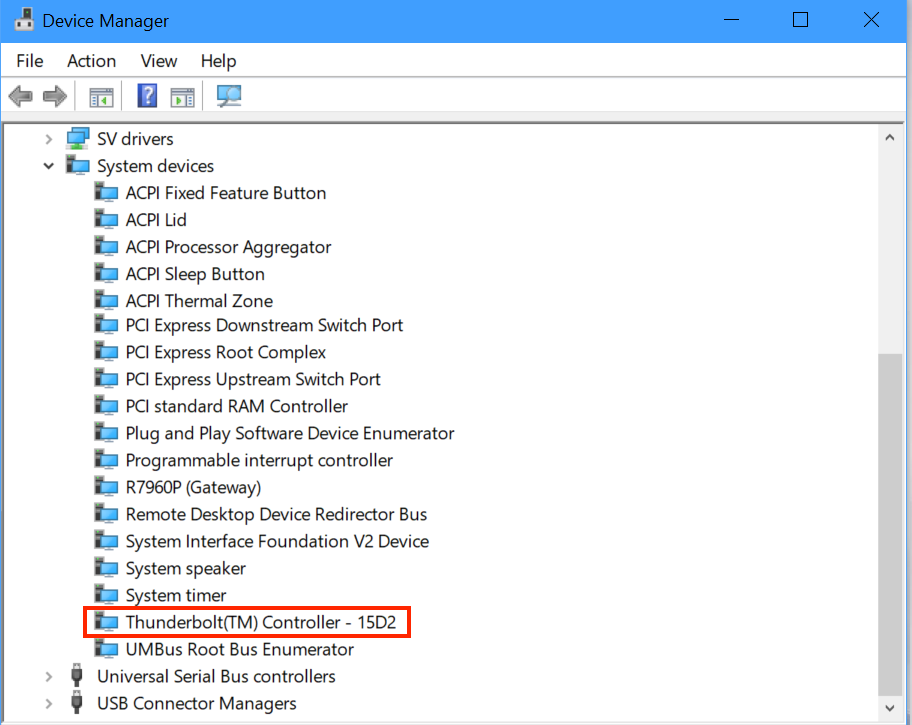
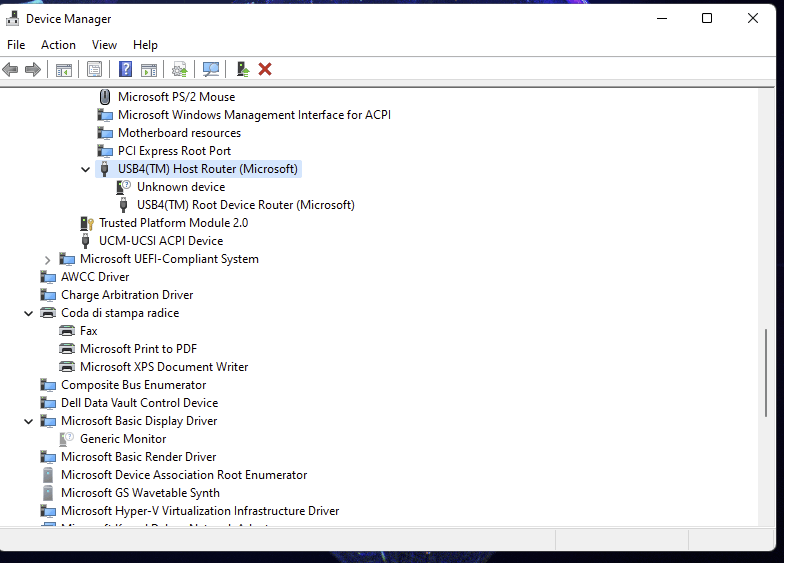
Check on Windows: Press Windows Key + X, open Device Manager, and expand System devices. A compatible computer may display a Thunderbolt controller, USB4 host router, or similarly named device. You can also search for Thunderbolt Control Center. On supported Windows 11 computers, USB4 information may appear under Settings > Bluetooth & devices > USB.
If nothing appears, the controller may need a driver, may only appear when a device is connected, or may be disabled in BIOS or UEFI. Always compare the result with the official laptop specification.
Check on a Mac: Open Apple menu > About This Mac > More Info > System Report, and look for Thunderbolt/USB4 under Hardware. You can also use the exact Mac model to check Apple’s technical specifications.
How Do I Know If I Have Thunderbolt 3 or 4?
Thunderbolt 3 and Thunderbolt 4 both use USB-C connectors and both support connections up to 40Gbps. The port shape and lightning-bolt symbol may not identify the generation.
Thunderbolt 4 is not simply a faster version of Thunderbolt 3. Its main difference is that it has stricter minimum requirements for data performance, display support, accessories, security, and certification.
USB-C only describes the connector. USB4 is a connectivity specification whose supported speed and features can vary by computer. Thunderbolt 3 supports connections up to 40Gbps, while Thunderbolt 4 requires a 40Gbps connection and more consistent minimum capabilities.
If you are asking, “Does my laptop have Thunderbolt 4?”, check the specification for the exact laptop model. Do not determine the Thunderbolt generation only from the processor or the appearance of the port.
Is USB4 Compatible With Thunderbolt 3?
USB4 incorporates technology contributed from the Thunderbolt protocol and can support interoperability with Thunderbolt 3 devices. However, the USB4 name alone does not confirm every Thunderbolt feature on every computer.
Before connecting Thunderbolt 3 products—such as a dock, storage enclosure, or eGPU to a USB4 laptop, check whether the manufacturer explicitly lists Thunderbolt 3 compatibility, PCIe support, or the required display capabilities.
The connection will operate according to the least capable component, including the laptop, cable, dock, and peripheral. A Thunderbolt dock connected to a basic USB-C port may provide some USB functions while high-speed storage, multiple displays, or PCIe devices fail to work.
Why Is My Thunderbolt Port Not Detected?
If the official specification confirms Thunderbolt support but a device is not detected, connect it directly to the laptop and use the supplied or a certified Thunderbolt cable.
Install the latest BIOS, chipset, Thunderbolt, graphics, and USB4 updates from the laptop manufacturer. Check whether the device needs approval in Thunderbolt Control Center and whether Thunderbolt has been disabled in BIOS or UEFI.
A standard USB-C charging cable may fit the port but still lack the data bandwidth or video capability required by a Thunderbolt device.
Choosing a Compatible Thunderbolt Dock
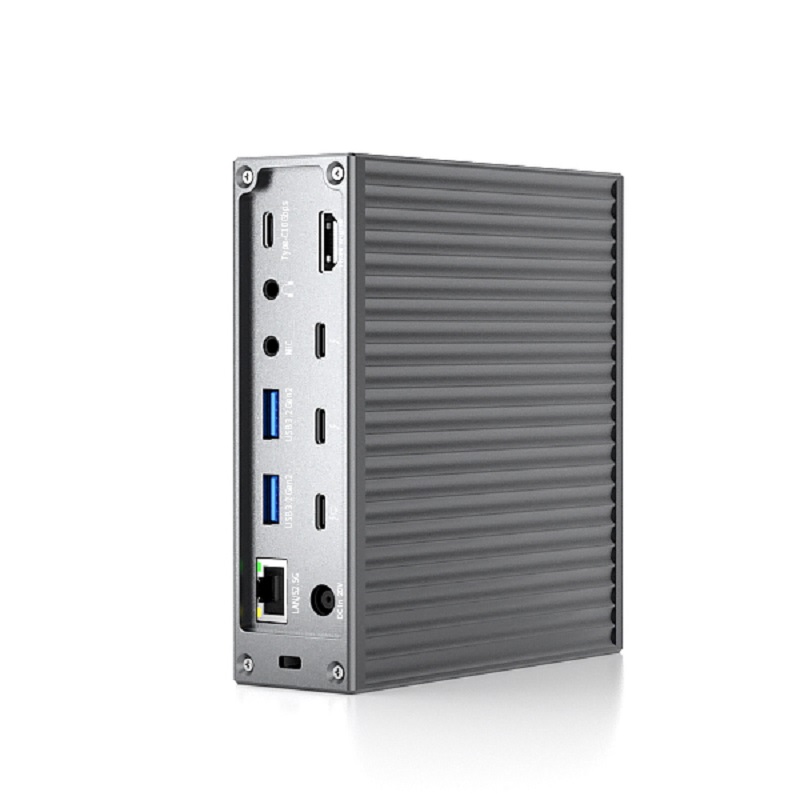
Before choosing a dock, confirm the laptop’s Thunderbolt generation, supported monitors, charging requirements, operating system, and cable specification.
For example, the PURPLELEC PEC-DS020 20-in-1 Thunderbolt 4 Docking Station provides a 40Gbps host connection, up to 90W laptop charging, downstream Thunderbolt 4 ports, multiple display connections, USB data ports, 2.5Gb Ethernet, and memory-card slots.
Actual display quantity, resolution, charging power, and data performance depend on the computer, operating system, graphics hardware, driver configuration, cable, and connected devices.
A Thunderbolt 4 dock can often connect to a Thunderbolt 3 laptop, but the functions will be limited by the older computer. Possible limitations include fewer displays, lower resolutions, reduced charging power, or different security behavior.
Confirming the host port before choosing a dock, cable, display, or storage device helps prevent compatibility problems and avoids paying for functions the computer cannot support.









