By PURPLELEC | 24 July 2025 | 0 Comments
How to Connect an Apple LED Cinema Display to a New Mac Using a USB-C to Mini DisplayPort 4K Adapter
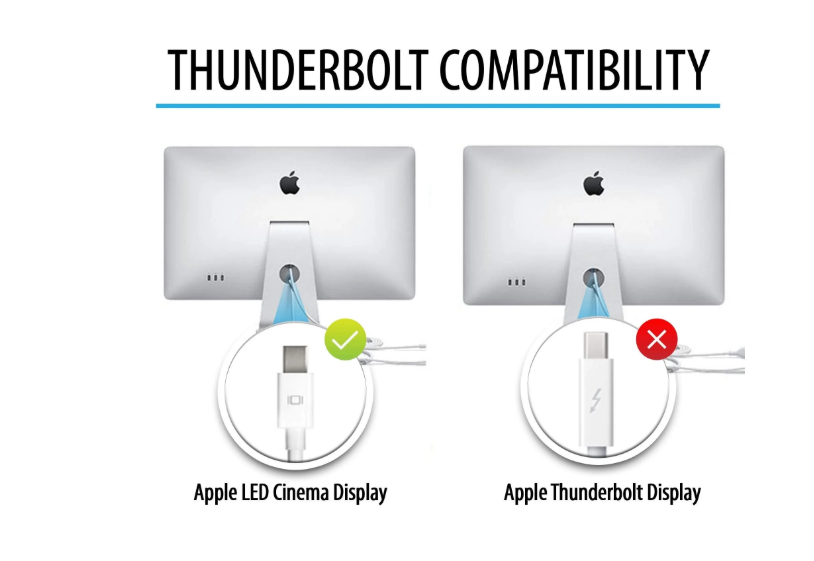
Apple LED Cinema Display stands out as an exceptional piece of hardware, renowned for its stunning picture quality and stylish design. However, due to the lack of a native Mini DisplayPort interface, connecting this older monitor to newer MacBook models equipped with USB-C ports has proven to be quite a challenge. Fortunately, the USB-C to Mini DisplayPort 4K adapter offers a seamless solution, making the connection dilemma a thing of the past.

List of Required Items
1. Apple LED Cinema Display
Ensure that the monitor is in good working condition and that its Mini DisplayPort cable is intact. This is the fundamental prerequisite for the connection.
2. USB-C to Mini DisplayPort 4K Adapter
This adapter plays a crucial role as it effectively bridges the gap between the older Mini DisplayPort standard and the USB-C ports on newer MacBooks, enabling a smooth connection.
3. MacBook with USB-C Port
There is a wide range of compatible models, including MacBook Air and MacBook Pro (2016 and later), as well as MacBook (2015 and later). Be sure to confirm whether your device is compatible before making a purchase.
4. Power Supply for the Monitor
The Apple LED Cinema Display requires a power connection to operate, which is a necessary condition for its normal functioning.
Step-by-Step Connection Guide
1. Prepare Your Workspace
To avoid any potential issues during the setup process, make sure that both the MacBook and the Cinema Display are turned off.
2. Connect the USB-C to Mini DisplayPort Adapter
Firmly insert the USB-C end of the adapter into one of the USB-C ports on the MacBook.
Connect the Mini DisplayPort cable from the Cinema Display to the Mini DisplayPort input on the adapter.
3. Power On the Monitor
Plug the Cinema Display into a power outlet and confirm that it is turned on.
4. Start Up the MacBook
After completing all the connections, turn on the power of the MacBook. The monitor will automatically detect the connection and extend or mirror the screen according to your macOS settings.
Troubleshooting Tips
No Display Output
If you encounter a situation where there is no display output, first check whether the adapter and cables are securely connected. Also, verify that the power connection of the Cinema Display is normal. If the problem persists, try restarting the MacBook.
Advantages of Choosing the Adapter
Why should you opt for the USB-C to Mini DisplayPort 4K adapter? The adapter offered by PUrplelec has distinct advantages. It features an aluminum casing, which makes it sturdy and durable, ensuring long-lasting quality. Moreover, it supports high-resolution output of up to 4K, guaranteeing a stable and reliable connection between your MacBook and Apple LED Cinema Display, allowing you to enjoy a high-quality visual experience.
HDMI Splitter: Ideal for Multi-Screen Display
How to Connect an Apple Cinema Display to a USB-C Mac with USB-C to DVI Adapter
Leave a Reply
Your email address will not be published.Required fields are marked. *