By PURPLELEC | 15 November 2024 | 0 Comments
Adapters for the Thunderbolt or USB-C port on your Mac
Learn about the various adapters available for Macs with Thunderbolt 5, Thunderbolt 4, Thunderbolt 3, or USB-C ports.
Please note that the adapters and cables mentioned in this article are designed for Mac computers with Thunderbolt 5, Thunderbolt 4, Thunderbolt 3, or USB-C ports. They will not work if your Mac has only one port and does not support Thunderbolt connections.
When connecting a display, if you are using a USB-C or Thunderbolt adapter, it needs to support the DisplayPort Alt Mode, Thunderbolt 3, or Thunderbolt 4 standards.
To find a cable or adapter that is compatible with your Mac, check the type of connector that plugs into the end of the cable on your computer.
Thunderbolt 3 , Thunderbolt 4 or Thunderbolt 5

If you're using a Thunderbolt 3, Thunderbolt 4, or Thunderbolt 5 cable, such as an Thunderbolt Pro Cable with your display or other device, it will connect to your Mac without an adapter.
USB-C

If you're using a USB-C cable, such as the 60W USB-C Charge Cable with your device, it will connect to your Mac without an adapter.
USB-A

If you're using a USB-A cable with your device, use a USB-C to USB-A adapter like the Apple USB-C to USB Adapter, the USB-C Digital AV Multiport Adapter, or the USB-C VGA Multiport Adapter to connect your device to your Mac.
Ethernet

If you're using an Ethernet cable with your device, use a USB-C to Ethernet adapter, such as the Purplelec USB-C to 2.5 Gb Ethernet Adapter. If your Mac has an Ethernet port, you can connect your Ethernet cable without an adapter.
Thunderbolt or Thunderbolt 2

If you're using a Thunderbolt or Thunderbolt 2 cable with Thunderbolt Display or other device, use the Thunderbolt 3 to Thunderbolt 2 Adapter.
Mini DisplayPort

If you're using a Mini DisplayPort cable with your display, use a USB-C to Mini DisplayPort cable. Check with its manufacturer for compatibility with your Mac and display model.
HDMI

If you're using an HDMI cable with your display, use the USB-C Digital AV Multiport Adapter or other USB-C to HDMI adapter or cable. If your Mac has an HDMI port, you can connect your display to your Mac without an adapter.
DisplayPort
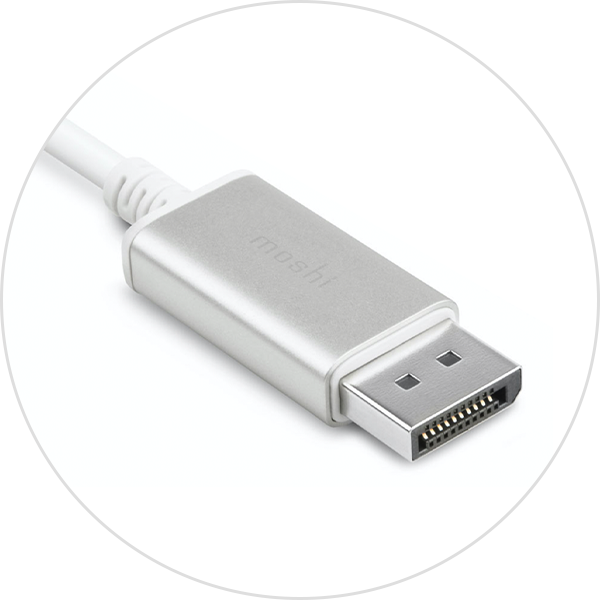
If you're using a DisplayPort cable with your display, use a USB-C to DisplayPort adapter or cable.
VGA
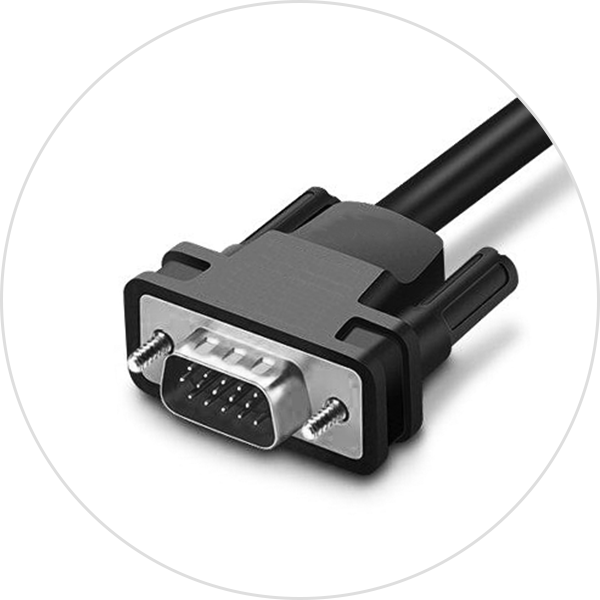
If you're using a VGA cable with your display, use a USB-C to VGA adapter, such as the USB-C VGA Multiport Adapter.
DVI

If you're using a DVI cable with your display, use a USB-C to DVI adapter or cable. Check with its manufacturer for compatibility with your Mac and display model.
Comparative Analysis of USB Technology Evolution and Thunderbolt™ 4
Purplelec helps analyze USB-C port technology and optimize docking station deployment
Leave a Reply
Your email address will not be published.Required fields are marked. *