By PURPLELEC | 12 June 2025 | 0 Comments
All You Need to Know About MacBook Adapters: Choose the Right Accessories for Seamless Use
The new MacBook is renowned for its minimalist design, featuring only two Type-C ports. While this design appears sleek in daily use, it also presents some connectivity challenges. For instance, when we want to connect an HDMI external display to project our presentations onto a larger screen, we need additional devices to make it happen, and adapters are the key to solving this problem.
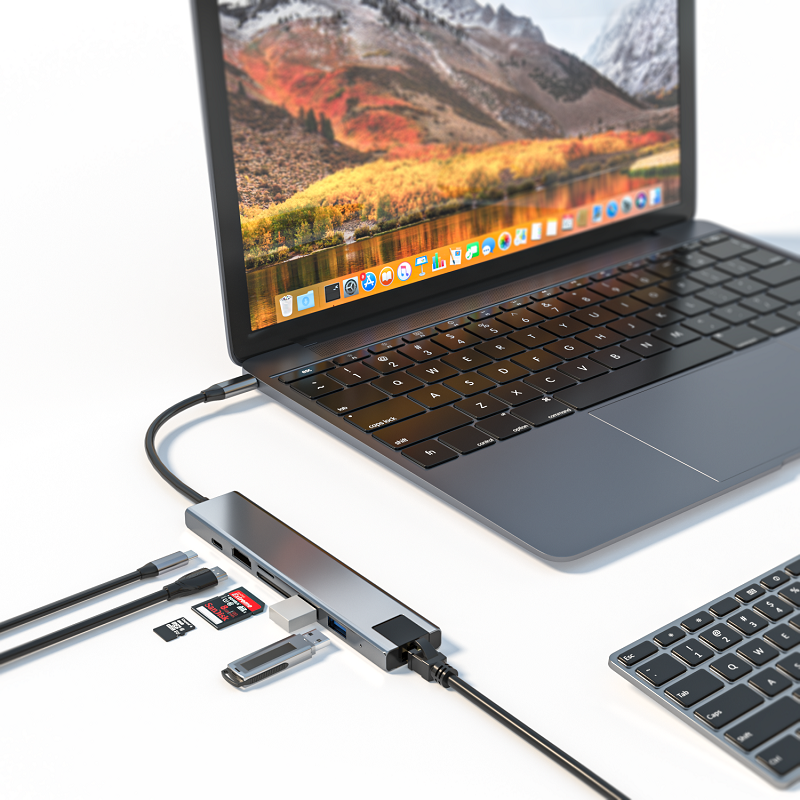
Faced with a vast array of MacBook adapters on the market, which come in various shapes and sizes, choosing the right one can indeed be overwhelming. It takes time and effort to understand the differences between them and pick out the most suitable one. But don't worry, the following blog post will introduce you to various types of MacBook adapters available on the market in detail, helping you gain a deep understanding of their functions so that you can easily make a choice. After reading this article, you'll have a clearer understanding of MacBook adapters and be able to precisely select the appropriate one based on your actual needs.
What Are MacBook Adapters?
MacBooks usually come with power adapters and cables specifically designed for them. The main function of the power adapter is to convert the alternating current (AC) from the wall outlet into direct current (DC) to charge the Mac computer, ensuring that the device remains fully charged at all times.
For Mac computers equipped with MagSafe 2, their cables are cleverly designed. One end is a MagSafe 2 connector for connecting to the power adapter, while the other end is a USB-C connector that can be easily plugged into the MacBook.
If you need to replace the adapter or cable, make sure to purchase one that is compatible with your MacBook model. Here are the compatibility details for different power adapter models:
Apple 45W MagSafe 2 Power Adapter: It can be used with the following Mac computers:
MacBook Air (Retina display, 13-inch, 2018)
MacBook Air (13-inch, early 2015)
MacBook Air (11-inch, early 2015)
Apple 61W MagSafe Power Adapter: It is suitable for the following Mac computers:
MacBook Pro (15-inch, Retina display, Touch Bar, mid-2018)
MacBook Pro (13-inch, Retina display, Touch Bar, mid-2018)
MacBook Pro (15-inch, 2016)
MacBook Pro (13-inch, 2016, with four Thunderbolt 3 ports)
Apple 87W USB-C Power Adapter: It can be paired with the following Macs:
MacBook Pro (15-inch, 2017)
MacBook Pro (13-inch, 2017)

Why Do I Need an Adapter?
If you're new to Mac, you might wonder, "Why do I need an adapter?" In fact, adapters have a wide range of uses, and you may need them in the following situations:
Connecting to a Display: If you want to connect your MacBook to a display, TV, or projector, you'll need an adapter to establish a connection with other devices. Among them, HDMI and DVI adapters are the most common types.
Connecting to Ethernet: When you want to connect to a wired Ethernet network, an Ethernet adapter is essential.
Connecting to USB Devices: If you want to connect USB devices such as printers, scanners, or external hard drives to your MacBook, a USB adapter is a must-have.
Connecting to Firewire Devices: If you want to connect Firewire devices (such as external hard drives) to your MacBook, you'll need a Firewire adapter.
Functions of Each Adapter
MacBooks mainly have three types of adapters: MagSafe, USB-C, and Thunderbolt. Each type of adapter has different functions.
MagSafe: MagSafe power adapters are primarily used for charging MacBooks. In addition, there is also a MagSafe to MagSafe 2 converter to facilitate the conversion between different interfaces.
USB-C: USB-C adapters are highly versatile, capable of data transfer, Power Delivery (PD) charging, and video output. By connecting to the USB-C port on the MacBook, they enable connections with other devices such as external hard drives or printers. At the same time, they can also charge the MacBook, making them extremely practical.
Thunderbolt: Thunderbolt adapters also support data transfer, PD charging, and can connect to external displays. After inserting them into the Thunderbolt port on the Mac, you can connect other devices, such as Apple Thunderbolt displays, to meet diverse usage needs.

Which Adapter Should I Buy?
If you're using a MacBook and want to connect it to most other peripheral devices, you'll need an adapter. With so many types of adapters available on the market, how do you choose? Here's a quick guide to different types of adapters suitable for MacBooks:
USB-C Adapters: These adapters can expand the USB-C ports on your MacBook and are ideal for connecting to subsequent Type-C phones, tablets, and laptops, offering good compatibility.
Thunderbolt 3/4 Adapters: If you own Thunderbolt 3/4 devices, these adapters are the ideal choice for connecting to your MacBook. They provide faster data transfer speeds and can also charge your MacBook, enhancing usage efficiency.
Mini DisplayPort Adapters: If you need to connect Mini DisplayPort devices such as displays and projectors to your MacBook, you'll need this type of adapter.
DVI Adapters: For older displays, TVs, and other DVI devices, DVI adapters enable their connection to your MacBook.
So, which adapter should you buy? It mainly depends on what type of device you want to connect to your MacBook. If you hope for wider application and better compatibility, a USB-C adapter is always a good choice, as it can meet the connection needs of most devices.
Unlocking HDMI Connection Puzzles: A Comprehensive Analysis from Adaptation to Compatibility
HDMI Adapters: The Ultimate Guide to Connecting Devices
Leave a Reply
Your email address will not be published.Required fields are marked. *